Most problems in FilmMovieStudio come down to one of three things: a provider key or subscription issue, a model that isn't configured yet, or a workflow that paused and is waiting for you. This chapter shows you where to look — updates, your data, the logs — and gives a quick-fix table for the most common errors.
Updates
When a new version is released, a banner appears at the top of the app: Update available, with a Download button and a Dismiss button.
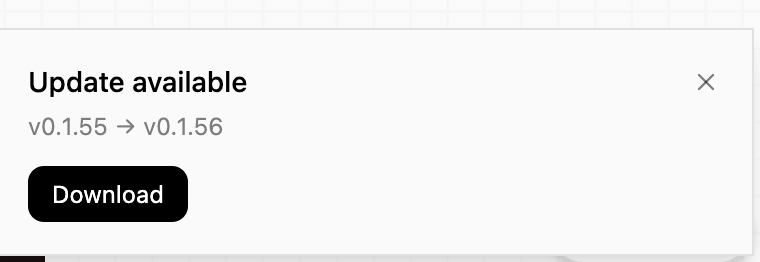
Download opens the official download page at filmotvor.ai/studio — always get installers there. Install the new version over the old one; your projects, settings, keys and license are untouched (they live in your user data folder, not inside the app). You can also check manually anytime from the Help/Guide tab or the download page.
Where your data lives
Everything you make stays on your computer. On macOS:
- App data (projects, media, database):
~/Library/Application Support/com.filmmovie.studio/— each project keeps its generated media underprojects/<id>/assets/. - Logs:
~/Library/Logs/com.filmmovie.studio/
Back up the app data folder and you've backed up everything. On Windows and Linux the equivalents live under your user profile's application-data directories.
Logs
The app writes one log file per category per day (for example agents-2026-07-05.log, media-…, render-…) into the logs folder above. When something fails, the matching log almost always contains the real error message from the provider — which is exactly what support needs.
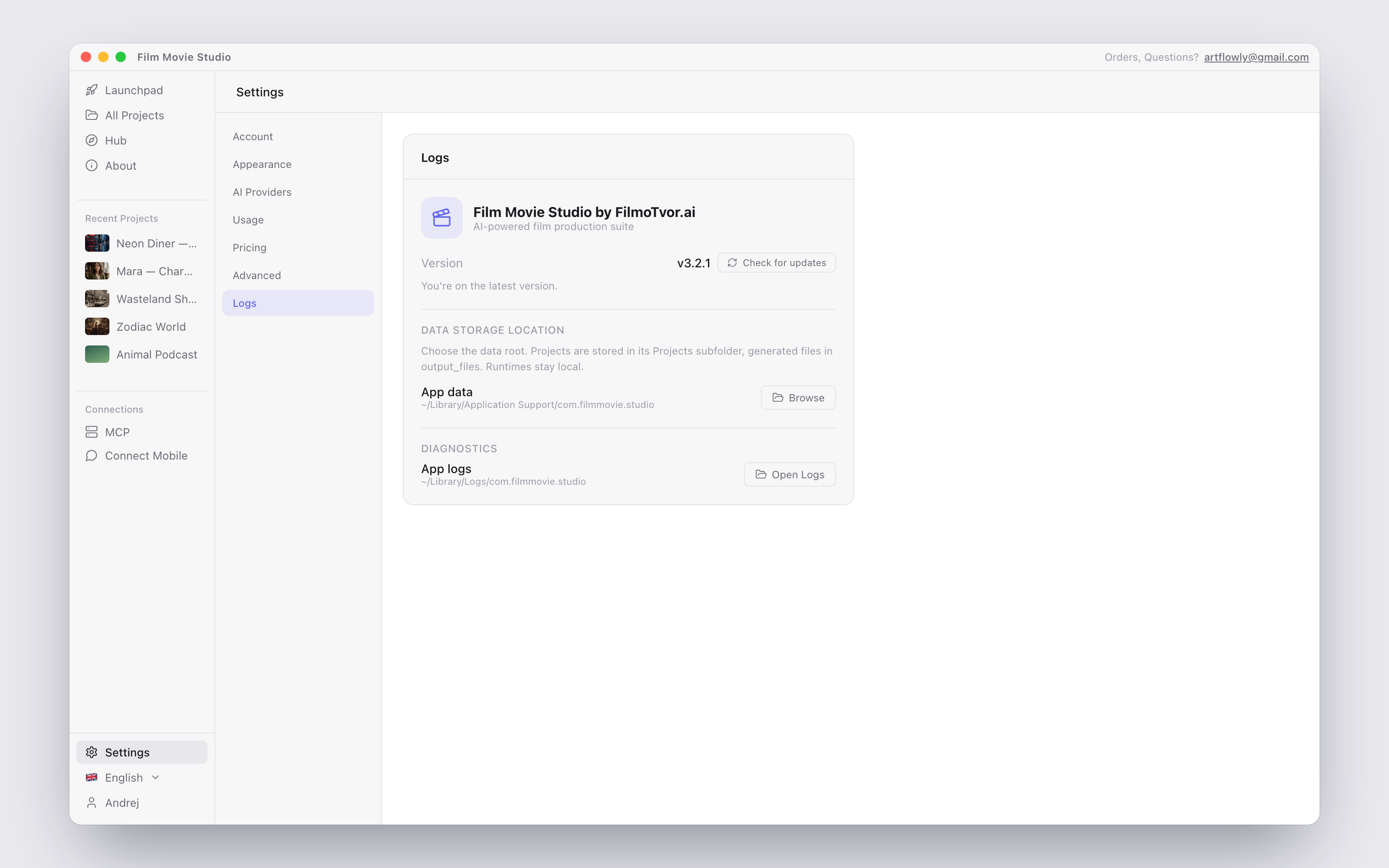
Some installs also show a Logs page inside Settings with the app version, the data storage location, an Open Logs button, and a Check for updates action.
Common problems
| Problem | Cause | Fix |
|---|---|---|
| "Set up a Script model" dialog blocks the chat | No text/LLM model is configured | Click Open AI Providers and add a key for a Script provider (Z.AI, OpenRouter, OpenAI or kie.ai), activate your subscription, or download the free local Qwen3 4B model in the Local tab |
| Generation fails with 401 / 403 | The provider key is invalid/expired, or your credits ran out | Re-Test the key in Settings → AI Providers → Keys; check your credit balance (Settings → Usage, or the provider's billing page) |
| "This model supports a maximum of N input image(s)" | Too many reference images attached to one generation | Remove extra references — keep only the most important ones (character/face refs first) or pick a model that accepts more inputs |
| The "FilmMovie Studio" provider row is blurred | No active subscription code | Subscribe at filmotvor.ai/studio, then paste the emailed code in Settings → Usage → Subscription → Activate |
| "kie.ai credits exhausted" toast | Your kie.ai balance hit zero mid-generation | Top up at kie.ai → Billing, then type /continue in the chat — the workflow resumes from the failed step |
| Workflow paused with "provider rate-limited the request" | Too many requests in a short time (HTTP 429) | Wait about 60 seconds, then type /continue |
| A model in the Models tab is grayed out | Its provider has no key, or (for Local models) it isn't downloaded | Add the key in the Keys tab, or click Download in the Local tab |
| Local models feel slow | Older Intel Macs run them slower than real time | Normal — use them for short narration/drafts, or switch that role to a cloud model |
| A skill stopped mid-run / app was closed | The session paused — progress is saved | Type /continue to resume, /status to see where it stands, /redo <what> to regenerate one part, /start-over to clear it |
| No sound effects model available | No SFX provider configured | SFX automatically falls back to your Music model — or add an ElevenLabs key |
| Chat microphone doesn't transcribe | No Speech-to-text model set | Settings → AI Providers → Models → Speech-to-text: add an OpenAI key or use the subscription's Whisper |
| Non-English prompts produce garbled text/speech | Affordable models work best in English | Pick a higher-quality model for other languages, or keep prompts simple |
| A model's Test button is stuck on the green tick | Test results are cached | Settings → AI Providers → Advanced → Reset tests |
| MCP server won't start | The port is already in use | Change Port in the MCP panel and enable again |
| Telegram bot won't start | Wrong or revoked bot token | Get a fresh token from @BotFather and save it again in Connect Mobile |
Getting help
- Ask the app first — type "how do I…?" in any chat; the assistant knows the studio and will walk you through it.
- Email support: artflowly@gmail.com. For bugs, attach the relevant log file from the logs folder above and mention your app version — that usually turns a back-and-forth into a one-reply fix.
- For licensing questions (moving machines, "license registered to another machine"), include your license key — you can copy it from Settings → Account.
Still stuck on setup? Re-read Getting Started, the provider walkthrough in Settings & AI Providers, and how the agent behaves in Chat & the Agent — most first-week issues are covered there.