Everything that shapes how FilmMovieStudio works for you lives in one place: Settings, reached from the sidebar or the account menu. This chapter walks through every section — your account, the look of the app, the AI providers and models that power generation, your subscription credits, and the advanced switches. If you haven't set up a provider yet, this is the chapter that gets your first generation working.
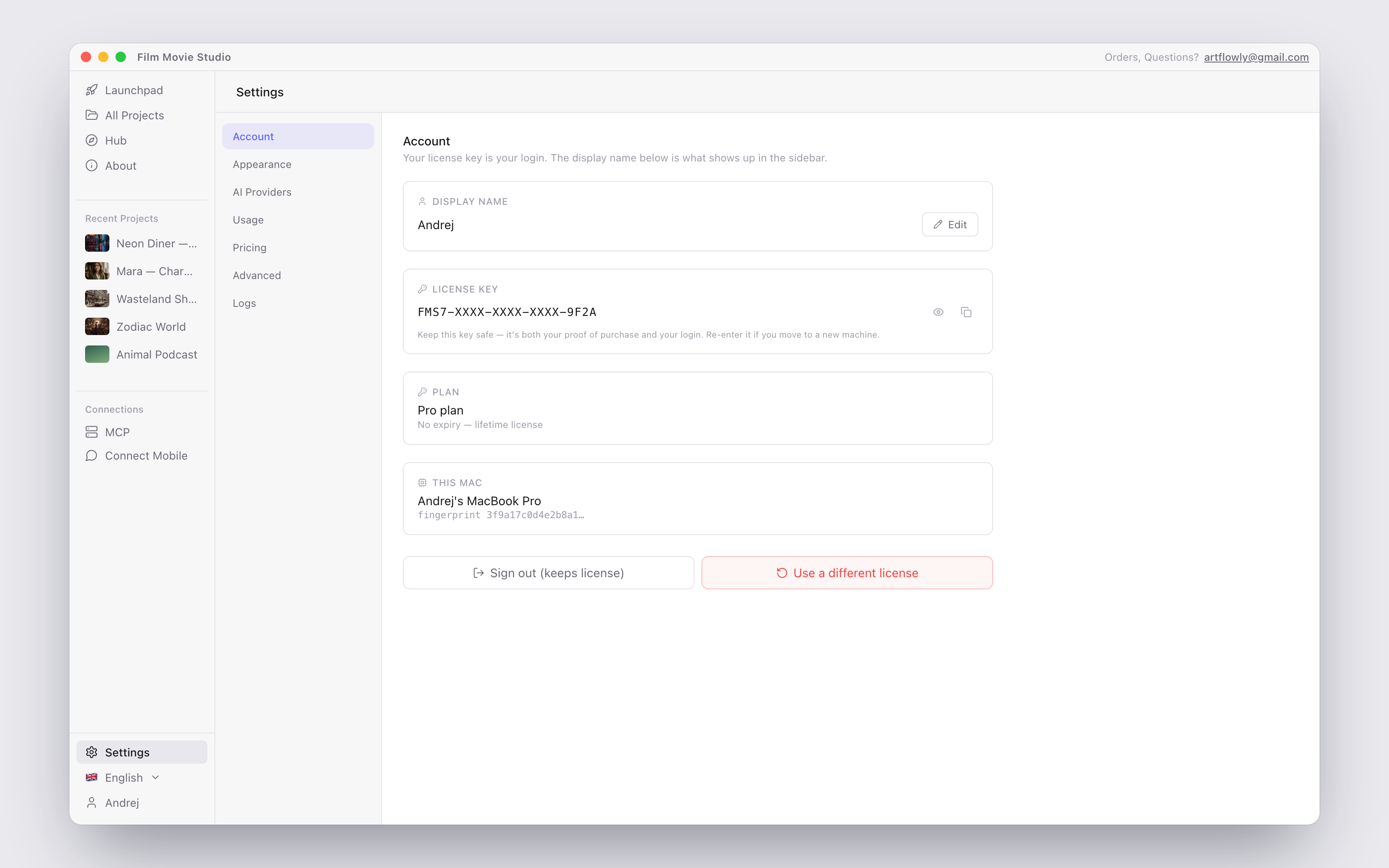
The left column lists the sections: Account, Appearance, AI Providers, Usage, Pricing, and Advanced.
Account
The Account section shows the identity you activated with in Getting Started:
- Display name — what appears in the sidebar. Click Edit to change it.
- License key — shown masked, with reveal and copy buttons. Keep it safe: it's both your proof of purchase and your login, and you'll re-enter it if you move to a new machine.
- Plan — your license plan and expiry (lifetime licenses show "No expiry — lifetime license").
- This Mac — the machine name and fingerprint this activation is bound to.
Two buttons at the bottom are deliberately separate: Sign out (keeps license) logs you out without touching the activation, while Use a different license removes the key from this machine so you can enter another one.
Appearance
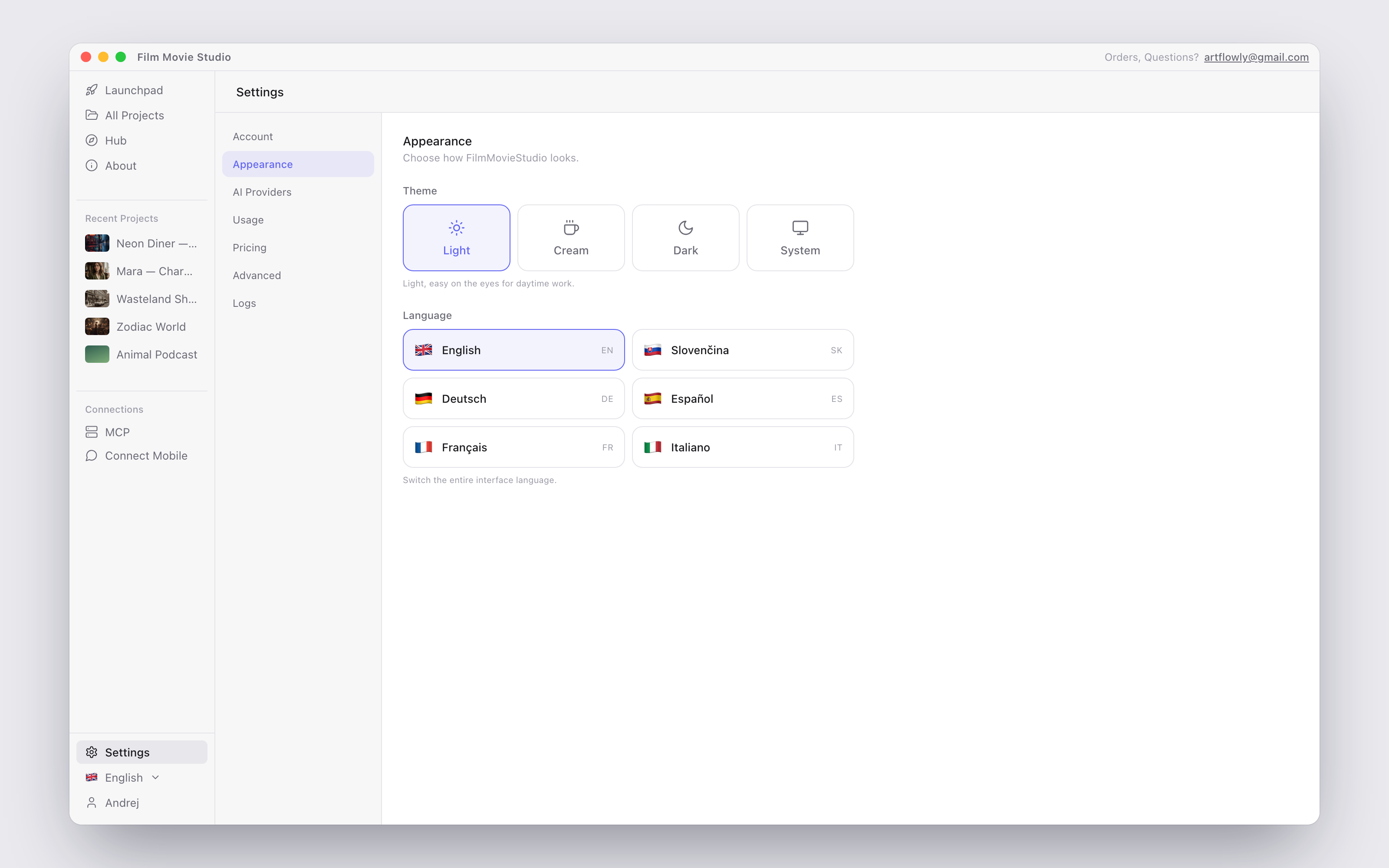
Pick a Theme — Light, Cream (a warm ivory look), Dark, or System (follows your OS setting) — and the interface Language. Six languages are available (English, Slovak, German, Spanish, French, Italian); switching applies instantly, no restart needed.
AI Providers
This is the engine room. FilmMovieStudio orchestrates external AI providers rather than generating media itself, and this section has four tabs: Keys, Models, Advanced, and Local.
Keys tab — connect your providers
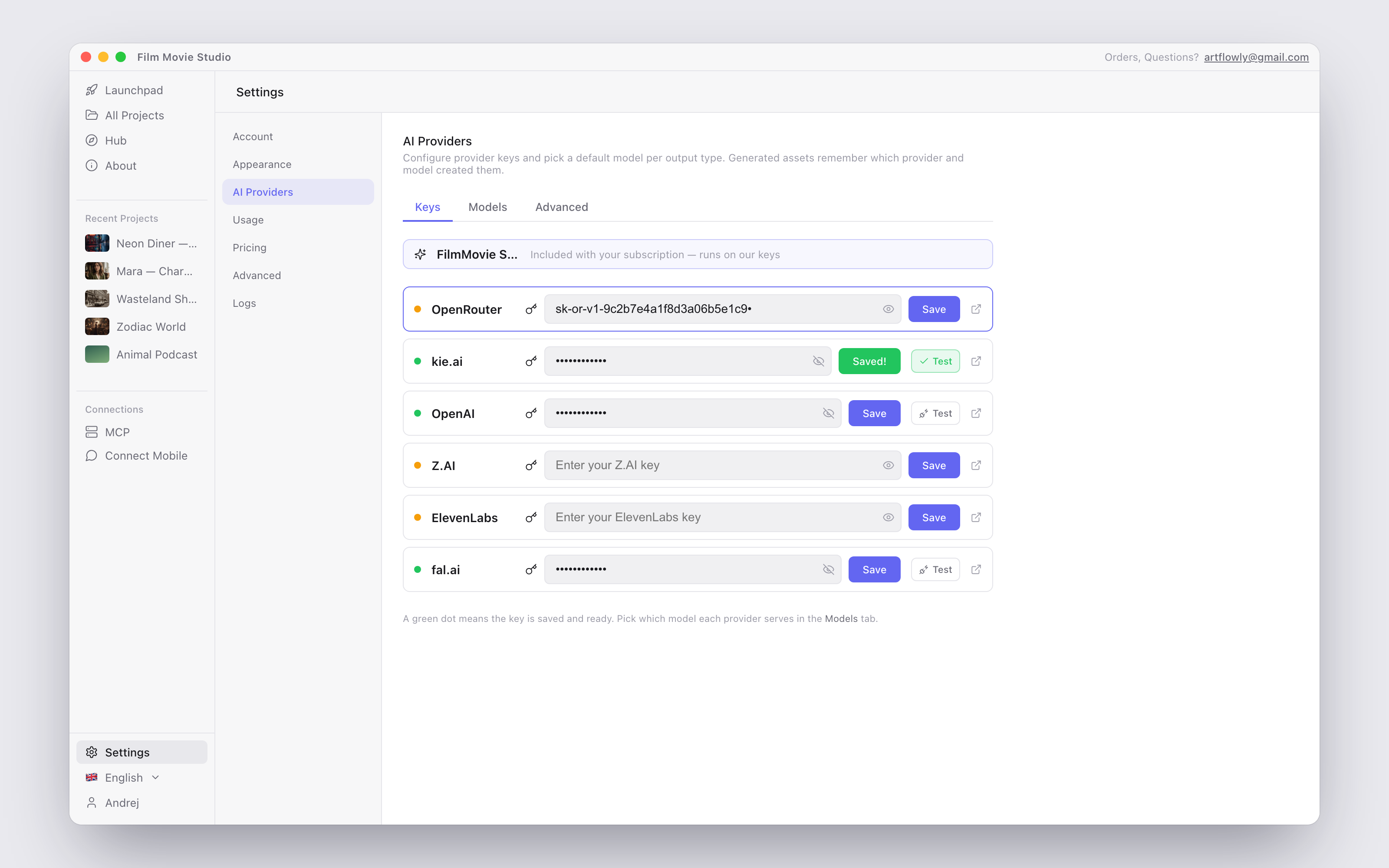
Each provider gets one row: a status dot (green = key saved and working), the key field, a Test button, and a link to the provider's website. Paste a key, click Save, then Test to verify it.
| Provider | What it powers | Where to get a key |
|---|---|---|
| FilmMovie Studio (managed) | Image, video, voice & music on our keys — no key to paste, unlocked by your subscription | filmotvor.ai/studio |
| Local Models | Free on-device voice + script models — no key, works offline | No key needed — see the Local tab |
| OpenRouter | Script / text LLMs (Claude, Gemini, Llama, …) | openrouter.ai |
| kie.ai | Premium media — Nano Banana images, Seedance video, Suno music | kie.ai |
| OpenAI | GPT models for scripts + GPT Image / DALL-E 3 for images | platform.openai.com/api-keys |
| Z.AI | Script / text generation (GLM) — a great default writing model | z.ai |
| ElevenLabs | Premium text-to-speech voices | elevenlabs.io |
| fal.ai | Identity-lock image generation (locks a face from a reference photo) | fal.ai/dashboard/keys |
Tip: You can mix freely — for example the subscription for images and video, your own Z.AI key for scripts, and the free local voice model. If the top "FilmMovie Studio" row looks blurred, you just haven't activated a subscription code yet (see Usage below).
Models tab — pick a default model per role
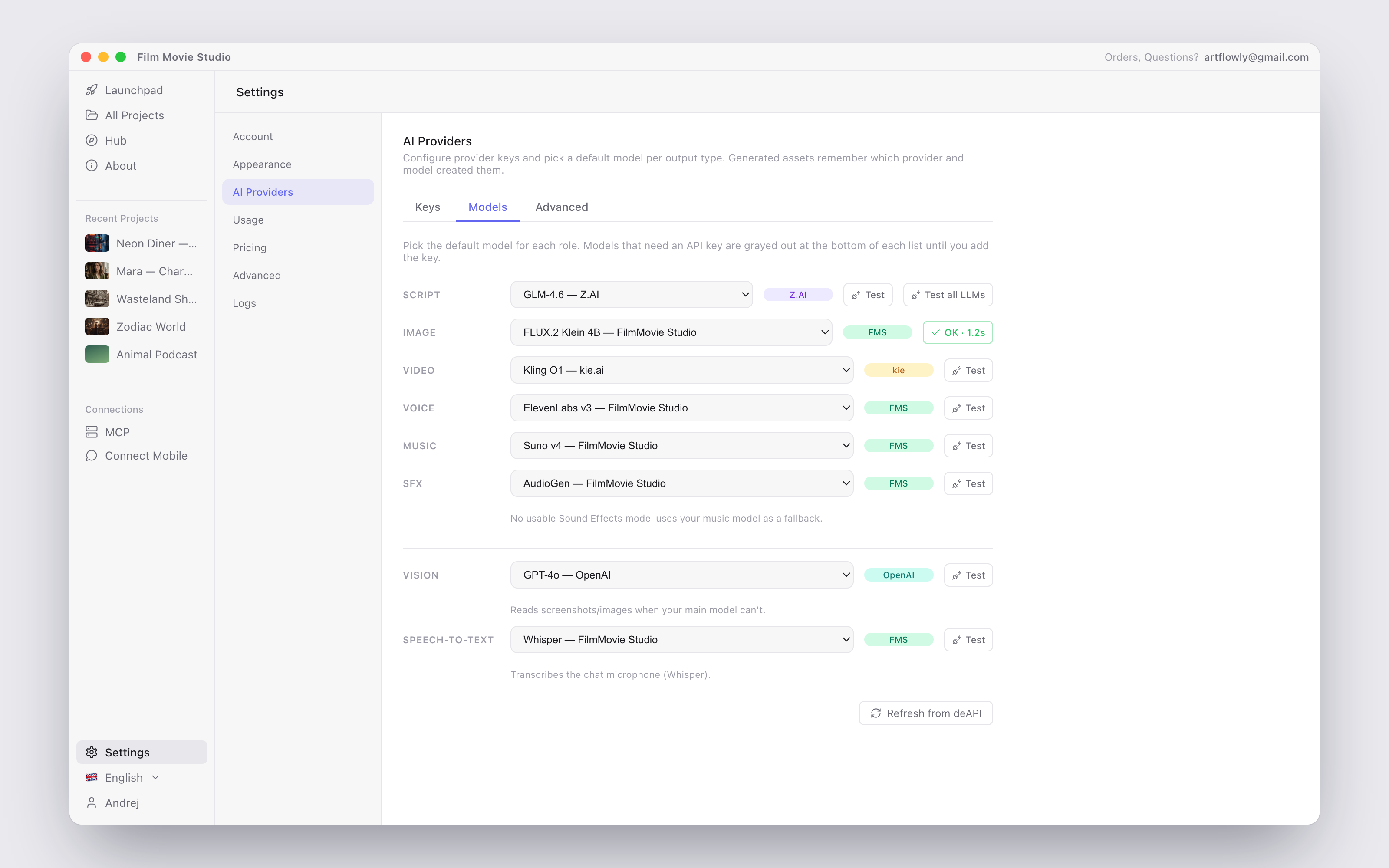
Every generation role gets one dropdown: Script, Image, Video, Voice, Music, and SFX, plus three helper roles below the divider — Agent (runs skill/tool rounds; pick a fast model here), Vision (reads screenshots and images), and Speech-to-text (transcribes the chat microphone). Whatever you select becomes the default the chat and the agent use — see Chat & the Agent.
- Models are grouped by provider inside each dropdown. Models whose provider has no key yet appear grayed out at the bottom under "Needs a key — add in API Keys".
- The Test button next to each dropdown runs a real sample generation to verify the selected model (media tests spend credits and save the result to a separate "TEST — Model probes" project).
- Test all LLMs on the Script row pings every text model at once and shows response times — handy for choosing the fastest one.
- If no SFX model is available, sound effects automatically fall back to your Music model.
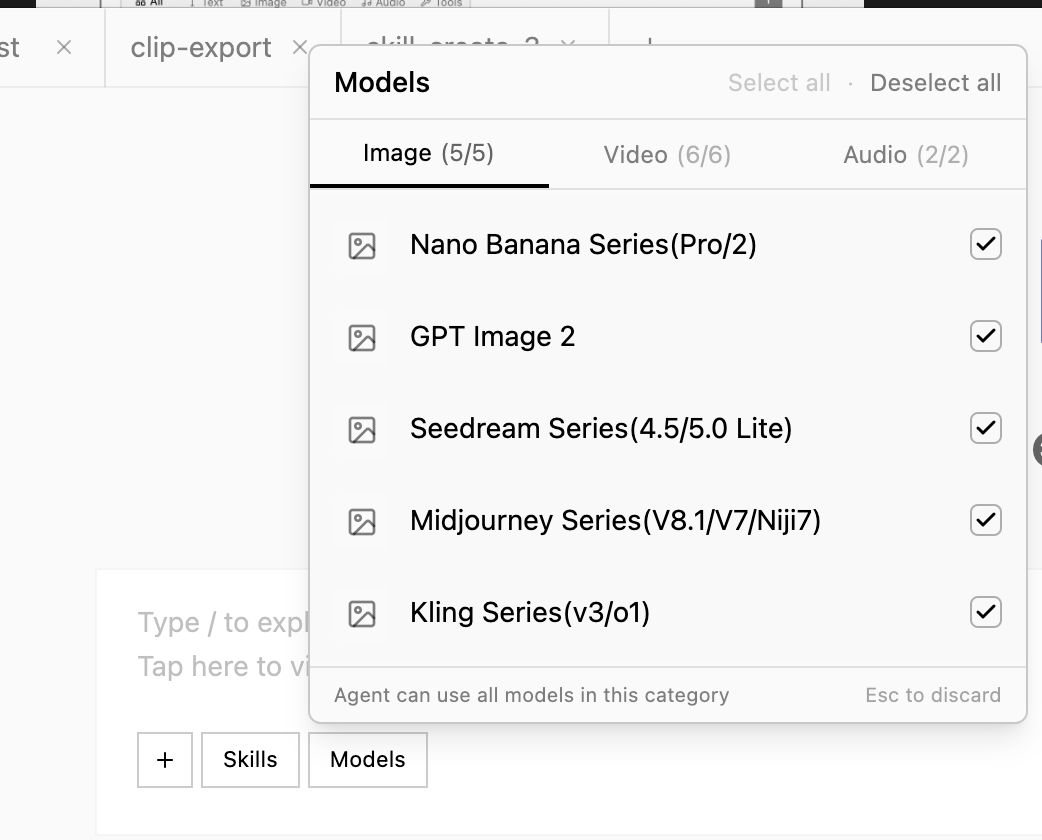
The managed catalog also updates itself: in the chat's model picker you'll find a Refresh button ("Fetch latest models from deAPI") that pulls newly released managed models without an app update.
Advanced tab
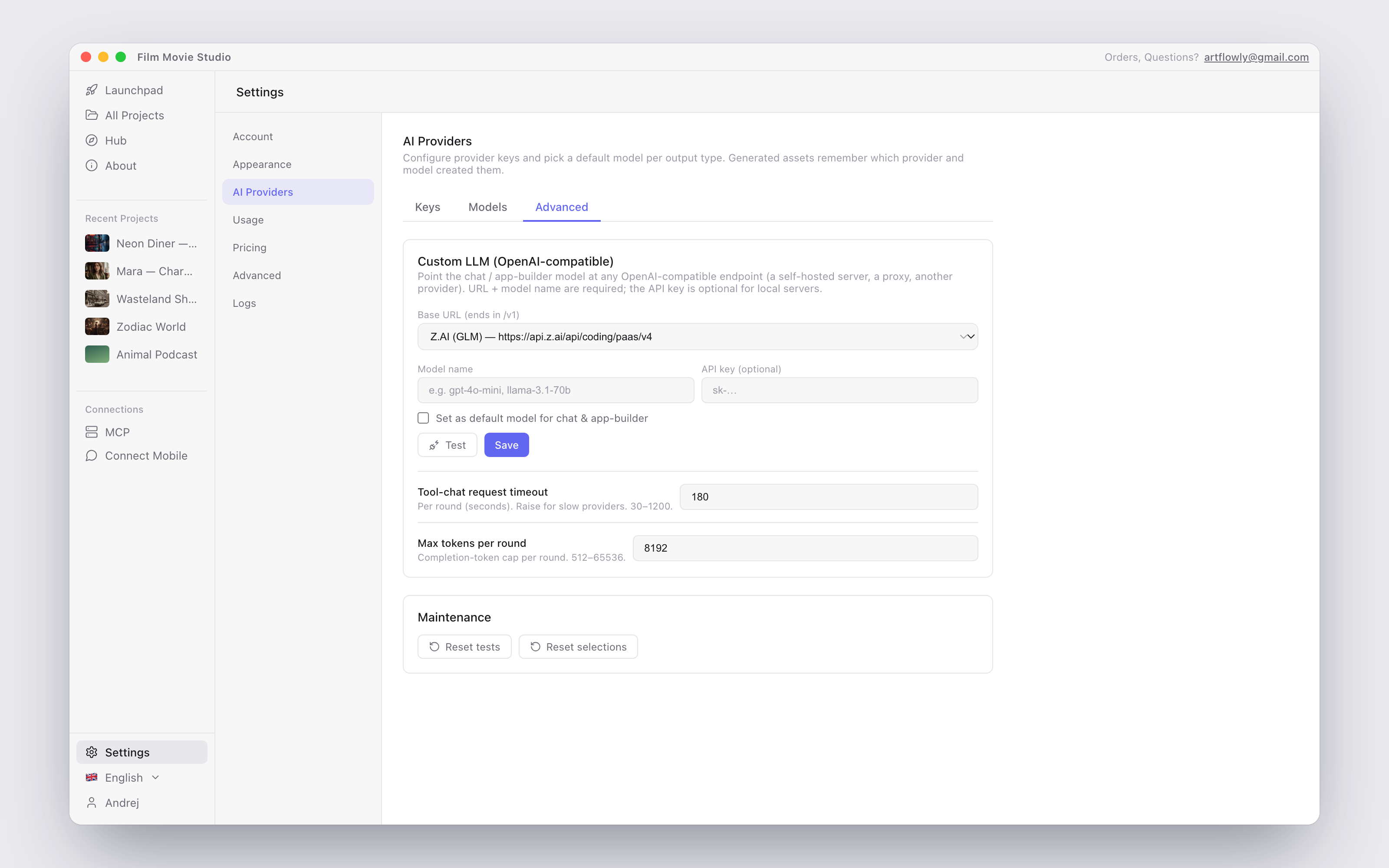
Power-user options:
- Custom LLM (OpenAI-compatible) — point the chat at any OpenAI-compatible endpoint. Presets are included for Z.AI, OpenRouter, OpenAI, kie.ai, Ollama (local) and LM Studio (local); enter the model name, an optional API key, tick Set as default model for chat & app-builder if you want it everywhere, then Test and Save.
- Tool-chat request timeout — seconds per agent round (30–1200). Raise it for slow providers.
- Max tokens per round — lower it if your provider reports "out of credits", raise it for big builds.
- Maintenance — Reset tests re-arms every model's Test button (useful after rotating a key); Reset selections re-enables every model if some got switched off.
Local tab — free, private, offline
Two models run entirely on your computer: no API key, no credits, and they keep working without internet once downloaded.
| Model | Role | Download size | What it does |
|---|---|---|---|
| Supertonic 3 | Voice (TTS) | ~130 MB | Narration voices in 31 languages, including Slovak |
| Qwen3 4B | Script | ~2.5 GB | Drafts scripts and chats offline — a solid free draft tier |
Click Download on a card; a progress bar shows downloading → extracting → verifying, and Set as default appears once it's ready. Supertonic 3 offers ten voices — F1–F5 (female) and M1–M5 (male) — selectable when you generate audio. The script model runs a small local engine that starts automatically when used and shuts itself down when idle; delete a model anytime with the trash button to reclaim disk space.
Tip: Local models are fast on Apple Silicon and modern PCs, and a little slower on older Intel machines — fine for narration, but be patient with long scripts.
Usage — subscription & credits
The Usage section holds two cards: Subscription and Credit history.
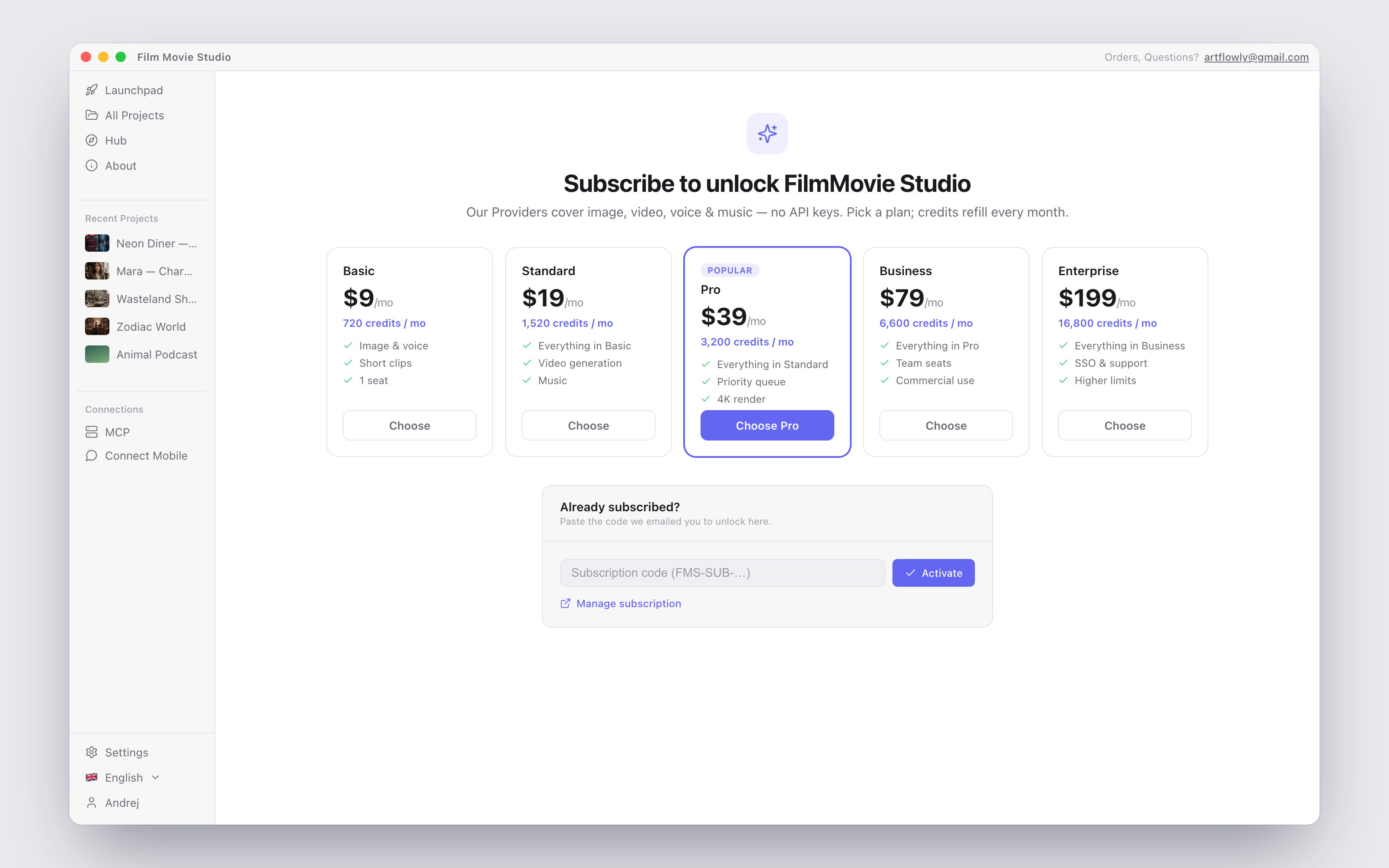
Redeeming your code: after you subscribe on filmotvor.ai/studio, your subscription code arrives by email. Paste it into the Subscription code field and click Activate — the "FilmMovie Studio" provider row unblurs immediately and your credits appear. Manage subscription opens your billing page on the website; Remove detaches the code from this app.
Once active, the card shows your remaining Credits and the Renews date. Credits refill monthly with your plan:
| Plan | Credits / month |
|---|---|
| Basic | 720 |
| Standard | 1 520 |
| Pro | 3 200 |
| Business | 6 600 |
| Enterprise | 16 800 |
(200 credits correspond to $1 of generation value.)
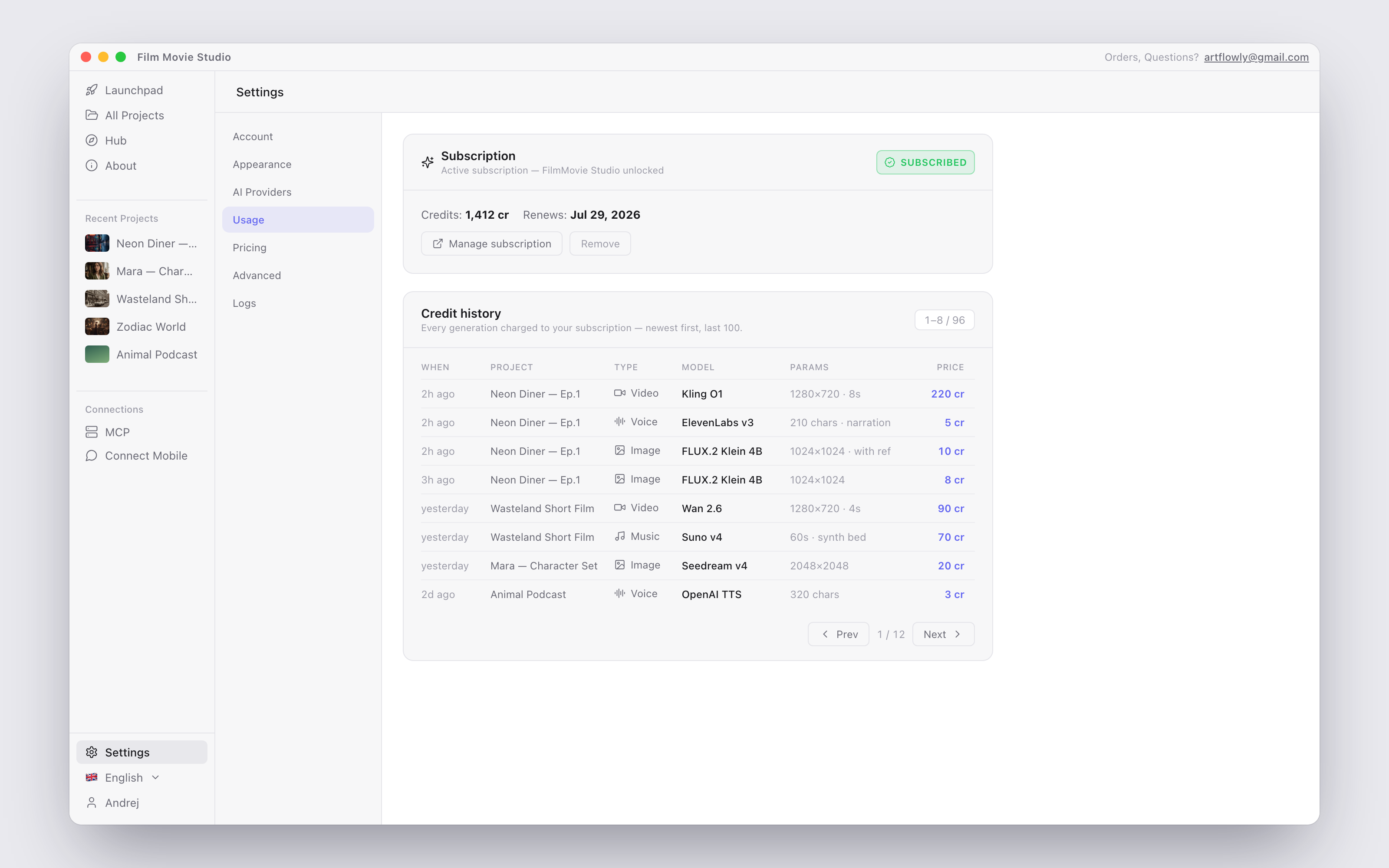
Credit history lists every generation charged to your subscription — newest first — with the project, type, model, parameters, and the exact price in credits. It's the best place to see where your credits actually go.
Pricing
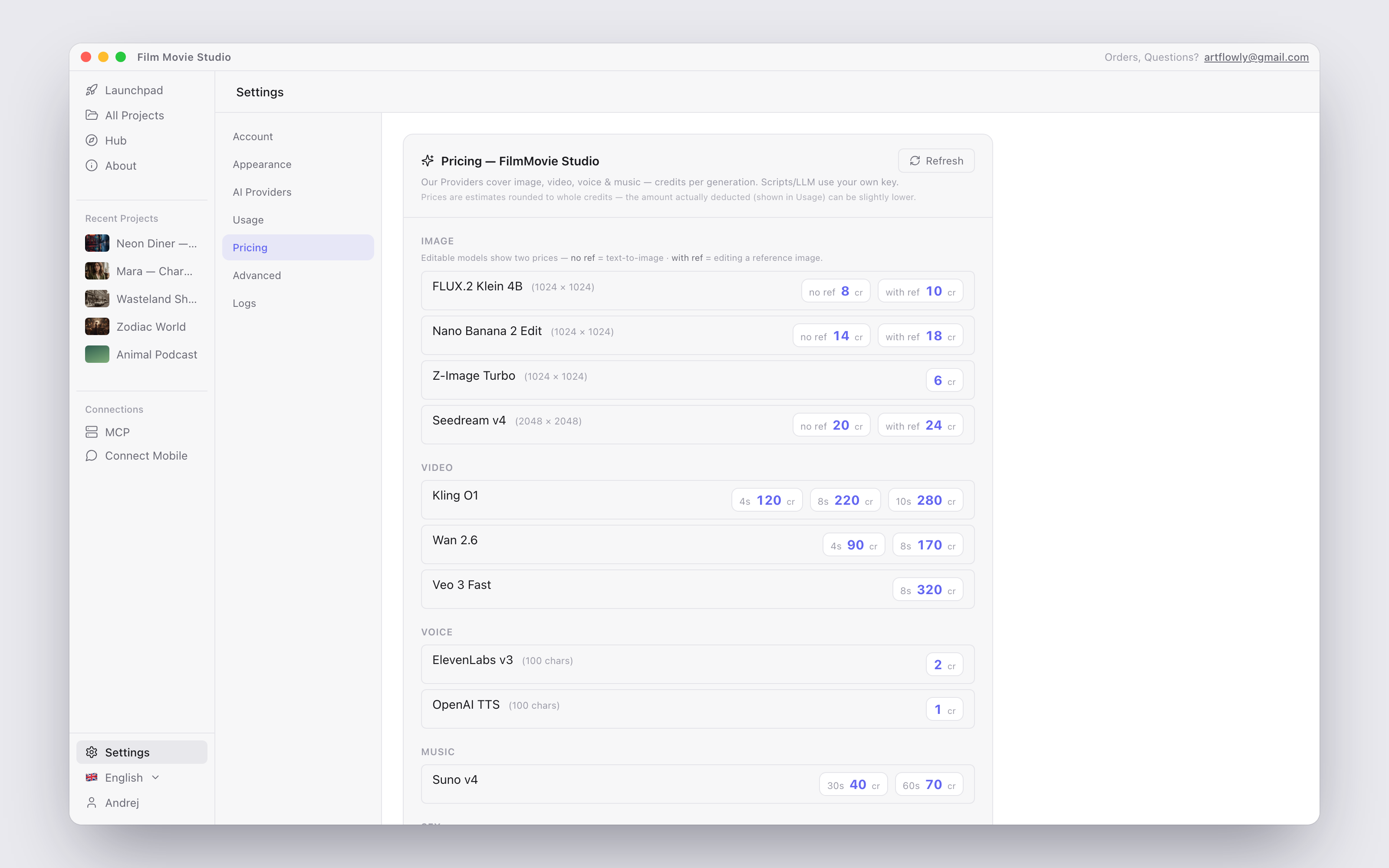
The Pricing section lists every managed model and its live per-generation cost in credits: images by size (with separate "no ref" / "with ref" prices for editing models), video by duration, music by length, and voice per characters. Prices are estimates rounded to whole credits — the amount actually deducted (shown in Usage) can be slightly lower. As reference points from the canvas card toolbar: Upscale costs about 100 credits and Remove background about 20 credits per image (see Canvas & Cards). Click Refresh to re-fetch live prices.
Advanced
The last section holds the Enable Automation switch — it lets the AI run code on your machine for file and data tasks, and you approve every action before it runs. Turning it on shows a consent dialog explaining exactly what it means; a Reset session button appears for clearing a stuck automation session. Scripts, spreadsheets and documents produced this way are saved into your project's assets folder.
Some installs also show a Logs section with the app version, data folder, an Open Logs button and an update check — see Troubleshooting & FAQ for where logs and data live on disk.