Two global libraries follow you across every project: the Cast Library keeps your characters' faces and voices consistent, and the Assets Library bookmarks your favorite media so you can reuse it anywhere. Both live in the left sidebar — Cast and Assets.
Cast Library
The problem the Cast Library solves: AI generations tend to reinvent a character's face and voice every time. A cast member locks both down — one face, one voice, in every project and every skill run.
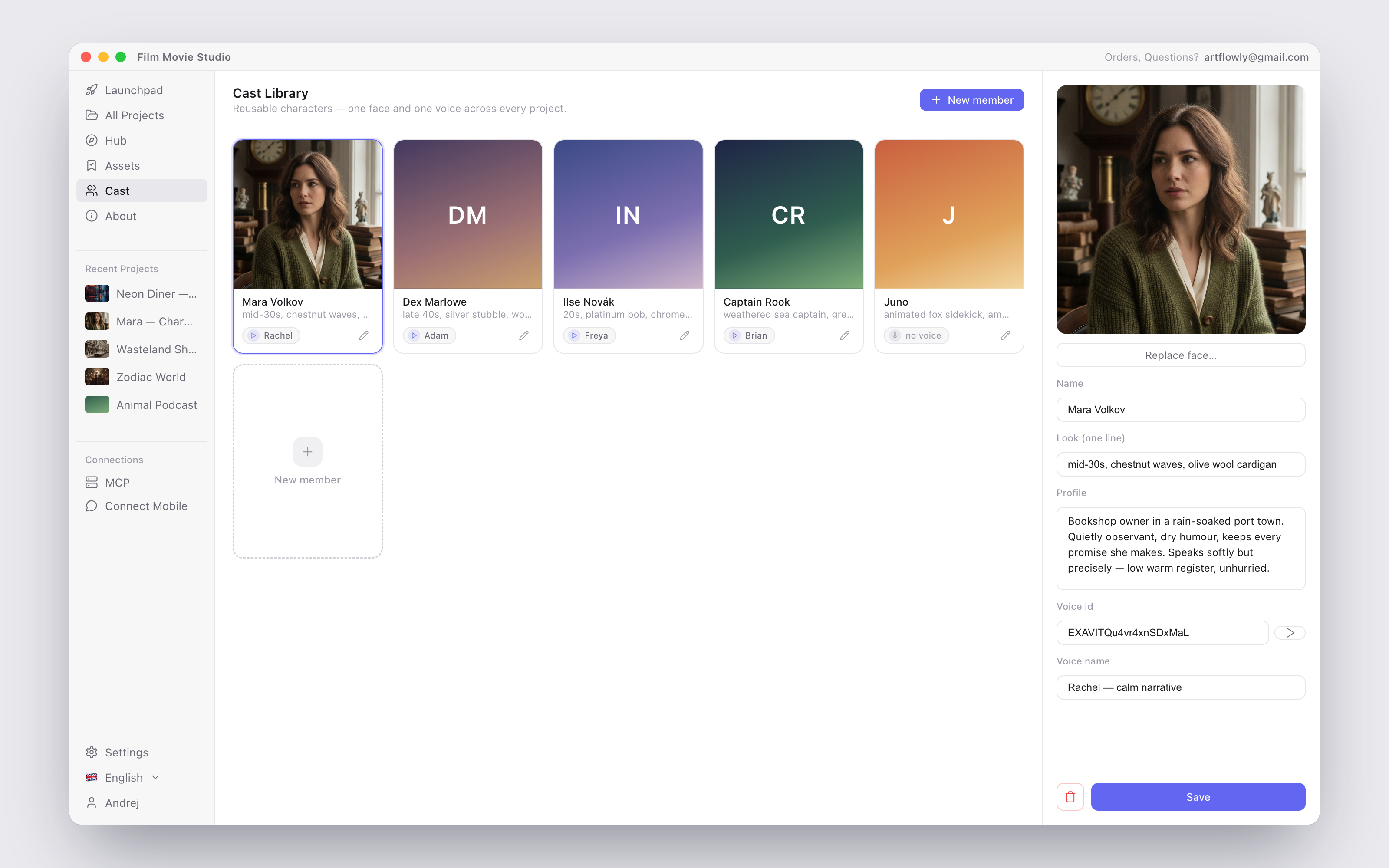
Open Cast in the sidebar to see the grid of members — each card shows the face photo, name, @handle and voice.
Creating a member
There are three ways:
- From a canvas card — hover a character image on the canvas and click Save to Cast in its toolbar (it changes to In Cast once saved). See Canvas & Cards.
- From chat — just ask the assistant to save a character to the cast.
- On the Cast page — click New member and fill in the editor panel:
- Choose face photo… — pick the reference image that defines the character's face.
- Name and Look (one line) — a short appearance line, e.g. "mid-20s, red curls, green wool coat".
- Profile — identity, appearance, personality, motivation and voice notes.
- Voice id and Voice name — bind a voice (an ElevenLabs voice_id, a designed/cloned id, or a built-in one like
af_bella). Click the play button (Preview voice) to hear a sample before saving.
To edit a member, click their card, change anything and press Save. The trash button removes a member — past generations are not affected.
Using cast members
- @mention them in chat — type
@in the chat input and pick a member from the menu (they appear alongside your saved assets, with their @handle). The generation then uses their locked face as a reference and their bound voice for speech — automatically, with no extra prompting. See Chat & the Agent. - Skills use the roster too — the assistant always sees your cast. Workflow skills like Short Drama save your approved lead characters to the library automatically and reuse them for every keyframe and dialogue line, so episode 5 stars the same person as episode 1. See the Skills Reference.
- Cross-project continuity — the library is global, so a character created in one project can star in the next one.
Assets Library
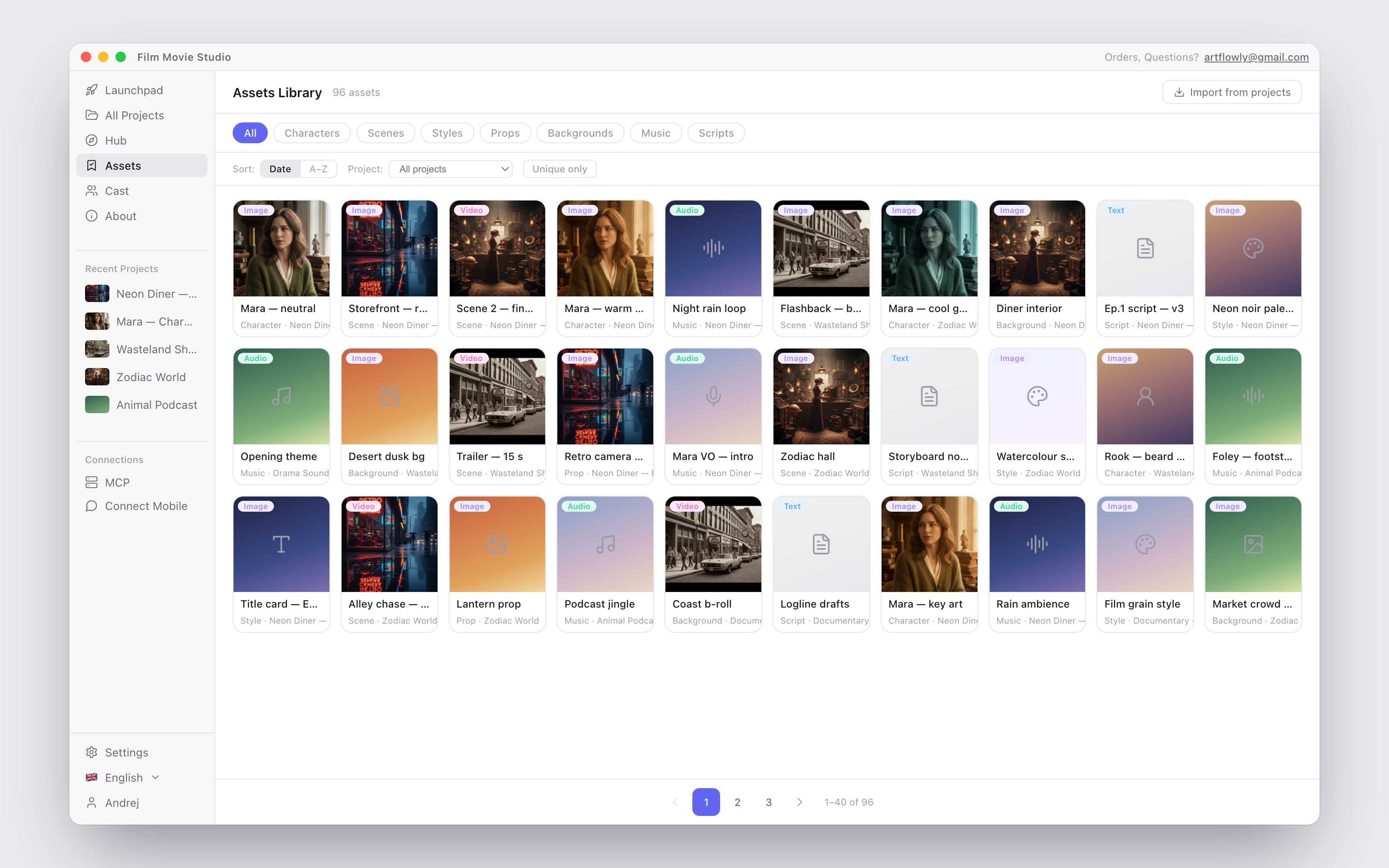
The Assets Library is a cross-project bookmark shelf: any card you like — a character sheet, a style frame, a music track, a script — can be saved once and reused everywhere.
Saving assets
Hover any canvas card and click Add to Assets in its toolbar; the icon changes to a filled bookmark (In Assets) once saved. On the Assets page you can also click Import from projects to bookmark everything from your existing projects in one go.
Browsing
Open Assets in the sidebar. The page gives you:
- Category chips — All, Characters, Scenes, Styles, Props, Backgrounds, Music, Scripts.
- Sort by Date or A–Z, and a Project dropdown to see only assets from one project.
- Unique only — hides duplicate copies of the same file.
Click any asset to preview it (videos and audio play right in the popup) and choose:
- Add to Canvas — drops the asset onto the canvas of the project you have open.
- Send to Chat — attaches it to the chat as a reference for your next generation.
You can also reach your saved assets from the chat itself: type @ and pick from the Assets tab of the mention menu.
Removing an asset from the library (the bookmark button on its card) only removes the bookmark — the original file stays in its project.
Tip: Save your style frames and hero characters to the libraries early. Then every new project can start with "@mention" instead of regenerating from scratch.
Where your files live
Everything — projects, generated media, cast faces and bookmarked assets — is stored locally on your computer inside the app's data folder. Nothing is uploaded anywhere unless a generation needs it. Keep in mind that deleting a project removes its media files from disk (Assets Library bookmarks point to those original files), so export anything you want to keep before deleting the project it came from.