The chat panel on the right side of every project workspace is where you direct the whole production. You describe what you want, and the AI agent does the rest: it plans the work, asks you questions when it needs a decision, generates images, video, audio and text, and places every result as a card on the canvas (see Canvas & Cards). One conversation can carry a project from a one-line idea to a rendered film.
Just type — the agent understands intent
You don't need a command to get started. The input reads "Describe your idea or drop a reference." — and that's genuinely all it takes. When you send plain text, the agent works out what you meant:
- One-shot creative requests — "make me an image of a red robot", "a 6-second clip of the moon over water" — get generated directly, and the result lands on the canvas.
- Questions — "what can you make?", "how does this app work?" — get a plain answer, no generation.
- Big, multi-stage requests — "let's make a short drama about cellists" — get routed to the right workflow skill, and the agent offers to start it for you.
- Casual chat just gets a friendly reply.
Below the input you'll always see the helper line "/ for skills, @ for assets." together with a short notice that you're chatting with an AI system and that generated content may be inaccurate.
Quick slash commands
Type / to open the command menu. Alongside your skills, it lists five quick commands for single generations:
| Command | Label | What it does |
|---|---|---|
/image |
Create Image | Generate an image |
/video |
Generate Video | Create a video from your prompt |
/audio |
Produce Audio | Create music or sound effects |
/script |
Write Script | Generate a script or text |
/all |
Run All Agents | Run all agents in parallel |
For example: /image a red sports car at sunset, cinematic light.
Skill commands
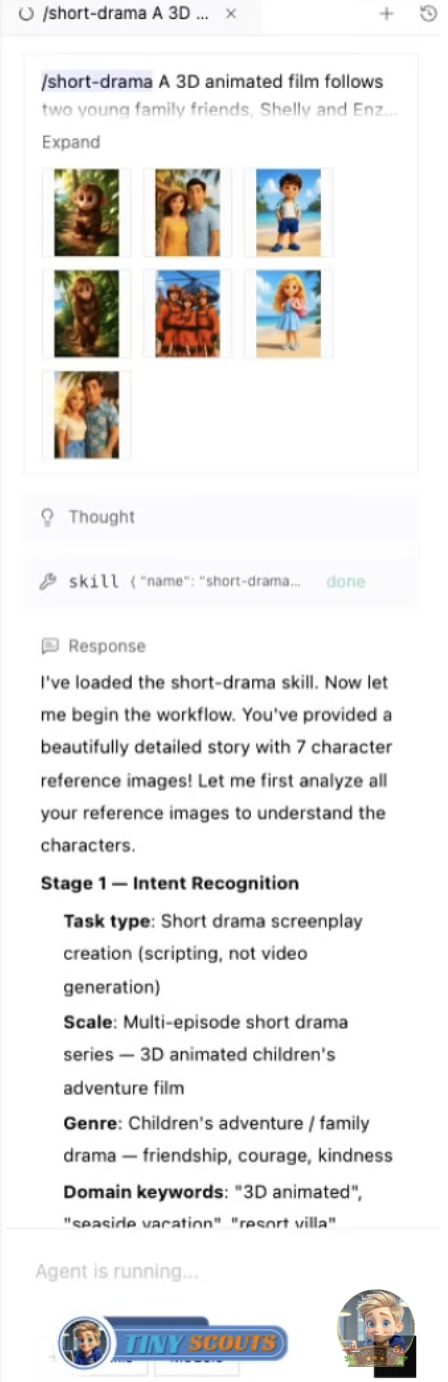
Every enabled skill is also a slash command — its name in kebab-case, like /short-drama, /promo-video or /audiobook. Type the command followed by your idea:
/short-drama a lighthouse keeper who finds a message in a bottle
Type a skill command on its own and a gray suggestion appears after it — press Tab to accept it and the skill replies with a short usage guide: good example prompts, what to include, and topic ideas. Some skills (like /app-builder) also show clickable "Try one:" starter prompts under the input; click one to fill the box with a ready-to-send idea.
The Skills button under the input opens the same list as a browsable menu — see Skills & the Hub for how it's organized.
Session commands
Workflow skills run as a session, and the session is saved automatically — even across app restarts. Four commands control it:
| Command | Label | What it does |
|---|---|---|
/continue |
Continue Session | Resume the paused skill from where it stopped |
/redo <what> |
Redo Part | Regenerate only a subset, e.g. /redo the images |
/status |
Session Status | Show the current skill session + canvas state |
/start-over |
Start Over | Clear the saved session (canvas is preserved) |
/continue and /redo only appear in the / menu when there is actually a paused or restored session to act on. /status works entirely offline — it reports without calling the AI. /redo is the surgical option: /redo scene 3's video regenerates just that part and leaves everything else on the canvas untouched.
If you close the app mid-run, the next launch restores the session and the chat tells you so — type anything ("continue", "keep going", or a new instruction) and the agent picks up where it stopped.
When the agent asks you questions
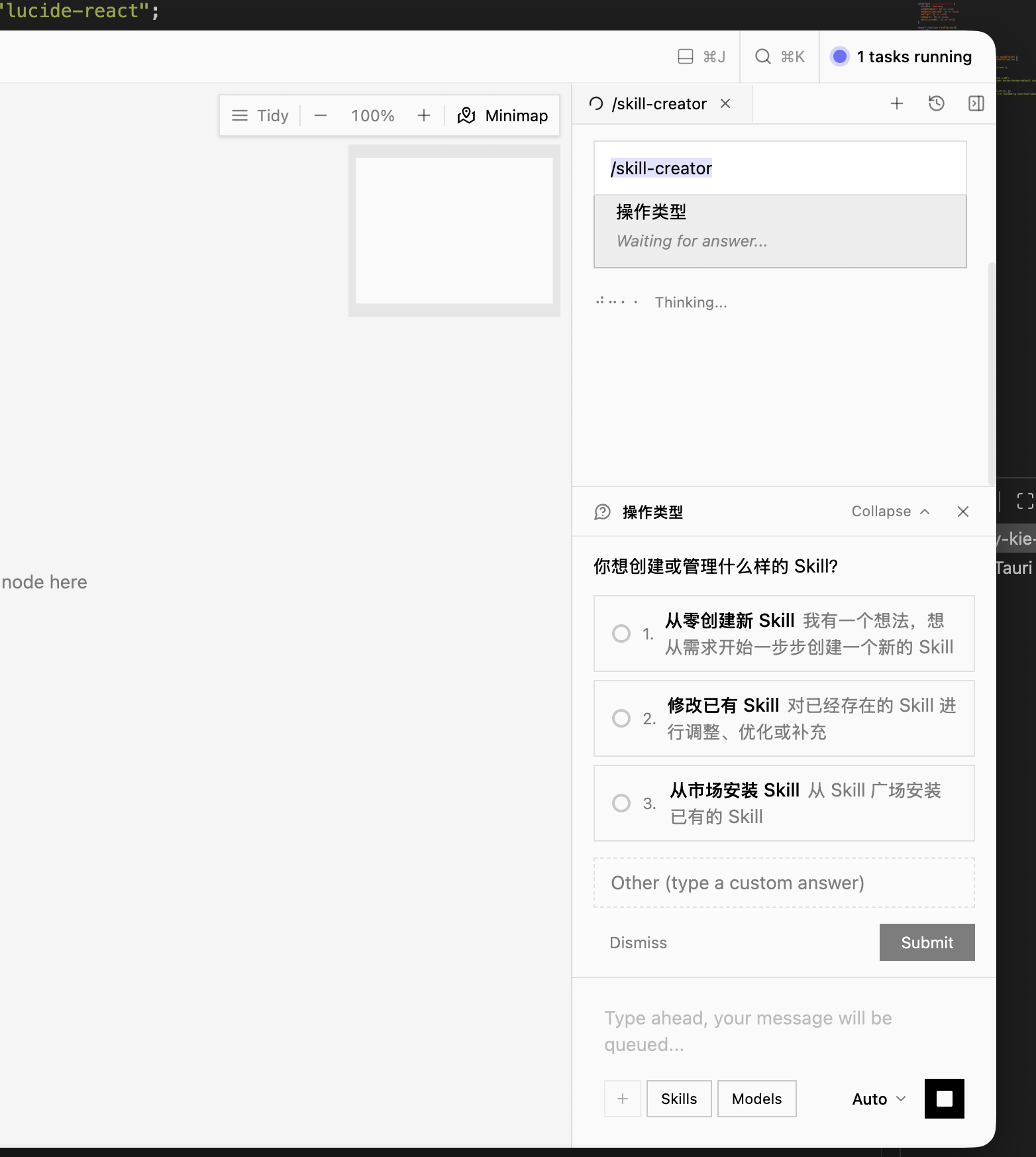
Workflow skills pause at creative decision points, and the question arrives as a card in the chat:
- Text questions — just type your answer in the normal input and send.
- Choice cards — click one of the option buttons, or use "Other (type a custom answer)" to write your own. You can also Dismiss a card.
- Brief forms — several questions grouped into tabs, with a progress counter like "2/4 answered" and a Submit button when you're done.
The run pauses while a question is open and resumes the moment you answer. If a question was pending when you closed the app, the card is re-posted on the next launch so you can answer it and continue.
@mentions — reference your assets and Cast
Type @ in the input to open the mention menu. It lists your saved asset library and your Cast members (reusable characters with a locked face and voice — see Cast & Asset Libraries), filterable by category: All, Characters, Scenes, Styles, Props, Backgrounds, Music, Scripts.
Picking an entry inserts its @handle into your message and attaches its file, so the agent uses it as a real reference — mention a Cast member and generations keep that character's exact face and voice. Attached images can also be mentioned by position as @image1, @image2, …; they render as small inline thumbnails right in your prompt, which is the clearest way to tell a model "put this subject into that scene".
Attachments
The + button (Attach image or file) opens a file picker. You can attach:
- Images — PNG, JPG/JPEG, WebP, GIF
- Video — MP4, MOV
- Audio — MP3, WAV
- Documents — PDF, TXT, MD, DOCX, XLSX/XLS, CSV, ODS
Attached images are copied into the project's local assets folder the moment you send, so they stay valid forever — a reference photo you attach today still works when you resume the session next week. Documents can be read by the agent (with the Documents skill or in free chat), and any attachment shows as a removable chip above the input before you send.
Voice input
The microphone button records a voice command: click to start, click the square to stop. The recording is transcribed and placed into the input for review — it is never sent automatically, so you can edit before pressing Enter.
Models and Agent mode
The Models button opens the model picker, with tabs for Image, Video, Voice, Music and SFX. Tick the models the agent is allowed to use — the footer reminds you that the agent uses only selected models. Each entry shows its provider and capability badges (max resolution, clip length).
Next to the send button sits the Agent Mode selector with two modes:
- Auto — Agent acts autonomously, seeks confirmation when uncertain.
- Ask — Review parameters before each generation.
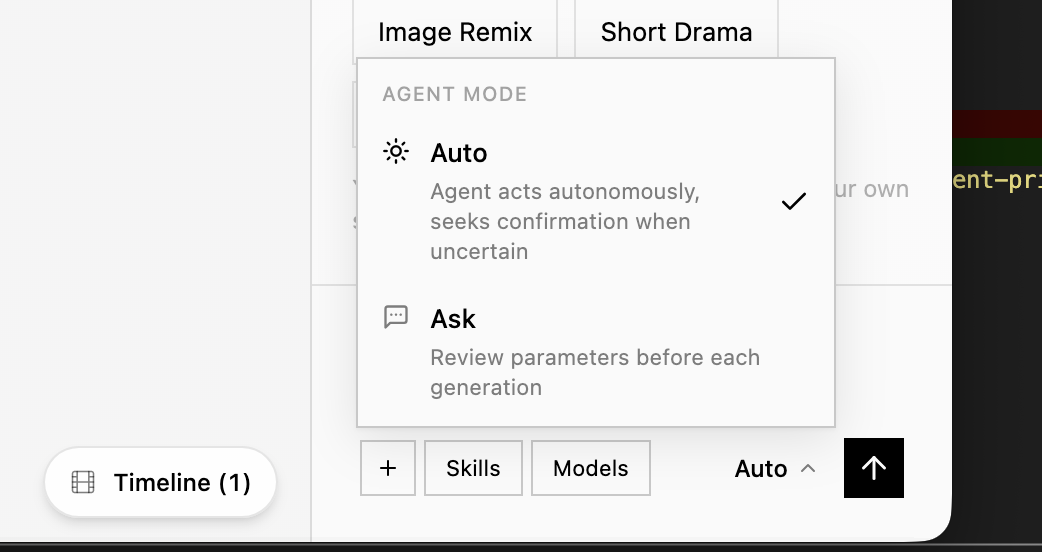
Ask mode is great while you're learning what each model costs and produces; Auto is the hands-off mode for long workflow runs.
Long runs, pauses and credits
A few practical notes for big productions:
- Safety limit. The agent has a built-in cap on how many tool steps it may take in one run. If it hits the limit mid-project, nothing is lost — your work is on the canvas, and typing anything (even just "continue") resumes from that exact point.
- Provider pauses. If a provider runs out of credits, rejects a key, or rate-limits, the workflow pauses with an explanation instead of failing. Fix the cause (top up, check Settings → AI Providers, or just wait a minute), then type
/continue. - Credits. Every image, video and audio generation consumes credits (or your own provider balance) — multi-scene workflows can add up, so keep an eye on the balance in the top bar.
Tip: You don't have to babysit a workflow. Start
/short-drama, answer the brief questions, and come back later — the session, the canvas, and any pending question will all still be there.
Ready to go deeper? Browse every skill in Skills & the Hub, or jump straight to the full Skills Reference.