Skills are guided AI workflows — playbooks written in plain language that the chat agent follows step by step. A skill knows the right order of work for its craft (characters before keyframes, keyframes before video), where to pause and ask for your approval, and which generation tools to use. You run one by typing its slash command in the chat, and everything it makes lands on the canvas.
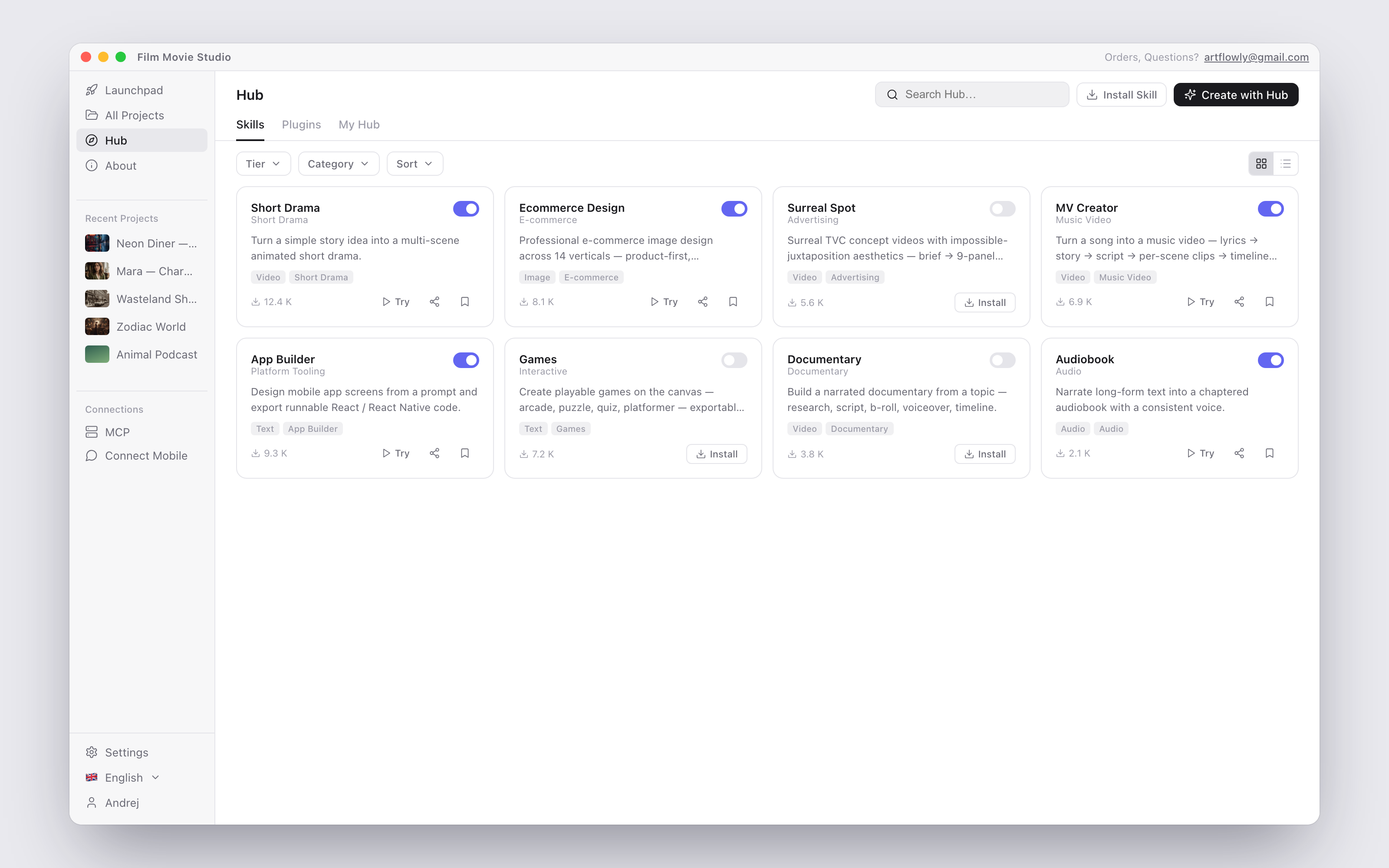
Skills come in two tiers:
- Workflows — multi-stage productions like Short Drama, MV Creator, Documentary or Promo Video. They plan, ask questions, generate in stages, and often end with a rendered video.
- Quick — single-purpose tools like Quick Image, Quick Video and Quick Audio: one prompt in, one result out.
The Hub page
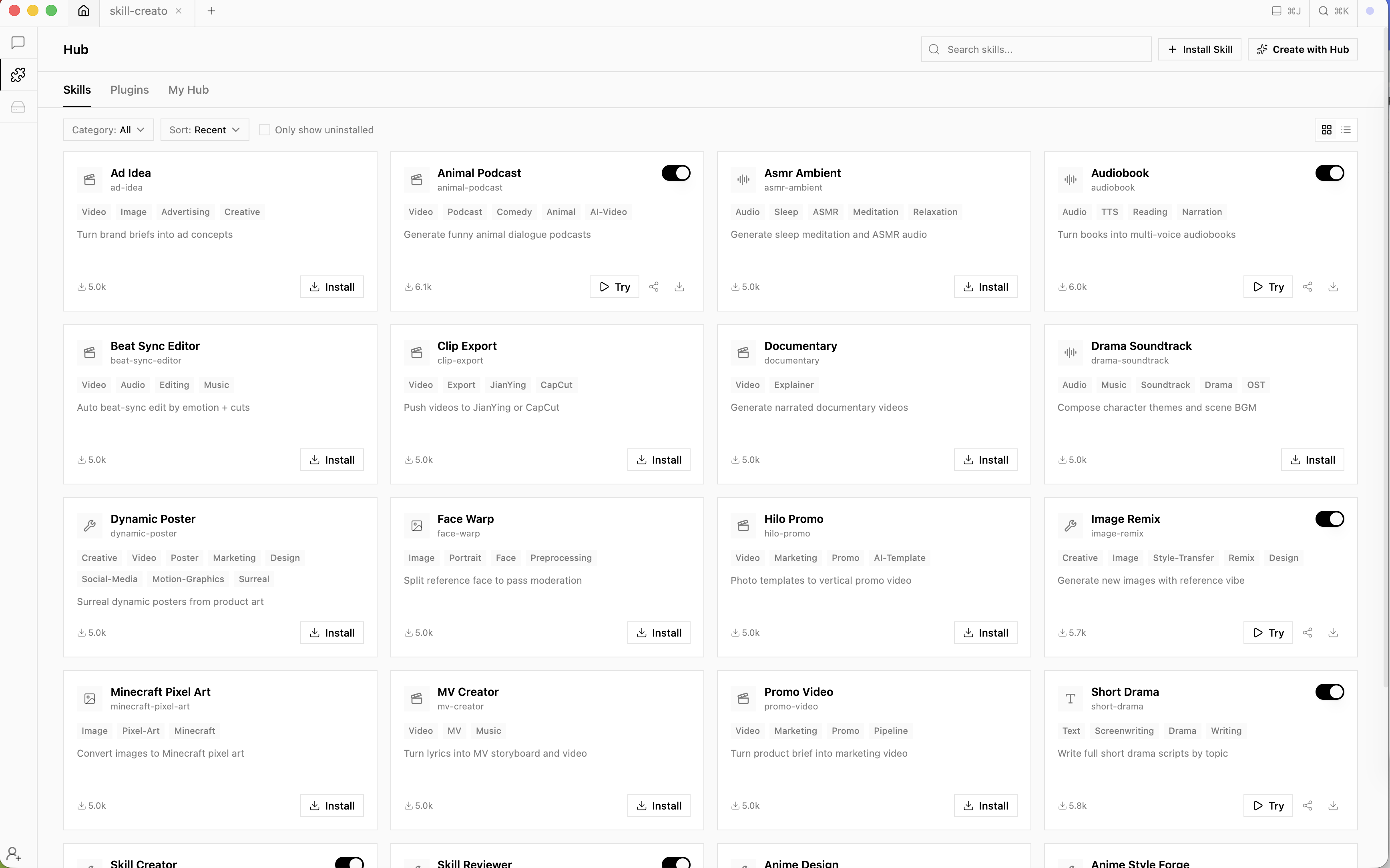
Open the Hub from the sidebar to browse everything. The top bar has a Search Hub… box plus two buttons — Install Skill and Create with Hub — and three tabs: Skills, Plugins, and My Hub (your installed skills).
The filter row narrows the grid:
- Tier — All, Workflows, or Quick.
- Category — All, Advertising, E-Commerce, Short Drama, Music Video, Documentary, Audio Content, Visual Production, Platform Tooling.
- Sort — Recent, Popular, or Name.
- Only show uninstalled — hide what you already have.
- A grid/list toggle switches the layout; long lists paginate 16 per page.

Skill cards and their actions
Each card shows the skill's name, category, description and tags. What you can do depends on its state:
- Not installed — an Install button adds it to your library.
- Installed but disabled — the card says "Enable to use →"; flip the toggle in the card's corner to enable it.
- Enabled — you get Try (creates a new project with the skill command pre-filled and ready to run), Share, and Save.
- Update available — an accented Update button appears with a version chip like
v1.0.0 → v1.2.0, so you can see what you're moving to before clicking.
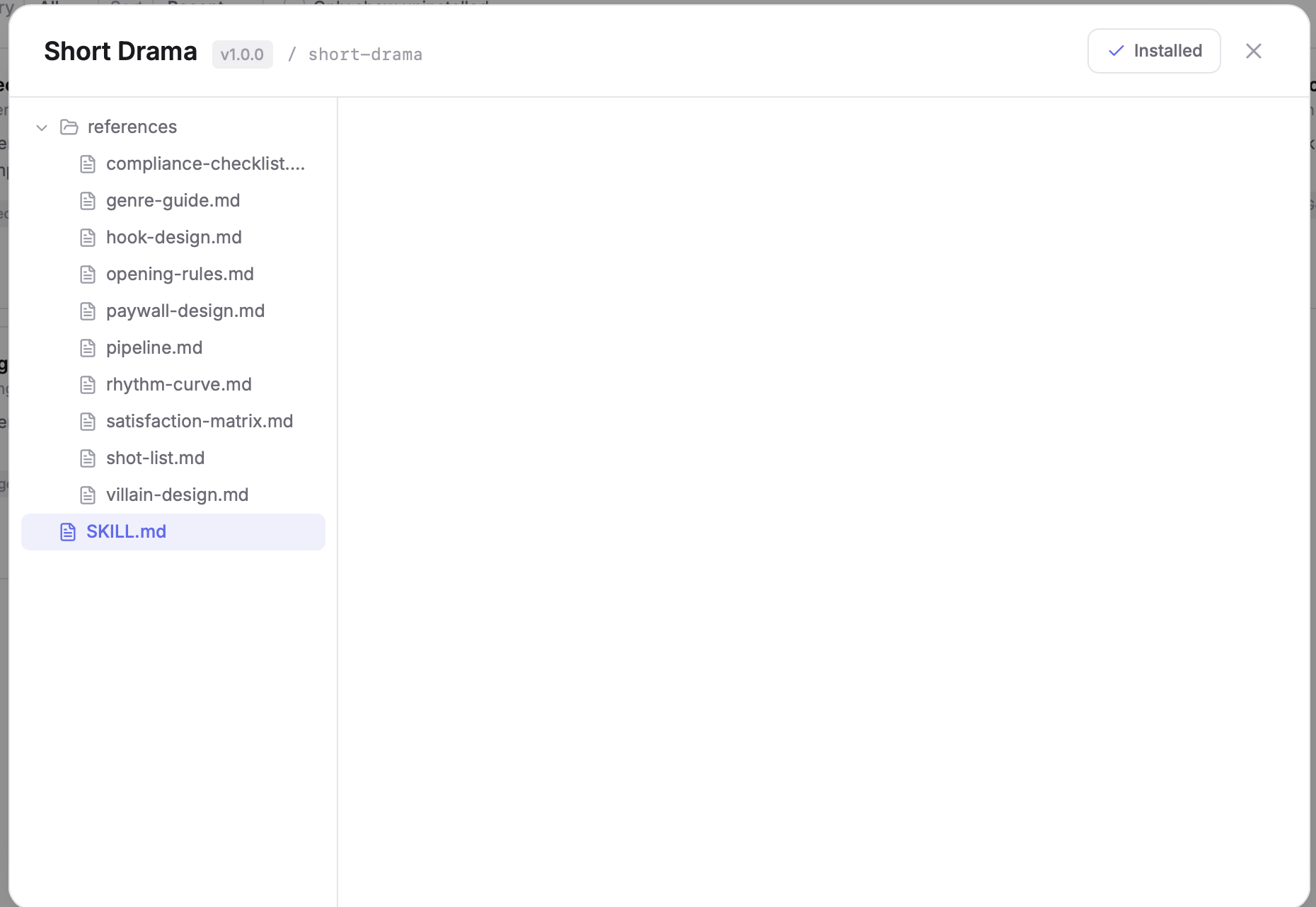
Only enabled skills appear in the chat's / command list and Skills menu — disabling a skill hides it there without uninstalling anything.
The Skills menu in chat
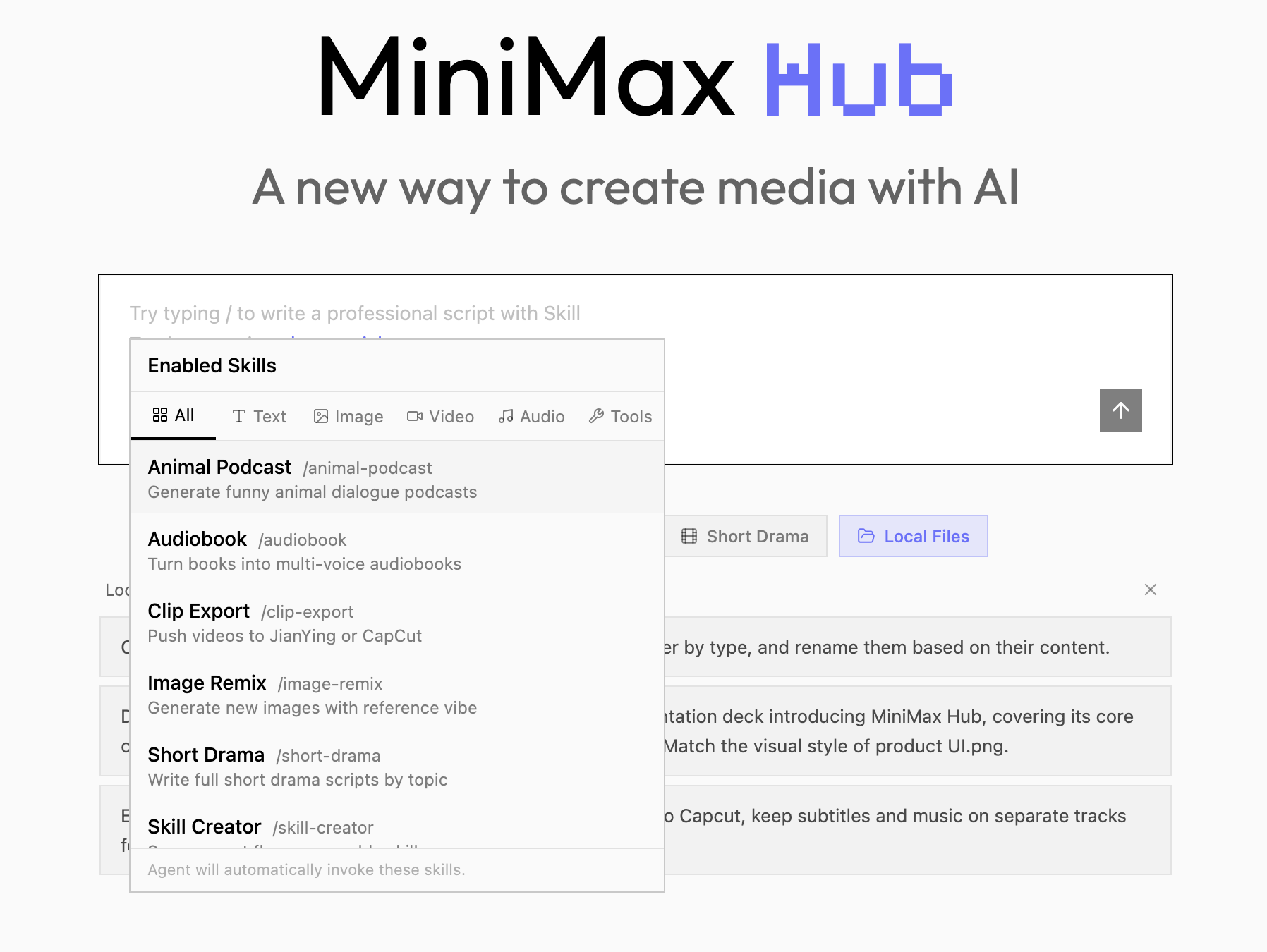
In any project, the Skills button under the chat input opens the Enabled Skills menu. Category tabs — All, Text, Image, Video, Audio, Tools — filter the list, which is grouped into a Workflows section on top and Quick Generation below. Click a skill and its /slug command drops into the input, ready for your prompt. The footer notes that the agent will also invoke these skills automatically when your request calls for one.
Installing a skill package
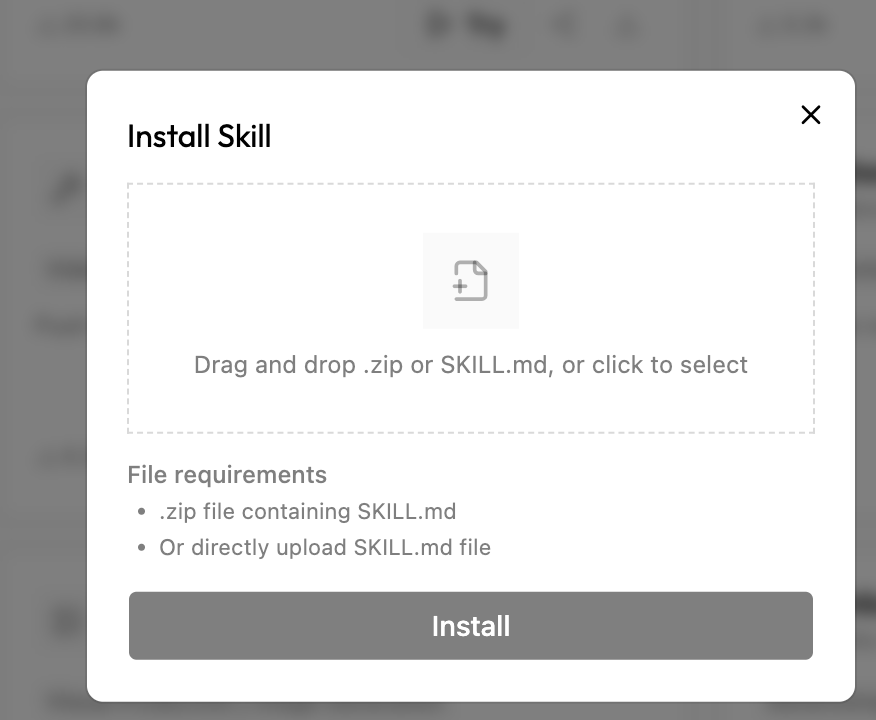
Install Skill (in the Hub's top bar) opens a dialog where you can drop — or click to pick — a skill package: either a .zip bundle or a plain SKILL.md file. Once installed, it shows up in My Hub and as a slash command like any bundled skill.
Tip: You can also drag a
.mdskill file straight into the chat panel to import it — handy when someone shares a skill with you.
Creating your own skill
Create with Hub opens the Create a Skill dialog: give it a Name and Description, pick a Category and an agent type (Text, Image, Video or Audio), and click Create. New skills start in the Quick tier and immediately get their own slash command. Because skills are written in plain language, editing one is closer to writing a brief than programming.
Managing your skills
The My Hub tab is your installed collection. From here (or anywhere in the Hub) you can toggle skills on and off, apply updates as new versions ship with the app, and keep the chat's command list down to the skills you actually use.
Plugins
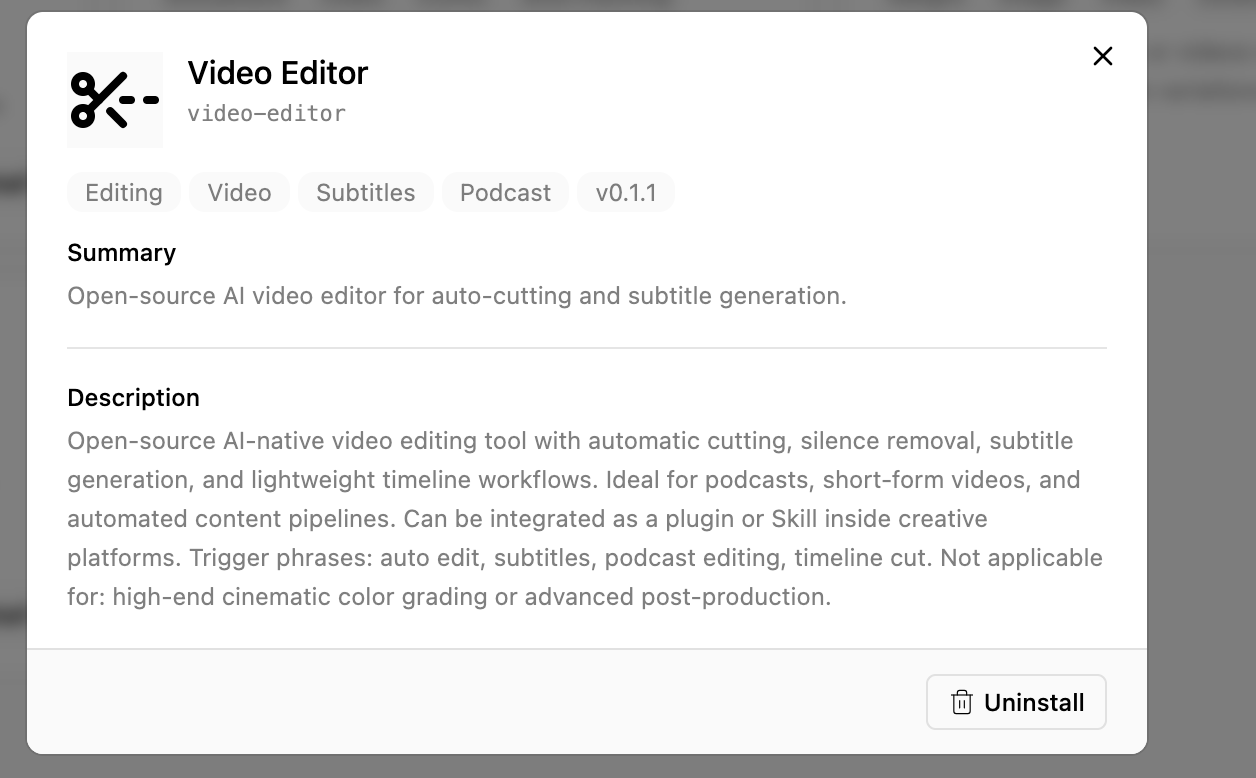
The Plugins tab holds six bundled tools: Multi-Panel Storyboard, Auto Color Grade, Voice Cloner, Scene Detector, Subtitle Burner, and Multi-Angle Generator. Each has the same enable toggle as a skill; click a plugin card to open its detail view with the full description, tags, version — and a button to disable it (you can re-enable it any time from its card).
How a skill actually runs
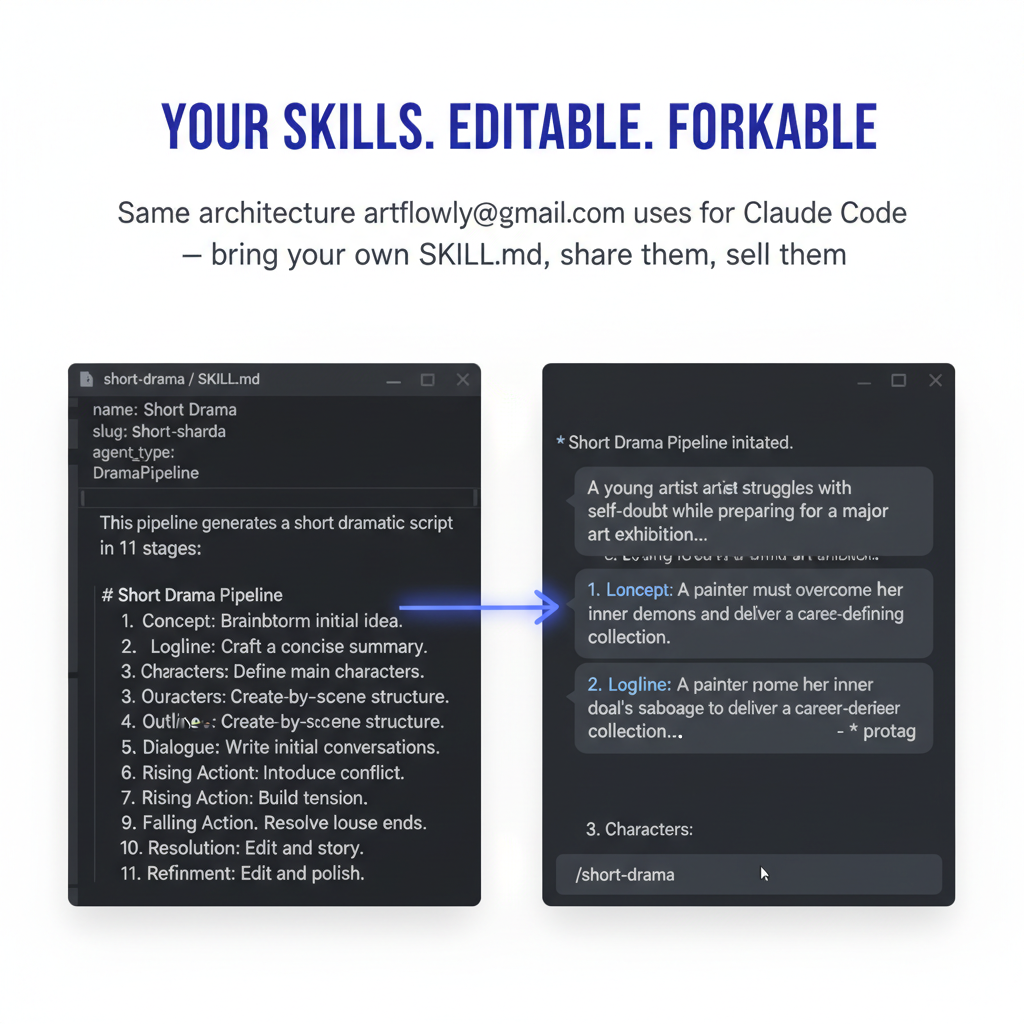
When you send /short-drama a story about…, the agent reads that skill's playbook and works through it one step at a time: it writes and generates, pauses to ask you questions at the decision points, places every intermediate result on the canvas, and — for video workflows — finishes by assembling the timeline and rendering. You stay in control the whole way: answer the questions, redo any part with /redo, or stop and resume days later.
Every card a skill creates behaves like any other card — remix it, add it to the timeline, or save a character to your Cast so the next skill run reuses the same face and voice (see Cast & Asset Libraries and Canvas & Cards).
For a complete catalog of every bundled skill — what it makes, its stages, and example prompts — see the Skills Reference.