FilmMovieStudio doesn't stop at the canvas and the timeline. This chapter covers the power features: driving the studio from an external AI assistant over MCP, controlling it from your phone via Telegram, and the four "beyond video" skill families — apps, games, documents and automation — plus how to export a project.
MCP server — drive the studio from another AI
FilmMovieStudio can act as an MCP server (Model Context Protocol), so an external MCP client — Claude Desktop, Cursor, or any other MCP-capable assistant — can drive the project you have open: create projects, generate images, video, voice and scripts, place and edit cards on the canvas, read your assets, run skills, and even open and render the timeline.
Open it from the sidebar: under the Connections header, click MCP.
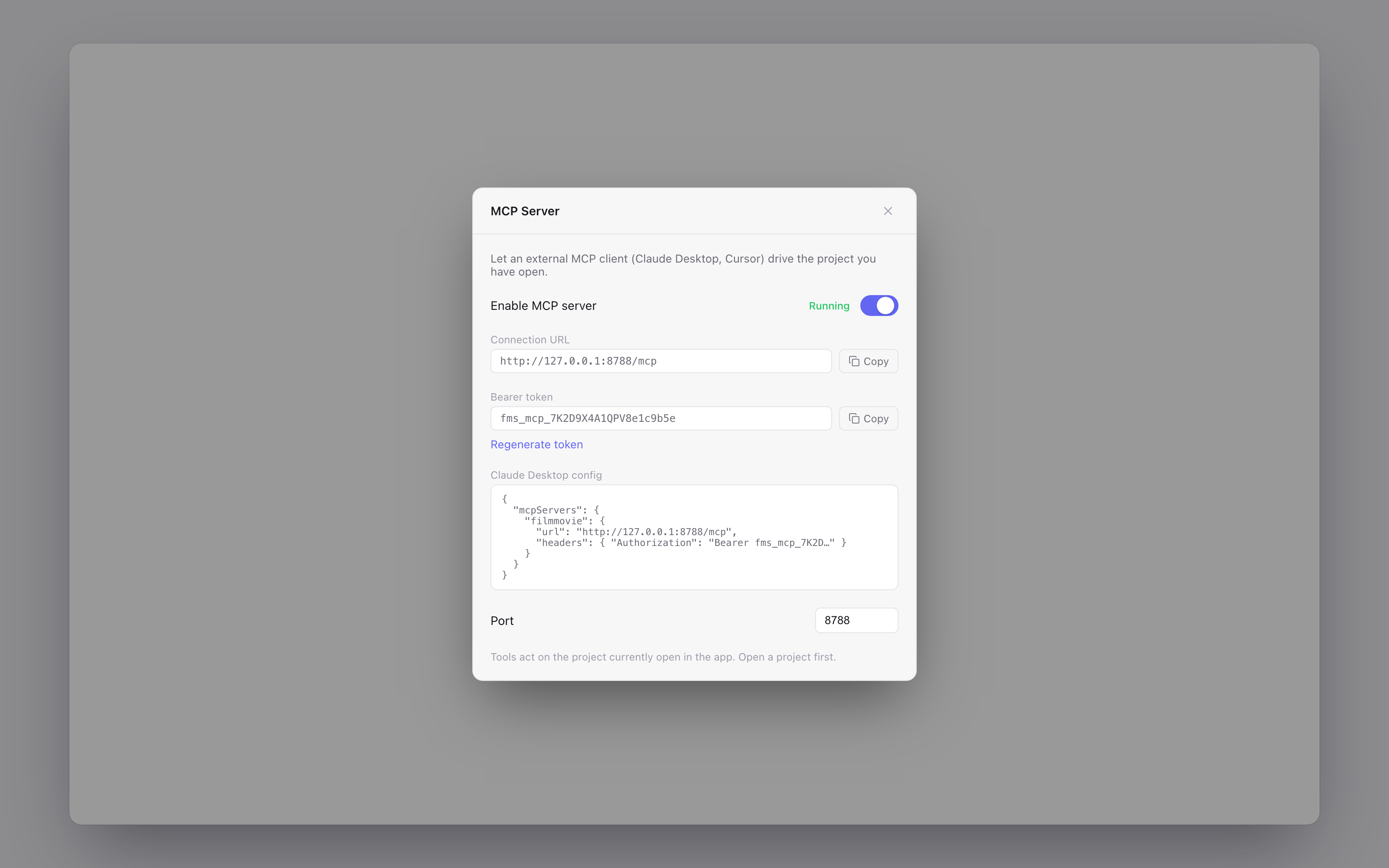
To set it up:
- Flip Enable MCP server — the status changes to Running.
- The panel reveals the Connection URL (by default
http://127.0.0.1:8765/mcp) and a Bearer token. Both have Copy buttons. - Copy the ready-made Claude Desktop config snippet straight into your MCP client's configuration — it already contains the URL and the
Authorization: Bearer …header. - If the default port clashes with something else on your machine, change Port and re-enable.
Use Regenerate token any time you want to invalidate old clients. The server only listens on your own computer (127.0.0.1), never the network.
One important rule, quoted from the panel itself: "Tools act on the project currently open in the app. Open a project first." Keep FilmMovieStudio running with a project open, and everything the external assistant generates appears live on that project's canvas — exactly as if you'd asked in the chat yourself.
Tip: This is a great way to script bulk work — for example, asking Claude Desktop to "create 10 product images from this list and put them on the canvas" while you keep working in another app.
Connect Mobile — drive the studio from your phone
Connect Mobile pairs FilmMovieStudio with a Telegram bot so you can send prompts from your phone and get the results back in the chat — images, clips, and voiceovers included. Open it from the sidebar under Connections → Connect Mobile.
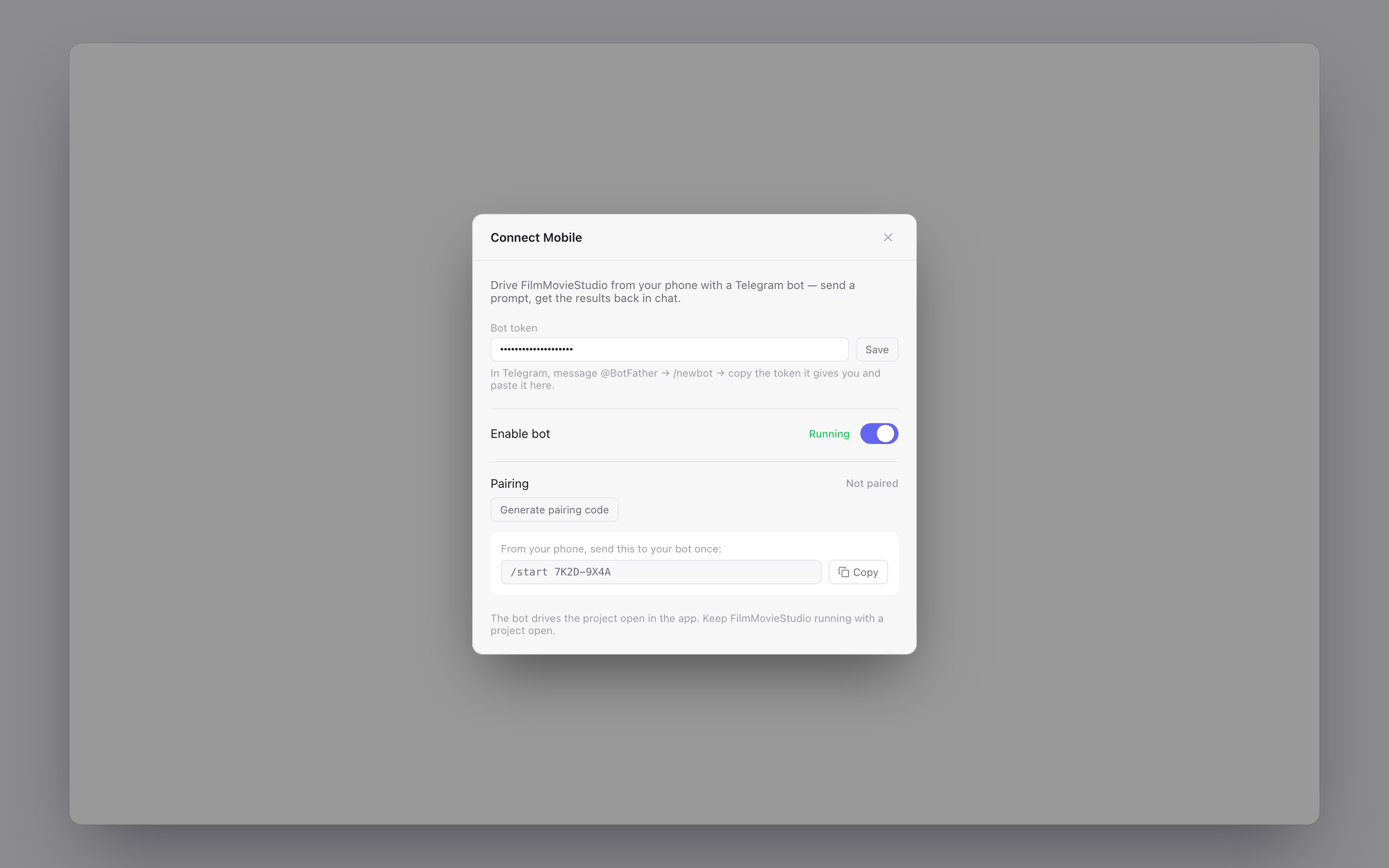
Pairing takes three steps:
- Create a bot: in Telegram, message @BotFather, send
/newbot, and copy the token it gives you. Paste it into the Bot token field and click Save. - Enable the bot: flip Enable bot — the status changes to Running.
- Pair your phone: click Generate pairing code, then from your phone send the shown
/start <code>message to your bot once. The panel switches to Paired.
From then on, anything you send the bot is handled exactly like a typed chat message: plain prompts go to the general assistant, /skill commands launch workflows, and when the agent asks a question mid-workflow you can answer it right from Telegram. Generated media is sent back to your phone as photos, videos and audio files.
As with MCP: "The bot drives the project open in the app. Keep FilmMovieStudio running with a project open." Use Unpair this device to disconnect a phone.
App Builder
Type /app-builder in the chat and describe an app — "a habit tracker with streaks", "a recipe box with categories" — and the agent designs a working mobile app: screens, navigation, real data collections, lists bound to that data, forms, and actions. The result appears as an interactive preview card on the canvas that you can click through, and the agent iterates on your feedback ("make the header purple", "add a detail screen"). When you're happy, you can export clean React code from the card's toolbar. It's a genuine no-code builder driven entirely by conversation — see the Skills Reference for the full command list.
Games
Two skills build playable games right on the canvas. /games creates 2D browser games — puzzles, arcade shooters, platformers — while /threejs-game is the 3D specialist, complete with generated skyboxes, textures, sprites, sound effects and a music bed, so the result looks and sounds finished rather than programmer-art. Games appear as a card with a Play button, run offline once built, and can be exported as a single HTML file to share with anyone. If something breaks, the card shows the error and the agent fixes its own code. Start simple, then iterate: "add power-ups", "make the enemies faster". More in the Skills Reference.
Documents
The /documents skill reads and writes office files. Attach a PDF, Word, Excel or CSV file and ask questions about it, have it summarized, or pull tables out of it. In the other direction, ask for output as a real file — "turn this research into a formatted PDF report", "make a spreadsheet of these results" — and the agent generates a proper .docx, .pdf or .xlsx that lands on the canvas as a document card you can open or reveal in your file manager. Everything runs natively inside the app; no external office software needed. See the Skills Reference.
Automation
/automation lets the AI run Python on your computer to automate real work: renaming and organizing files, batch-converting images, crunching CSVs, filling spreadsheets, scraping data into reports. It's off by default — enable it in Settings → Advanced → Enable Automation — and every block of code is shown to you on an approval card before it runs; nothing executes without your click. Produced files are saved into the current project's assets folder so they show up alongside your media. Treat it like a very capable intern: powerful, but read what you approve. Details in the Skills Reference.
Exporting a project
Your main output is the rendered MP4 from the timeline — but projects themselves can be exported too:
- Export Project (from the project's menu) saves a Project Bundle (.json) — project data, workflow, timeline and asset references — useful for backups.
- The timeline's export menu offers Bundle for editors (CapCut…) — a folder with your ordered media files, an
.srtsubtitle file and a manifest, ready to drop into an external editor — plus Subtitles (.srt) and Project JSON on their own. - Individual cards export from their toolbar: images as PNG, games as HTML, app-builder cards as React code — see Canvas & Cards.