Everything you make in FilmMovieStudio lives on the canvas as a card (also called a node): every image, video, audio clip, script page, game, and document is a card you can move, connect, remix, and send onward to the chat or the timeline. This chapter is the full reference for every card type and every button on its toolbar.
Cards and connections
When you ask the agent in Chat & the Agent to generate something, the result lands on the canvas as a new card — you never have to place it yourself. Cards created from other cards (a video made from a keyframe image, variations of an image, a scene generated from a script) are drawn with a connection line back to their parent, so you can always trace where something came from.
Hover any card and a ⊕ handle appears at its edge (Add connected node). Click it — or drag it out onto empty canvas — to create a linked child card. When you branch off an image, the new card automatically carries the source image as its reference, so an "Image → Video" branch animates that exact picture.
Adding cards manually
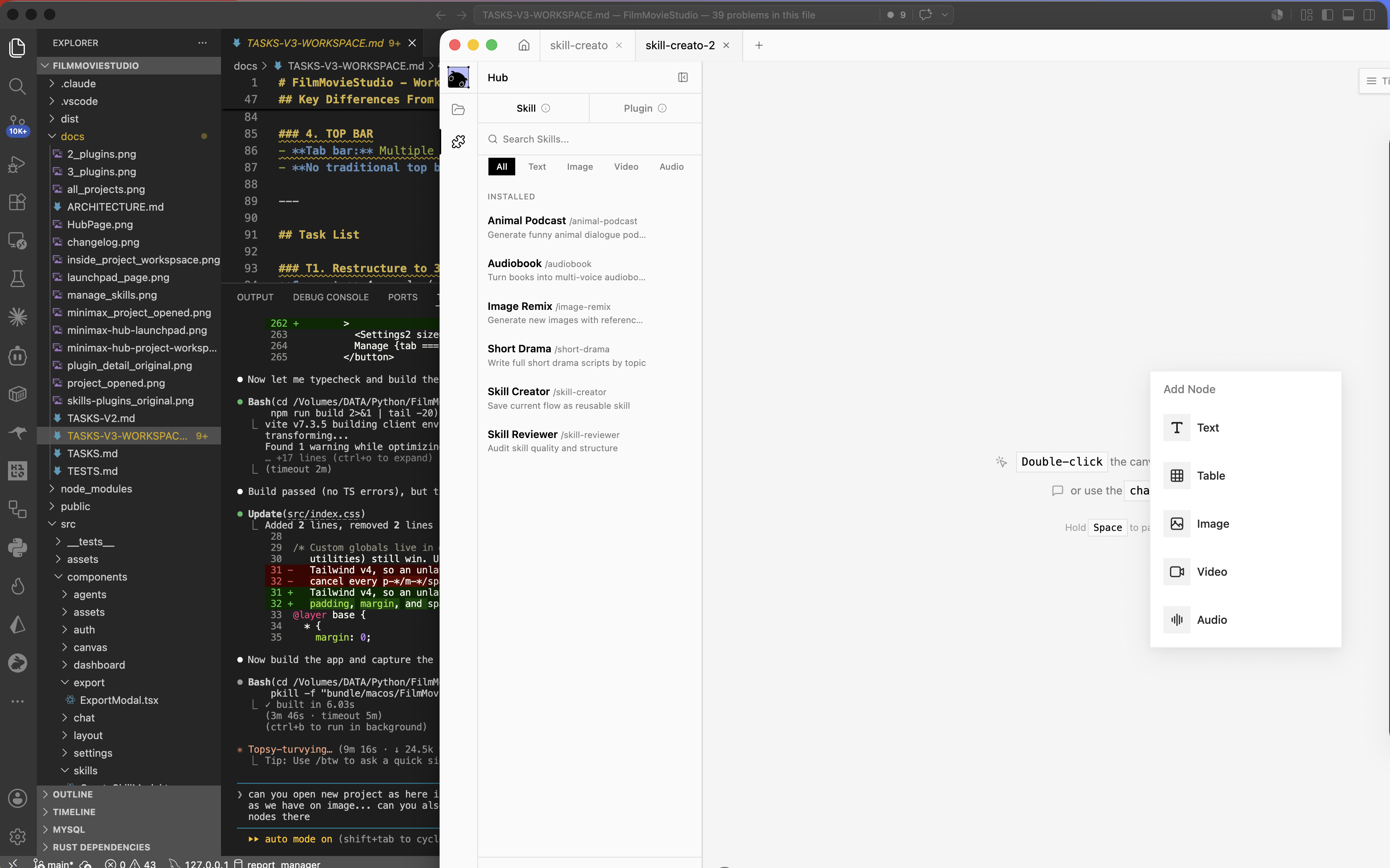
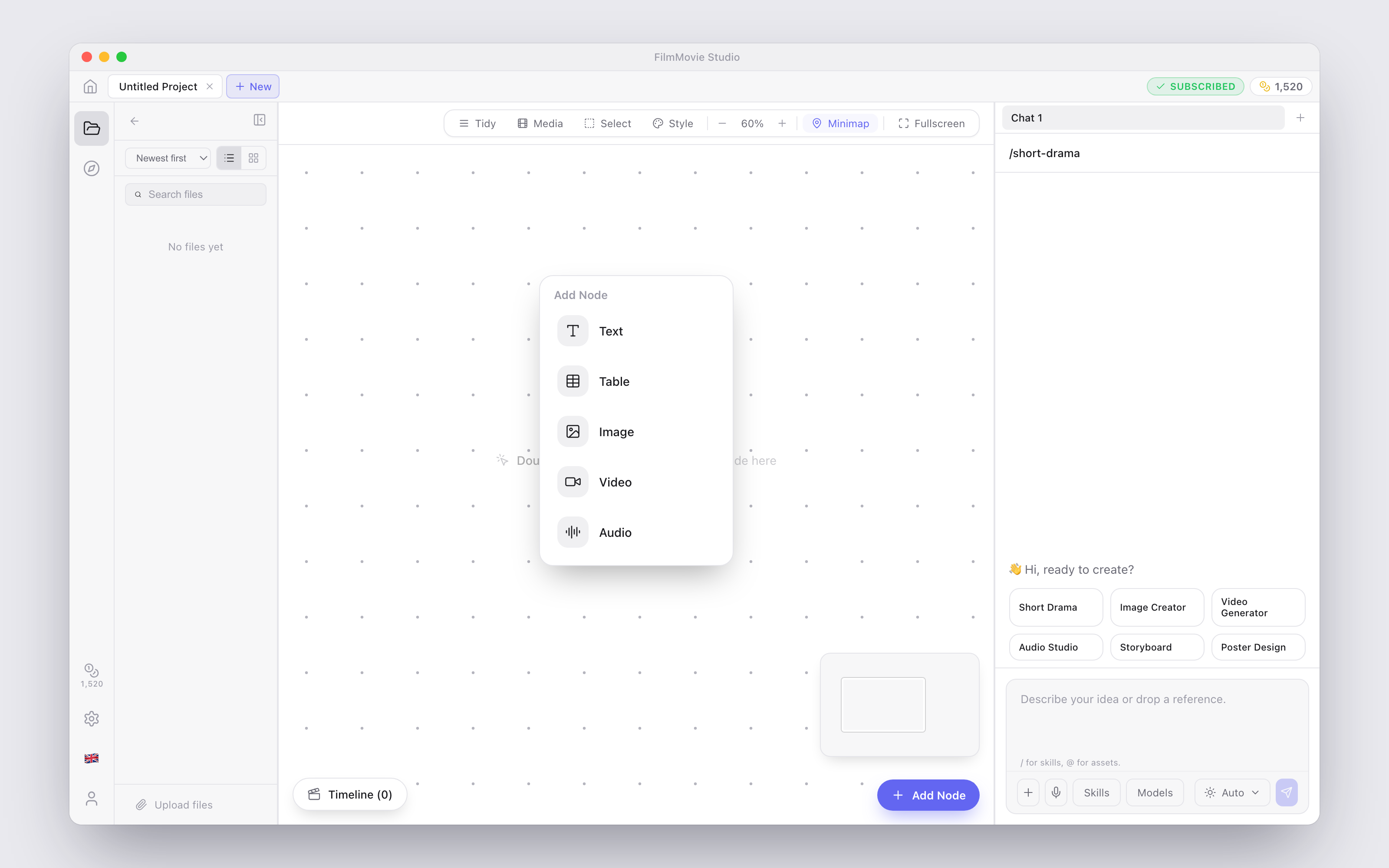
You don't need the chat to create a card. Double-click any empty spot on the canvas, or click the + Add Node button in the bottom-right corner, to open the Add Node menu with five blank card types:
- Text — freeform notes, prompts, or scripts.
- Table — simple tabular text.
- Image — an empty image card with a generation panel.
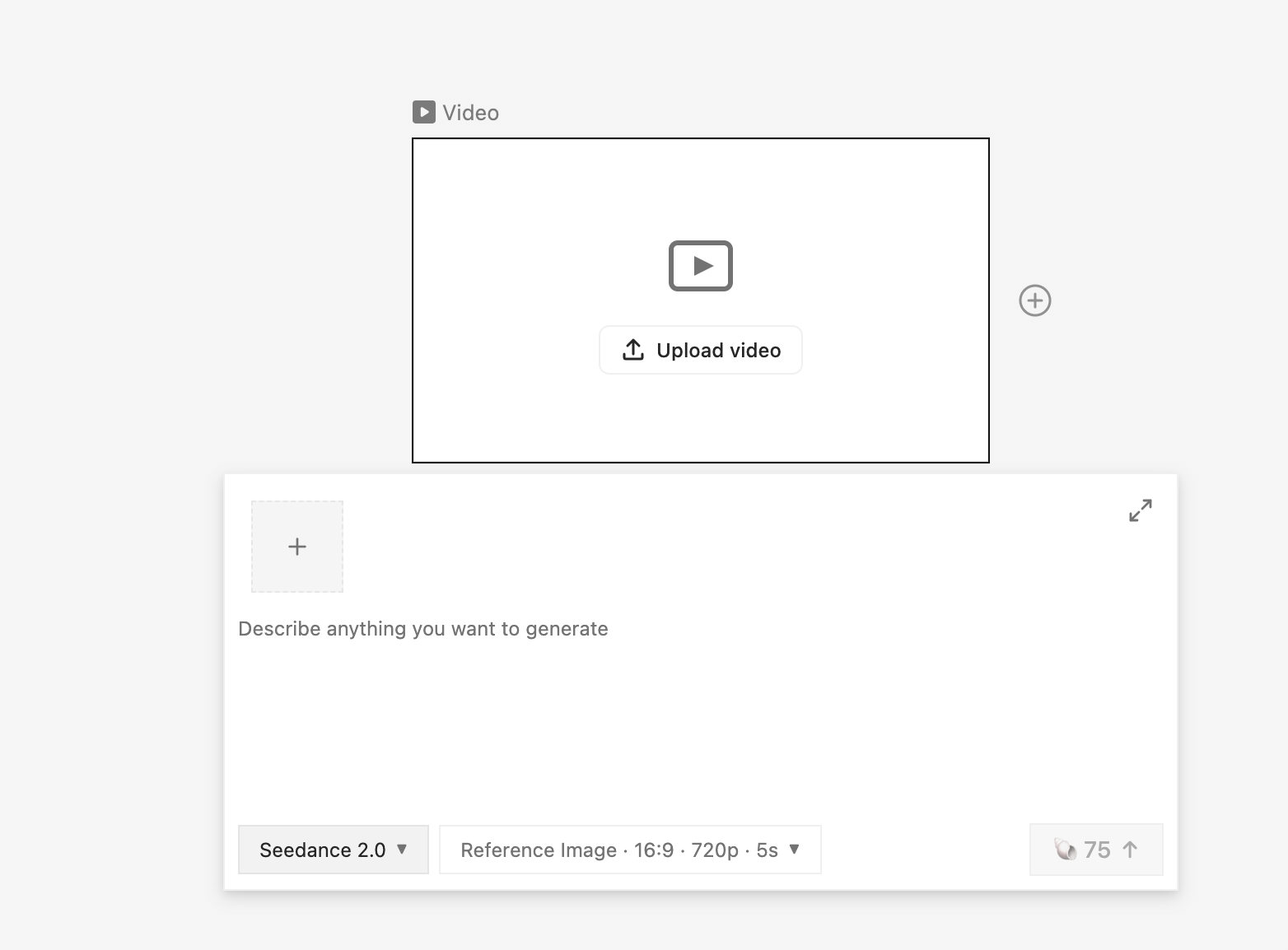
- Video — an empty video card with a generation panel.
- Audio — an empty audio card with Audio (speech) and Music tabs.
Generated card types
Skills and the chat agent create some specialized cards on top of the five basics. They behave like their base type but display extra content:
- Character — a portrait image plus a short profile; behaves like an image card and can be saved to the Cast library (see Cast & Asset Libraries).
- Plan / Episode / Scene / Intent — script and planning text produced by workflow skills; behave like text cards.
- Final — the rendered final video of a workflow; behaves like a video card (without Remix, since it's a composite).
- Screen — an app screen built by the App Builder skill, with its own export tools.
- Game — a playable game built by the game skills, playable right on the card.
- Document — a generated office file (PDF, Word, Excel) you can open with your system apps.
Select any card to reveal its toolbar above it. The sections below list every button per card type. Every toolbar ends with a trash icon — Delete node — which asks you to confirm (Delete / Cancel) before removing the card.
Image cards
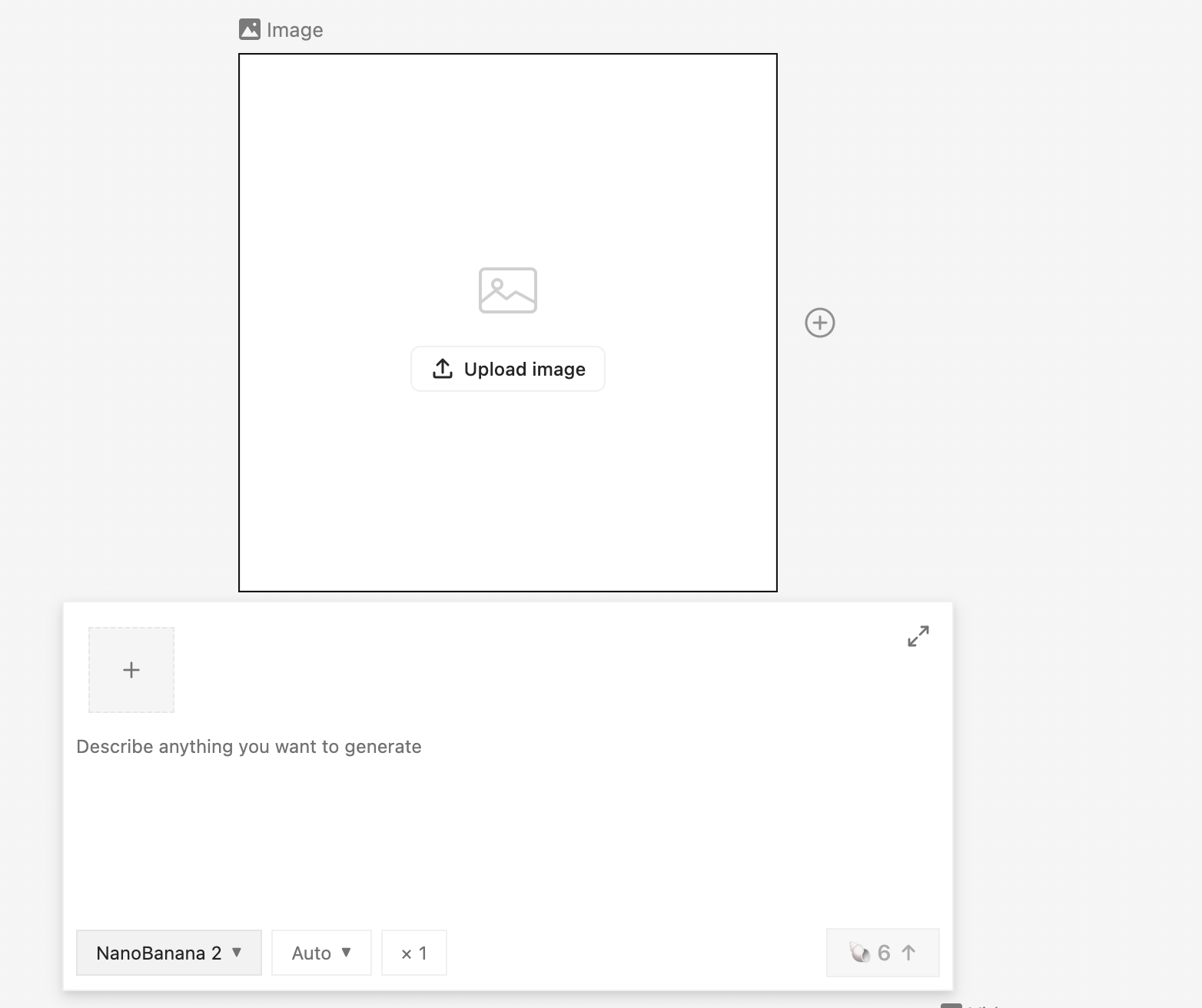
Image cards (and character cards) have the richest tool set — so many tools that only your pinned favorites sit in the main bar, while the rest live in the More tools menu behind the ⋯ button. By default the main bar shows Remix, Color adjust, and Fullscreen; use Customize Toolbar to pin the tools you use most.
| Button | What it does | Credits |
|---|---|---|
| Remix | Regenerates a variation using the card's saved prompt | — |
| Variations | Generates 3, 4, or 6 fresh takes on the same prompt as child cards | — |
| Pin style | Pins this image as the project's Style Lock reference | — |
| Outpaint | Extends the picture beyond its borders to a new aspect ratio | 60 |
| HD Upscale | 4× super-resolution upscale | 100 |
| Remove BG | Removes the background | 20 |
| Edit Image | Describe a change in words and apply it to the image | — |
| Erase & Redraw | Paint a mask, then regenerate just that region | — |
| Rotate | Rotate 90° clockwise / counter-clockwise, flip horizontally or vertically | — |
| Add to chat | References this card in your next chat message | — |
| Add to timeline | Sends the image to the Timeline Editor | — |
| Color adjust | Opens the color adjustment sliders | — |
| Split Grid | Cuts a grid image into separate cards: 4-Grid (2×2), 9-Grid (3×3), 16-Grid (4×4), or 25-Grid (5×5) | — |
| Add to Assets | Bookmarks the card into your cross-project Assets Library | — |
| Save to Cast | Saves a character's face (and voice) to the Cast library | — |
| Fullscreen | Opens a full-window preview | — |
| Customize Toolbar | Choose which tools are pinned to the main bar | — |
A few of these deserve a closer look:
- Remix re-runs the exact prompt that made the card, so you get a sibling take without retyping anything. It works on any chat-generated image (and video).
- Variations fans out several children at once — great for picking the best of a batch.
- Pin style feeds the Project Style Lock (the Style button in the canvas toolbar): the pinned image plus your style sentence are applied to every image and video generation in the project, keeping the whole film visually consistent.
- Outpaint opens a panel where you choose Scale, Resolution, a Preset, and a target aspect ratio (1:1, 3:4, 2:3, 9:16, 4:3, 3:2, 16:9, 4:5, 5:4, or Original), then click Generate (60 credits) to grow the image outward.
- Edit Image is the quickest retouch: type into "Describe the edit…" and click Apply.
- Erase & Redraw gives you a Brush and Eraser with an adjustable size, plus Undo and Clear mask. Paint over what you want replaced, type "Describe what to draw in the painted area…", and click Apply — only the painted region is regenerated.
- Split Grid is perfect after generating a storyboard or character sheet as one big grid image — each tile becomes its own card.
- Color adjust opens sliders for Color (hue), Vibrance, Saturation, Temperature, Tint, Contrast, and Brightness, with a Reset button.
- Save to Cast locks a character's face so they look (and sound) the same in every future project — see Cast & Asset Libraries.
Tip: In Customize Toolbar you can also switch on Show tool names to display a label under every icon while you're learning the tools.
Video cards
| Button | What it does | Credits |
|---|---|---|
| Remix | Regenerates a variation from the card's saved prompt (chat-generated videos only) | — |
| Generate subtitles | Detects speech in the audio track and generates subtitles | — |
| Add to chat | References this card in your next chat message | — |
| Add to timeline | Sends the video to the Timeline Editor | — |
| Clip | Trims the video to the section you choose | — |
| Extract audio | Pulls the soundtrack out into a new audio card | — |
| Color adjust | Opens the color adjustment sliders (same as images) | — |
| Add to Assets | Bookmarks the card into your Assets Library | — |
| Fullscreen | Opens a full-window preview with playback | — |
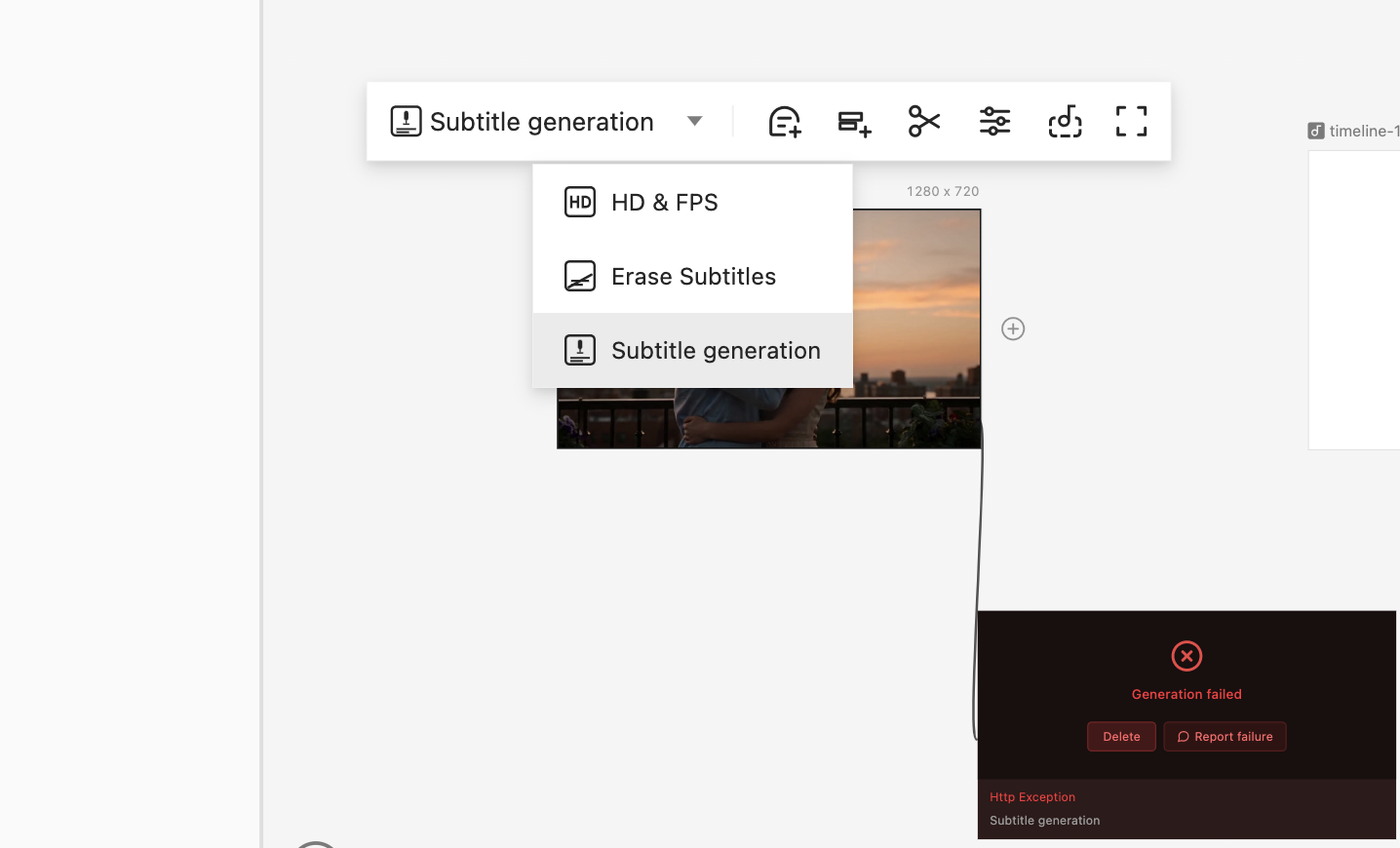
Generate subtitles opens the Subtitle generation dialog where you pick the spoken Language (English, Chinese, or Other) before transcription starts. Clip lets you keep just the good part of a shot before it goes to the timeline, and Extract audio is handy when you want to reuse a voice line or soundtrack on its own. Final cards — the rendered result of a workflow — share this toolbar minus Remix.
Audio cards
| Button | What it does | Credits |
|---|---|---|
| Add to chat | References this card in your next chat message | — |
| Add to timeline | Sends the clip to the Timeline Editor | — |
| Clip | Trims the audio | — |
| Adjust volume | Raises or lowers the clip's loudness | — |
| Add to Assets | Bookmarks the card into your Assets Library | — |
| Fullscreen | Opens a full-window player | — |
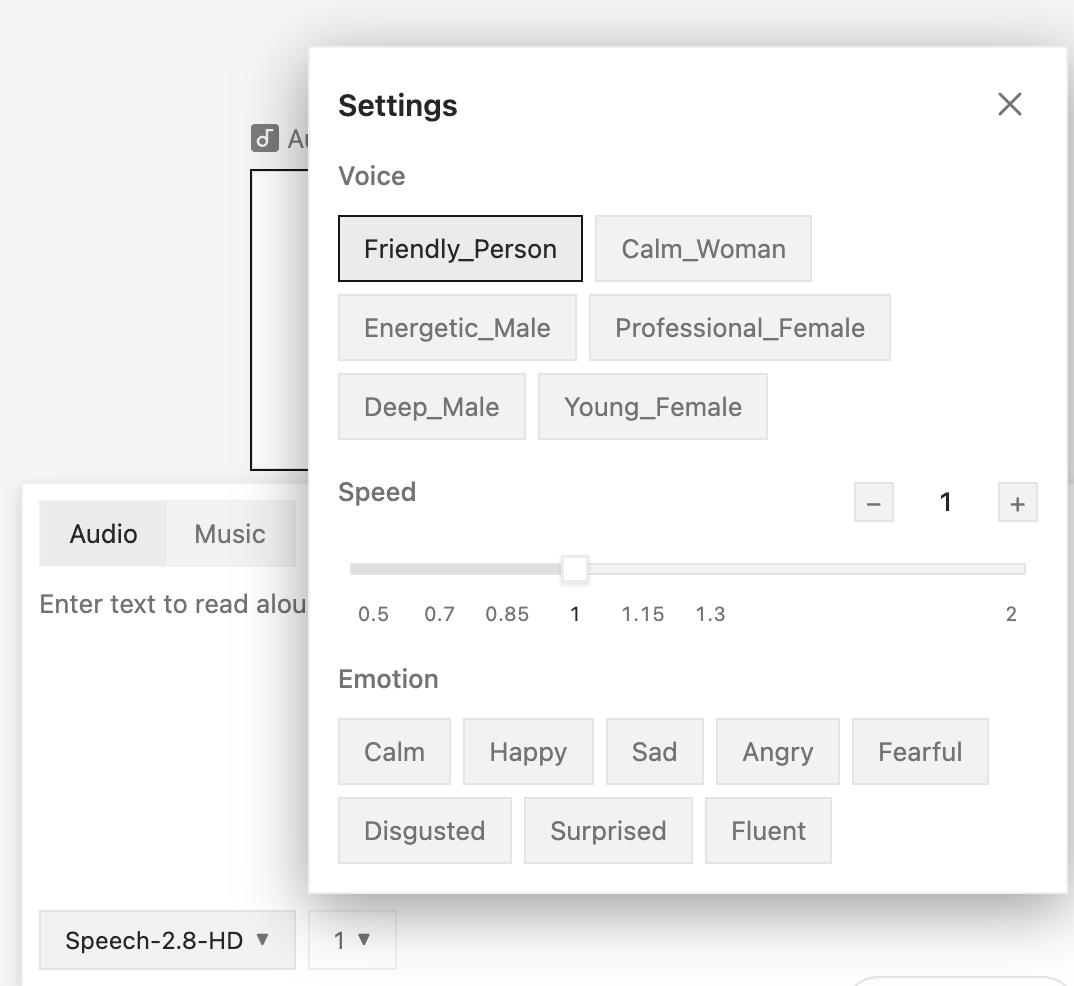
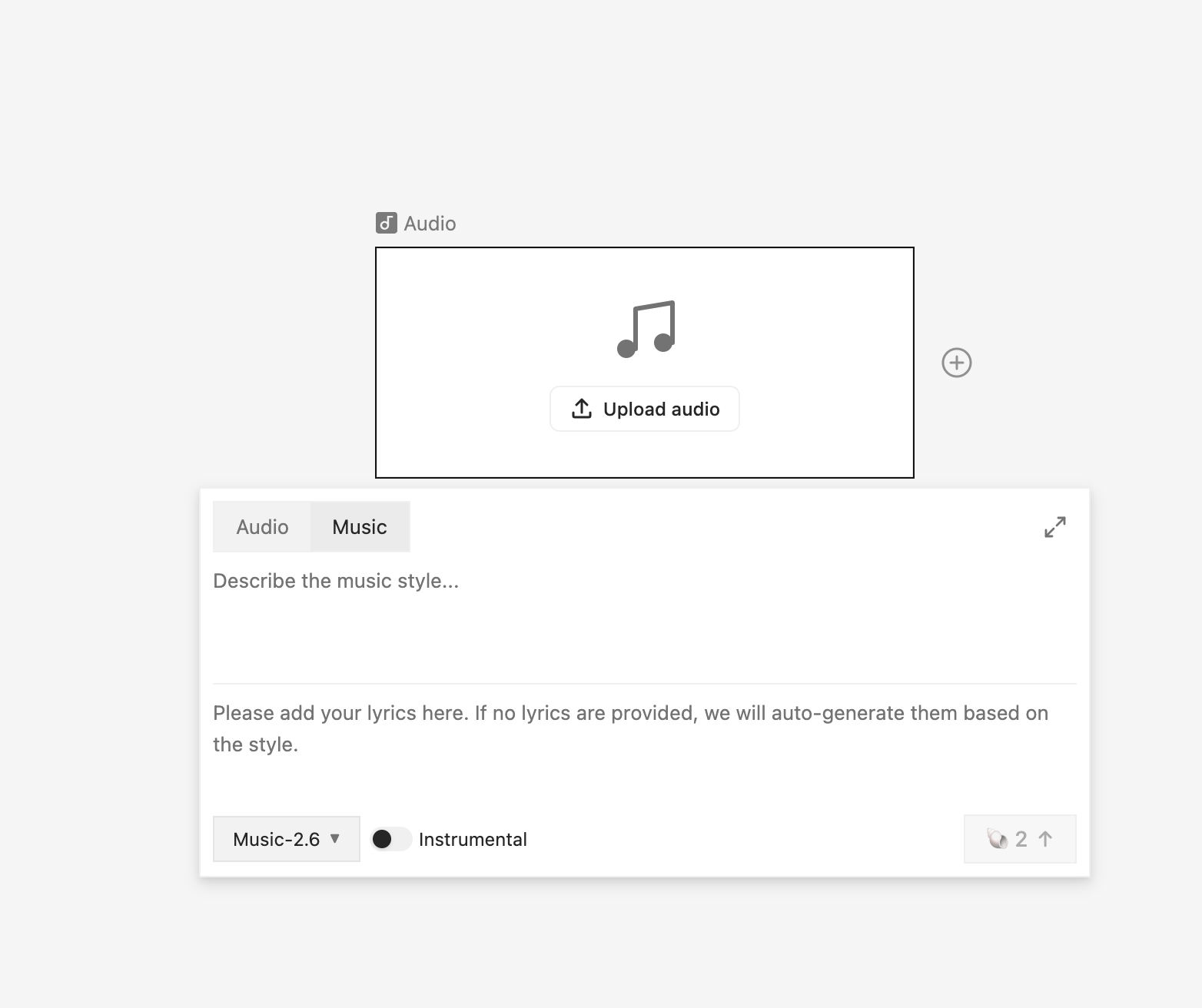
An empty audio card has two tabs: Audio for text-to-speech (type or paste the words to be read aloud and pick a voice) and Music for full tracks — describe the genre, mood, instruments, and tempo, tap the style chips to build the description, and optionally click Generate lyrics (in your chosen language) or write your own. An Instrumental toggle skips vocals entirely, and you can choose MP3 or WAV output.
Text, Table, Document & script cards
Text cards — including Table, Document, and the script family (Plan, Episode, Scene, Intent) — share one compact toolbar:
| Button | What it does | Credits |
|---|---|---|
| Copy text | Copies the card's full text to your clipboard | — |
| Add to chat | References this card in your next chat message | — |
| Add to Assets | Bookmarks the card into your Assets Library | — |
| Fullscreen | Opens the text in a full-window reader | — |
Screen cards (App Builder)
| Button | What it does | Credits |
|---|---|---|
| Export React code | Exports the app as ready-to-run React code | — |
| Save as PNG | Saves the screen as an image | — |
| Record walkthrough video | Records a narrated walkthrough of the app | — |
| Add to chat / Add to Assets / Fullscreen | As above | — |
Game cards
| Button | What it does | Credits |
|---|---|---|
| Edit / remix game | Re-opens the game in chat so you can change it | — |
| Export as HTML | Saves the game as a single self-contained .html file | — |
| Add to chat / Add to Assets / Fullscreen | As above | — |
Document cards (office files)
| Button | What it does | Credits |
|---|---|---|
| Open | Opens the file with your system's default app | — |
| Reveal in folder | Shows the file in Finder / Explorer | — |
| Add to chat / Add to Assets | As above | — |
The generation panel on a card
Select an empty (or previously generated) image, video, or audio card and its generation panel appears below it — the same power the chat has, right on the card.
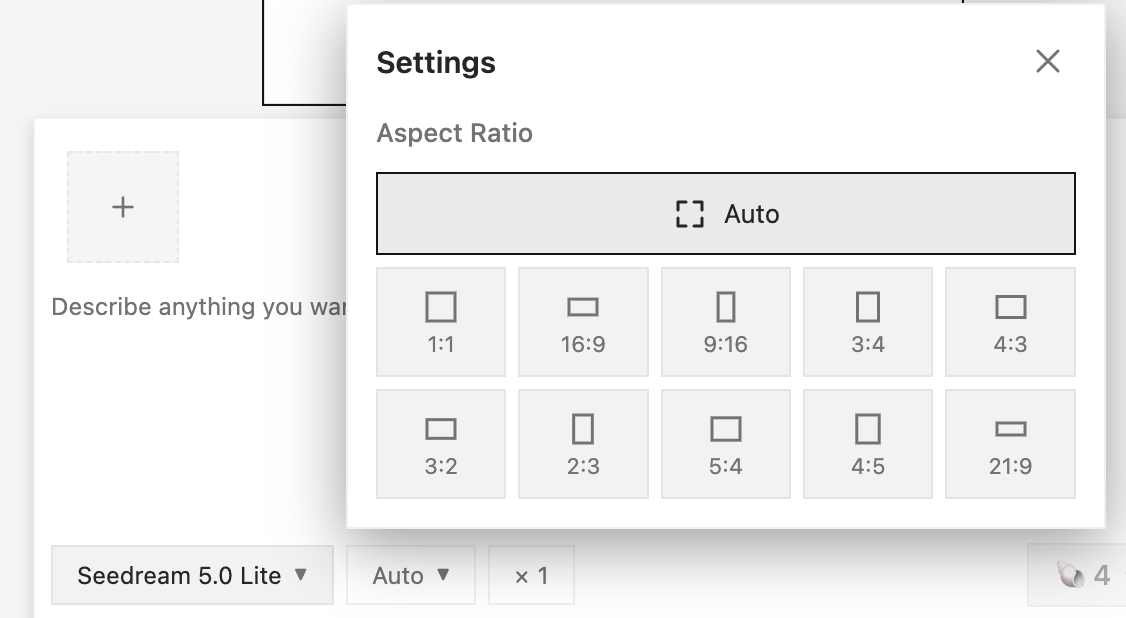
- Prompt box — "Describe anything you want to generate". If the card was generated before, its original prompt is pre-filled so you can tweak and re-run.
- Reference images — connected image cards show up as thumbnails automatically, and the + button adds more from disk. A colored ring tells you whether the selected model will actually use them.
- Enhance — the sparkle button rewrites your prompt with richer detail (and spoken dialogue for video) using your script model; the undo arrow restores your original text.
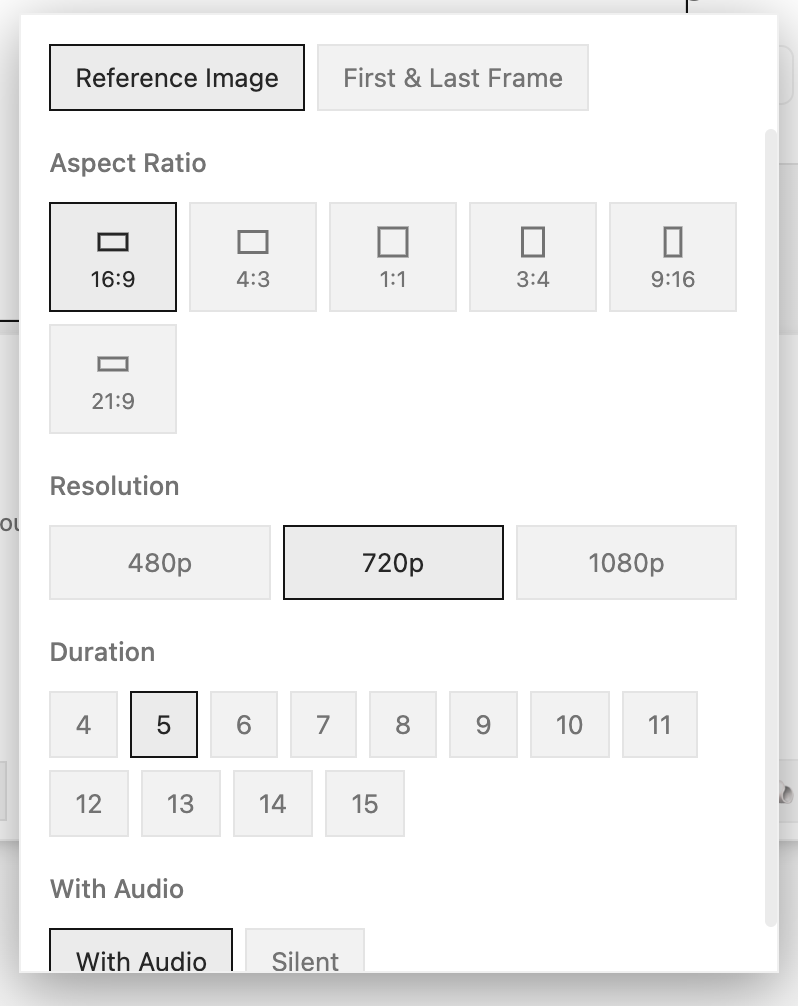
- Settings — the sliders button opens the model's options: aspect ratio, resolution, duration, and whatever else the chosen model supports. Your picked aspect ratio even resizes the card to match.
- Model — the dropdown picks which AI model generates. Different models have different strengths, speeds, and prices.
- Generate — runs it. On subscription (managed) models the button shows the estimated credit cost up front; models using your own API keys just say Generate.
Tip: Text cards get a lighter version of this panel — a prompt box that asks your script model to rewrite or extend the card's text in place.
With cards mastered, put them in order in the Timeline Editor, or make your characters permanent in Cast & Asset Libraries.