Not every production is just video. You often need to read a contract in PDF, pull numbers out of an XLSX sheet, or the other way round produce a proper budget, shooting schedule or treatment to send a client. The /documents skill does both: it reads text and data from PDF, DOCX, XLSX and CSV, and can turn that — or a plain brief — into a real Word, PDF or Excel file. It all happens on the same canvas as your images and videos, and the finished document is saved locally so you can open it in your usual app.
What you'll need
- FilmMovie Studio installed (macOS or Windows).
- At least one generation provider configured in Settings (a kie.ai or deAPI key).
- A source file (PDF, DOCX, XLSX or CSV), or a clear brief of the document you want to create.
Step by step
- 1
Open a project in the Workspace
From the Launchpad, open an existing project or create a new one. The Workspace opens with the Canvas on the left and the chat panel on the right — that's where you'll work with documents.
Film Movie StudioRenderOpen a project in the Works…New projectLaunchpadHubAll projectsRecent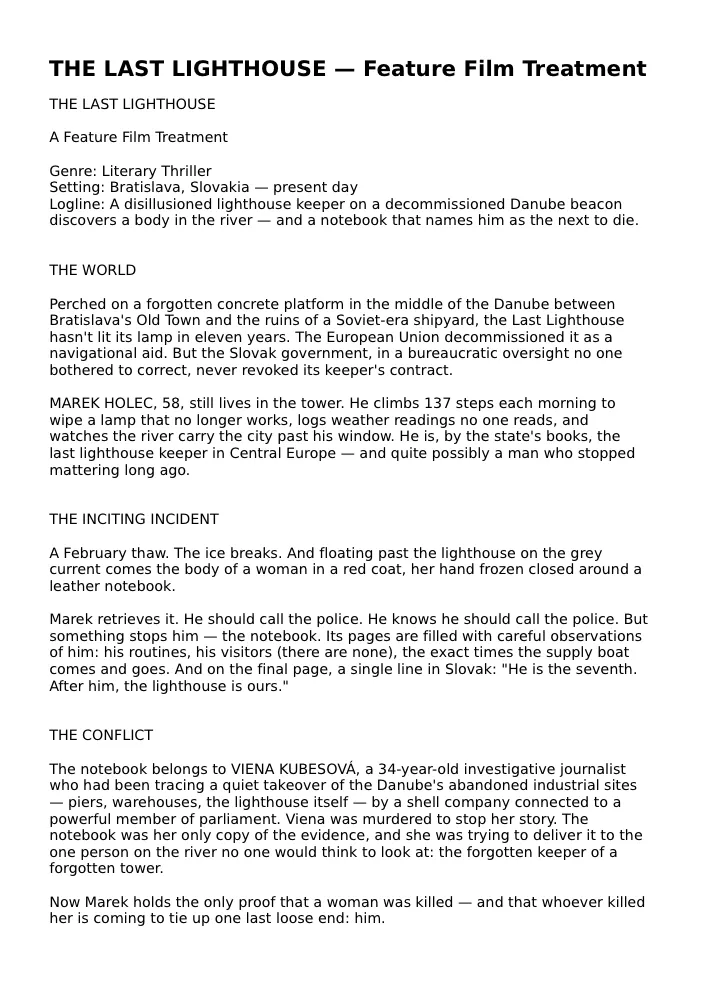 project 1
 project 2
 project 3Settings
Film Movie Studio
A new way to create media with AI
Describe what you want to create…
SkillsModelsType / to explore AI skills
Short DramaE-commerceMusic VideoGamesDocumentary - 2
Drop in a source file or describe the brief
Drag a PDF, DOCX, XLSX or CSV straight onto the canvas (or add it via import). If you have no source, just describe the document you want to produce — e.g. "a budget for a one-day shoot".
Film Movie StudioRenderDrop in a source file or de…New projectFilesframe_1frame_2frame_3frame_4Drag an image here, or click to upload
reference.pngTip: The file is saved locally into the project as an asset right away, so the link never expires and the document is at hand even offline. - 3
Type your command with /documents
In chat, type your request and pick the /documents skill — e.g. "/documents read this PDF and summarize the key points" or "/documents turn this data into an Excel budget". The app reads the skill's workflow and calls the right tools itself.
Film Movie StudioRenderType your command with /doc…New projectSkills/documents/short-drama/image-creator/audio-studio/app-builder/documents Type your command with /documents
SkillsModelsType / to switch skills anytime
- 4
Watch the document card appear
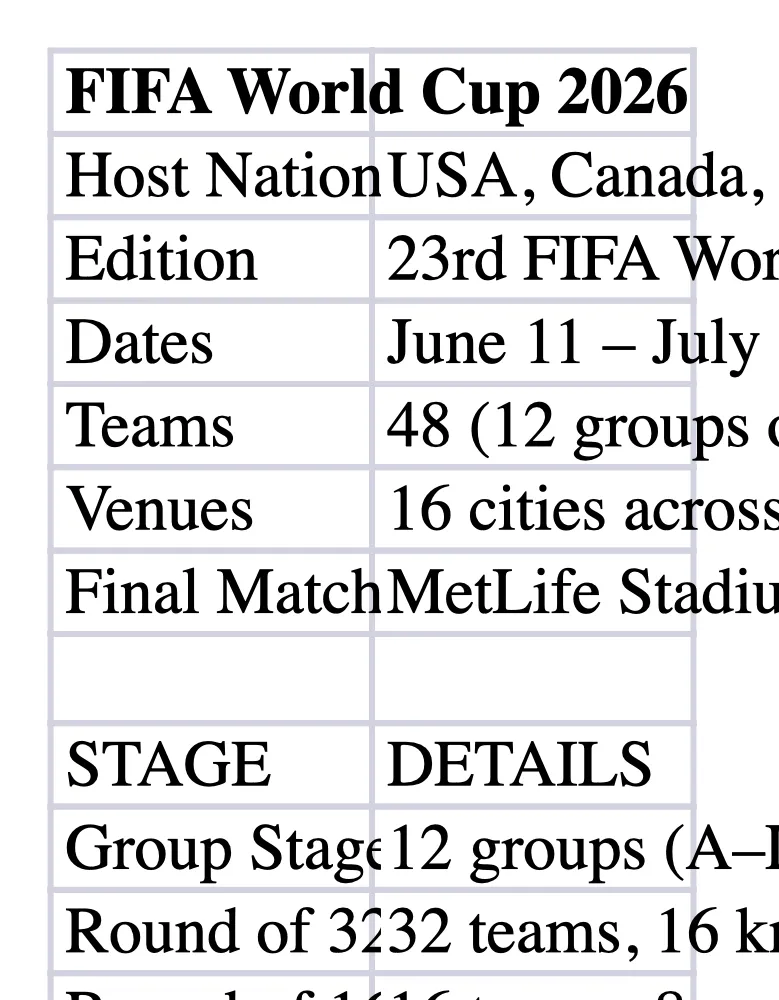
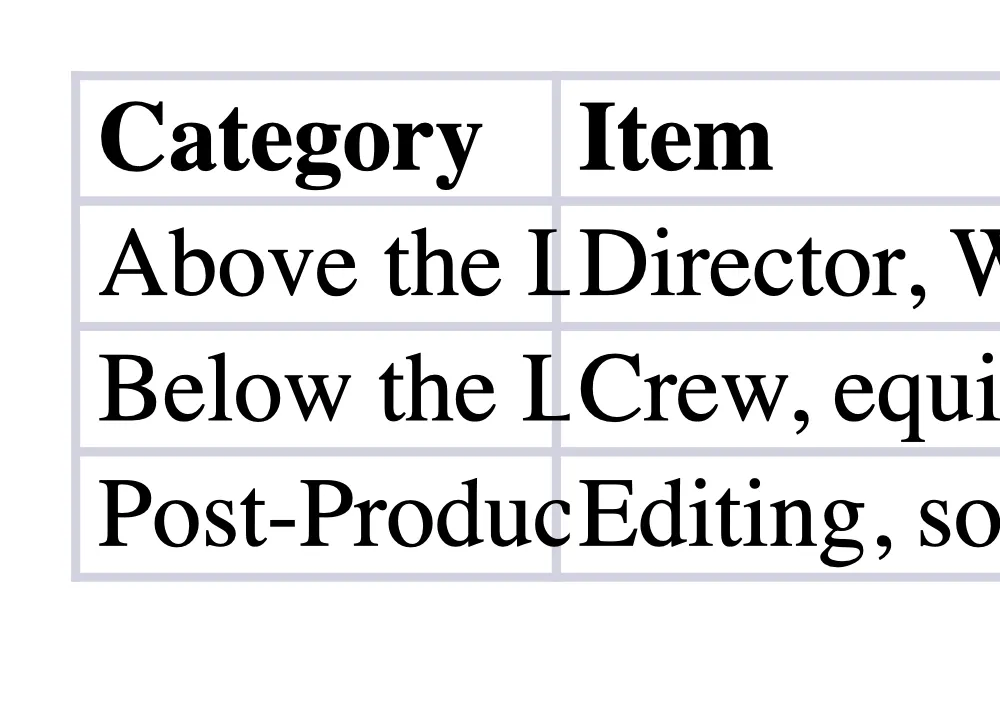
When reading a source, a text card with the extracted content drops onto the canvas; when creating a new file, a document card appears. The card first shimmers (processing), then fills with the result.
Film Movie StudioRenderWatch the document card app…New projectFilesframe_1frame_2frame_3Drag an image here, or click to upload
reference.png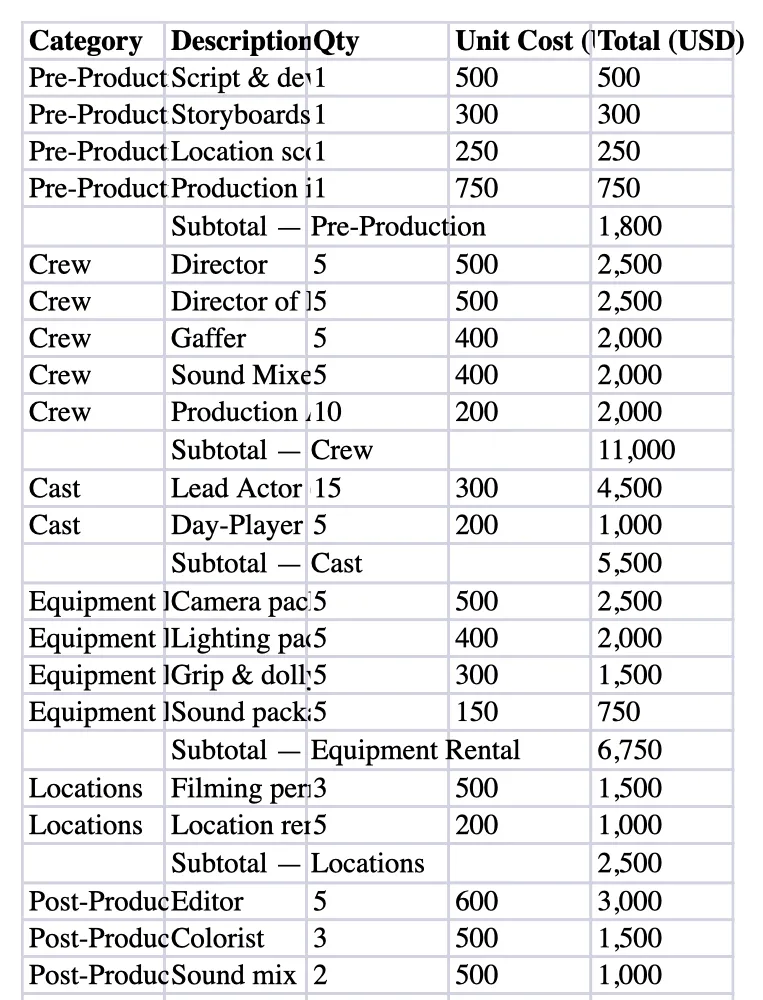
- 5
Review the extracted data
Read the text card with the extracted content and check the numbers and rows are right. If a PDF is just scanned images and returns "[no extractable text …]", it's a scan with no text layer and OCR isn't available yet.
Film Movie StudioRenderReview the extracted dataNew projectFilesframe_1frame_2frame_3frame_460%frame_01.png1024²Generating… 42%RemixVariationsframe_02.png1024²Generating… 68%RemixVariationsframe_03.png1024²Generating… 55%RemixVariationsframe_04.png1024²Generating… 80%RemixVariationsTip: Before producing output, ask the AI in chat to fix or fill in specific rows — it works with whatever it can see on the card. - 6
Generate a Word, PDF or Excel output
For continuous text (a report, script, treatment) ask for Word or PDF; for tabular data (a budget, shooting schedule, shot list) ask for Excel. The app produces a real file and adds it to the canvas as a document card.
Film Movie StudioRenderGenerate a Word, PDF or Exc…New projectFilesframe_1frame_2frame_3frame_460%frame_01.png1024²Generating… 42%RemixVariationsframe_02.png1024²Generating… 68%RemixVariationsframe_03.png1024²Generating… 55%RemixVariationsframe_04.png1024²Generating… 80%RemixVariationsTip: You can't build a slide deck / PowerPoint (.pptx) here — that's the /automation skill. As an alternative, ask for a PDF or Word version instead. - 7
Open and save the file locally
Click the document card to open it in your usual app (Word, Preview, Excel). The file is already saved locally in the project folder, so you can send it to a client or edit it further.
Film Movie StudioRenderOpen and save the file loca…New projectFilesframe_1frame_2frame_3frame_460%frame_01.png1024²RemixVariationsframe_02.png1024²RemixVariationsframe_03.png1024²RemixVariationsframe_04.png1024²Generating… 80%RemixVariations
What you get
From a single canvas you've read a PDF or XLSX, verified the extracted data and generated a real Word, PDF or Excel file — a report, script, budget or shooting schedule — saved locally and ready to send. Your documents now live next to your images and videos in the same project.
Pro tips
- When making Word or PDF, write content as paragraphs — one paragraph per line; for Excel, give sheets with column names and rows.
- A scanned PDF with no text layer can't be read (OCR isn't available yet) — use a source with real text instead.
- You can't create PowerPoint (.pptx) here; ask the /automation skill, or request a PDF or Word version of the deck right here.
Try it yourself
FilmMovie Studio is a desktop app that walks you from idea to finished export. Download it and start creating.
Get FilmMovie Studio