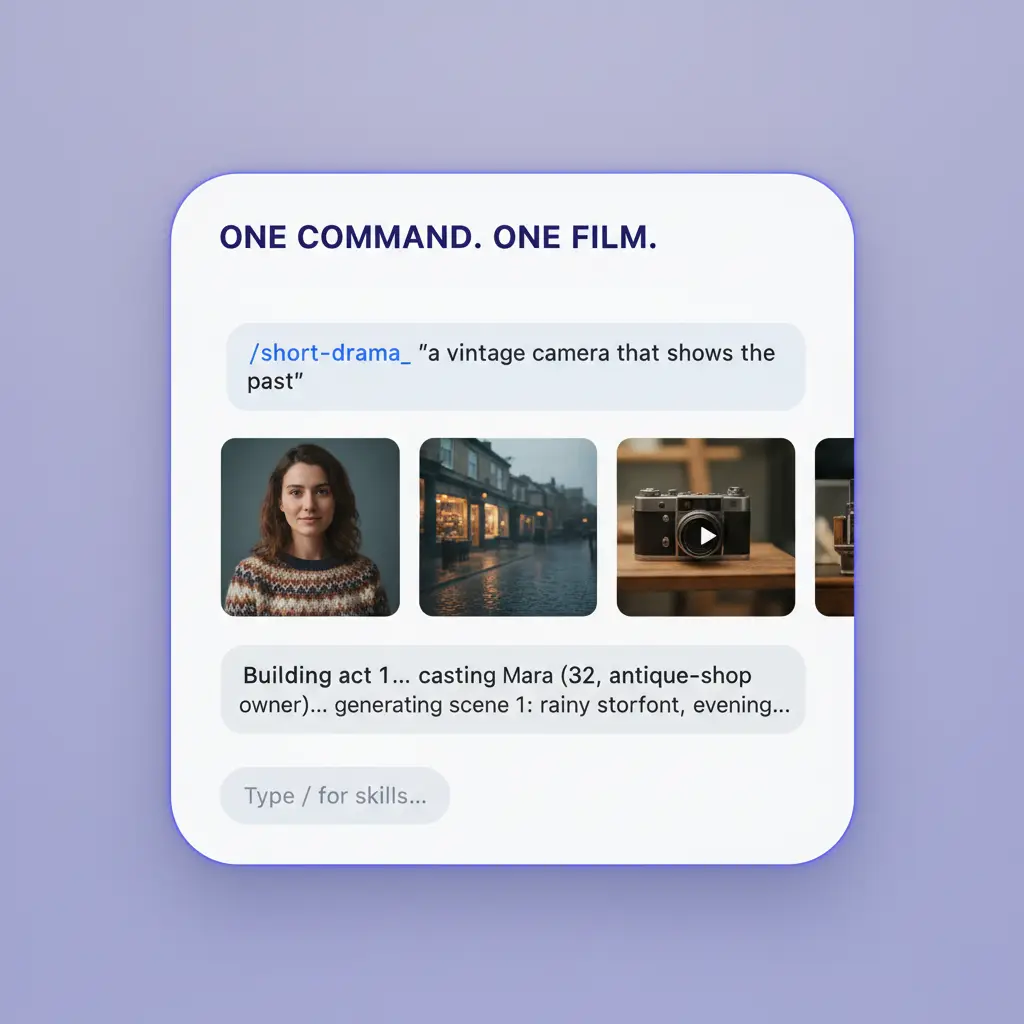
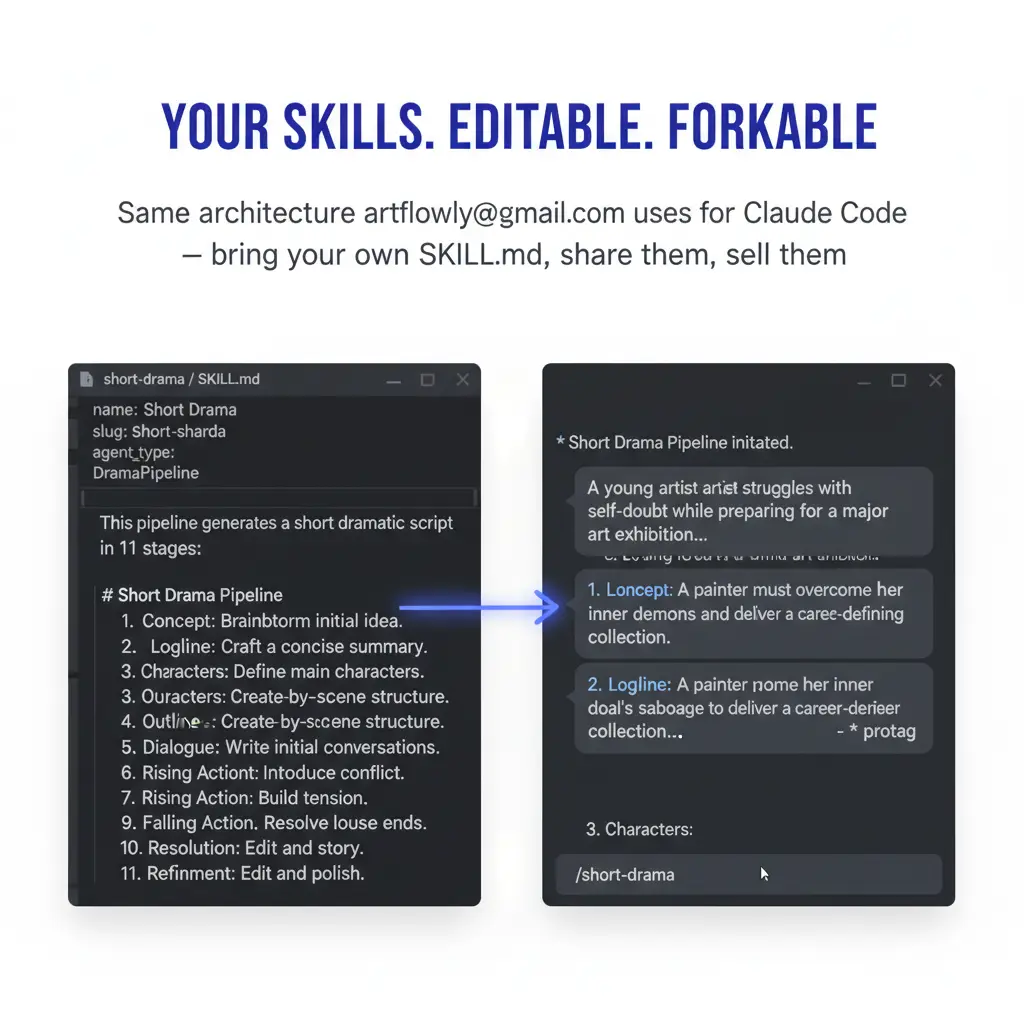
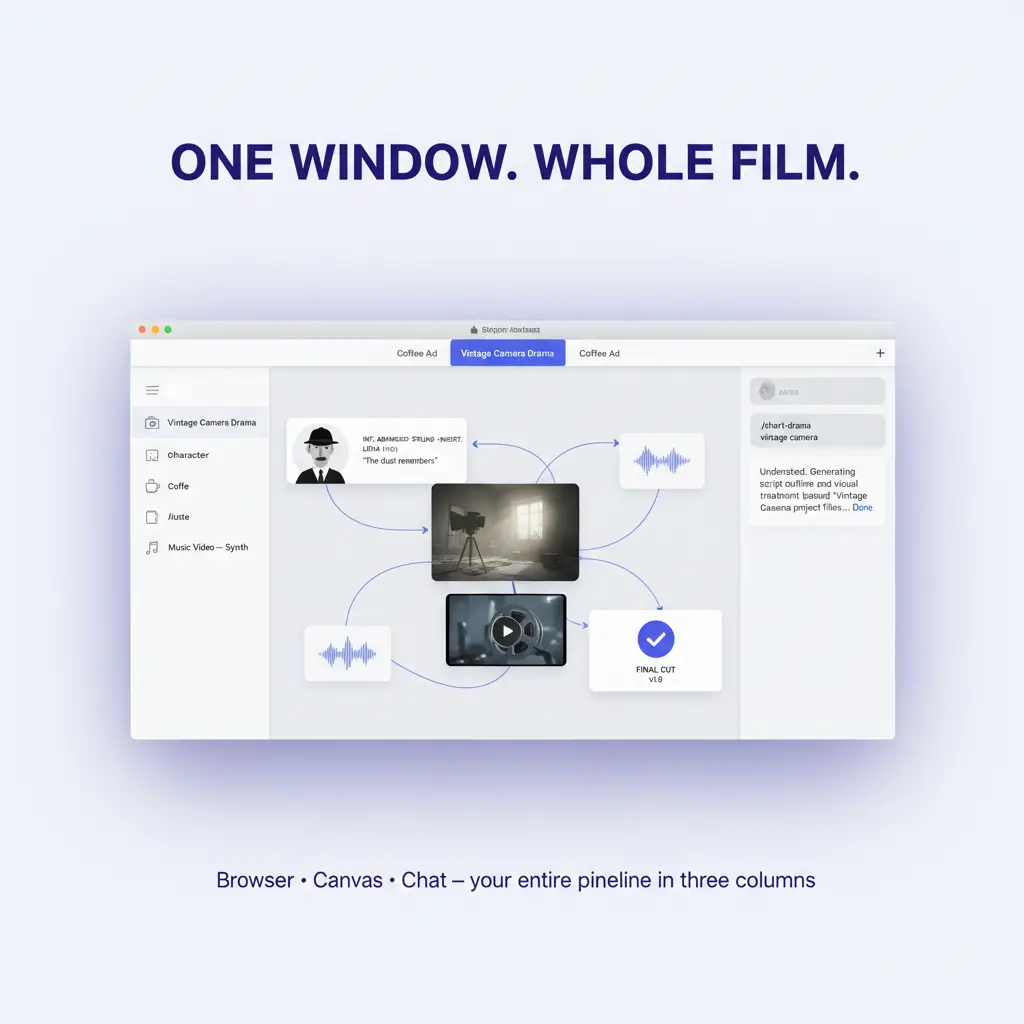
The /short-drama command is the most ambitious skill in FilmMovie Studio — a whole film crew in one window. Instead of generating a single shot, it walks you through a multi-stage direction: it reads the genre and characters from your idea, locks a binding visual style, plans episodes and scene beats, generates keyframes, animates them into video clips with lip-synced dialogue, scores the music and assembles everything onto a timeline. At meaningful moments the app pauses at a "creative gate" and waits for your call — you are the director, it is the crew. Every card lands on the shared canvas as a derivation tree, so you see exactly how a finished drama grows out of one idea.
What you'll need
- FilmMovie Studio installed with a provider configured for image, video and audio (kie.ai or deAPI).
- A story idea — one or two sentences about the genre and the main character are plenty.
- A few minutes of patience: the skill runs in several stages and pauses a few times for your confirmation.
Step by step
- 1
Launch the /short-drama skill with your idea
Create a new project in the Launchpad and open the Workspace. In the chat panel pick the /short-drama skill (the clapperboard icon) and type your idea in one or two sentences, e.g. "A neo-noir plot about a detective investigating her own past". If you have reference photos of characters, attach them to the chat.
Film Movie StudioRenderLumi'S Sky Lantern AdventureNew projectLaunchpadHubAll projectsRecent project 1
 project 2
 project 3Settings
Film Movie Studio
A new way to create media with AI
Describe what you want to create…
SkillsModelsType / to explore AI skills
Short DramaE-commerceMusic VideoGamesDocumentaryTip: Describe the story, not the shots. The app pulls the genre, tone and cast out of your sentence by itself. - 2
Watch intent recognition and the characters appear
The app first analyzes the idea and drops an "Intent" card (plan type) with the genre, tone and audience. Then, for each main character, it adds a profile card (a document, saved as e.g. wren-holloway.md) and links it under Intent. Cards first appear as shimmering placeholders and fill in once the text is written.
Film Movie StudioRenderGrandfather'S Workshop Memo…New projectFilesframe_1frame_2frame_3frame_4frame_5Drag an image here, or click to upload
reference.png
- 3
Fill in the creative brief (a creative gate)
The skill pauses and shows a brief with three tabs: Target Market, Episode Count and Tone & Style. The options are sized to your specific story (e.g. for a Tokyo noir: Japan / East-Asia / Global). Pick on each tab and confirm — your choices steer the entire rest of the production.
Film Movie StudioRenderLumi And The Fading LanternNew projectFilesframe_1frame_2frame_3frame_4frame_5frame_660%frame_01.png1024² RemixVariationsframe_02.png1024²
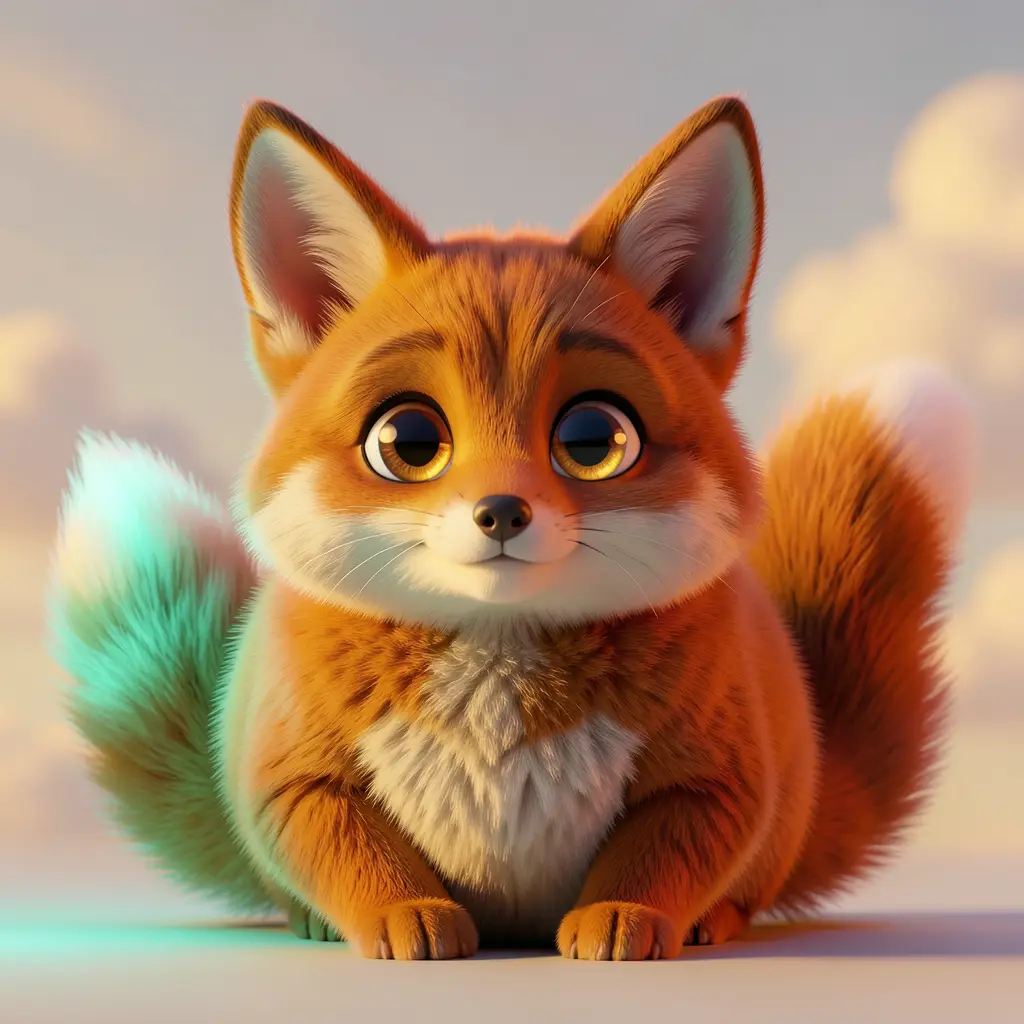 RemixVariationsframe_03.png1024²
 RemixVariationsframe_04.png1024²
 RemixVariationsframe_05.png1024²
 RemixVariationsframe_06.png1024²
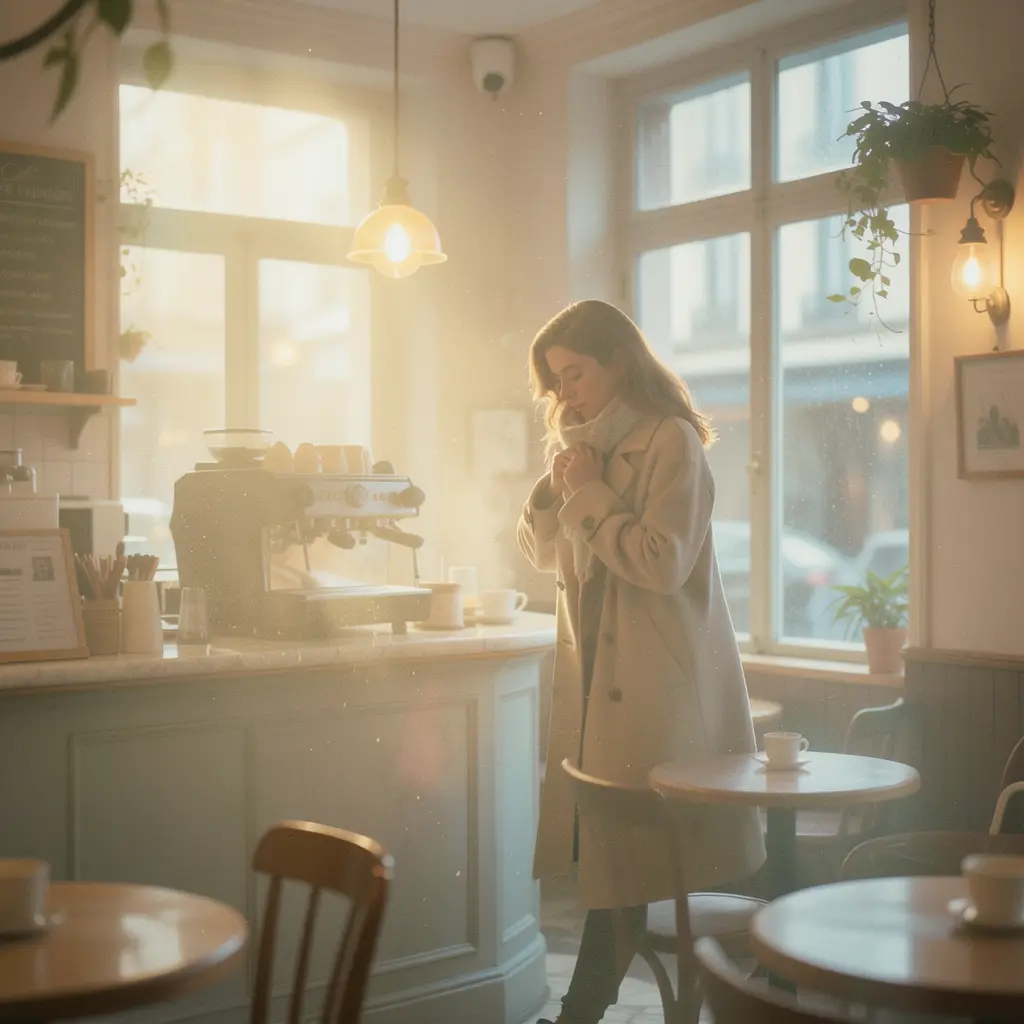 Generating… 61%RemixVariationsTip: Episode Count is always a whole number — this value directly decides how many episodes get planned next.
 - 4
Let the visual style get locked
After you pick a style the app writes a "Style Bible" (a plan card with a binding description of medium, palette and lighting), generates one "Style Anchor" — a reference establishing shot of the world — and then a reference portrait for each character. This style is locked at the project level and is appended to every later image and video prompt.
Film Movie StudioRenderCafe Lumiere RomanceNew projectSkills/short-drama/image-creator/audio-studio/app-builder/games/short-drama A woman in a beige overcoat stands outside in falling rain on a city street, slowly lifting a paper coffee cup and reading the word written on it. Rain drops fall across the…
SkillsModelsType / to switch skills anytime
Tip: Portraits are separate image cards, not part of the text profile — it's their node ids that keep characters visually consistent later. - 5
Review the creative plan, episodes and scenes
The app generates a "Creative Plan" organized into Acts, and beneath it a card for each episode (Ep N · title). For each episode it writes three scene beats and adds a scene card (Scene N.n) with the summary, camera and dialogue. Scenes are linked under their episodes and carry, in their references, the portraits of the characters who act in them.
Film Movie StudioRenderThe Unlikely CompanionsNew projectFilesframe_1frame_2frame_3frame_460%frame_01.png1024²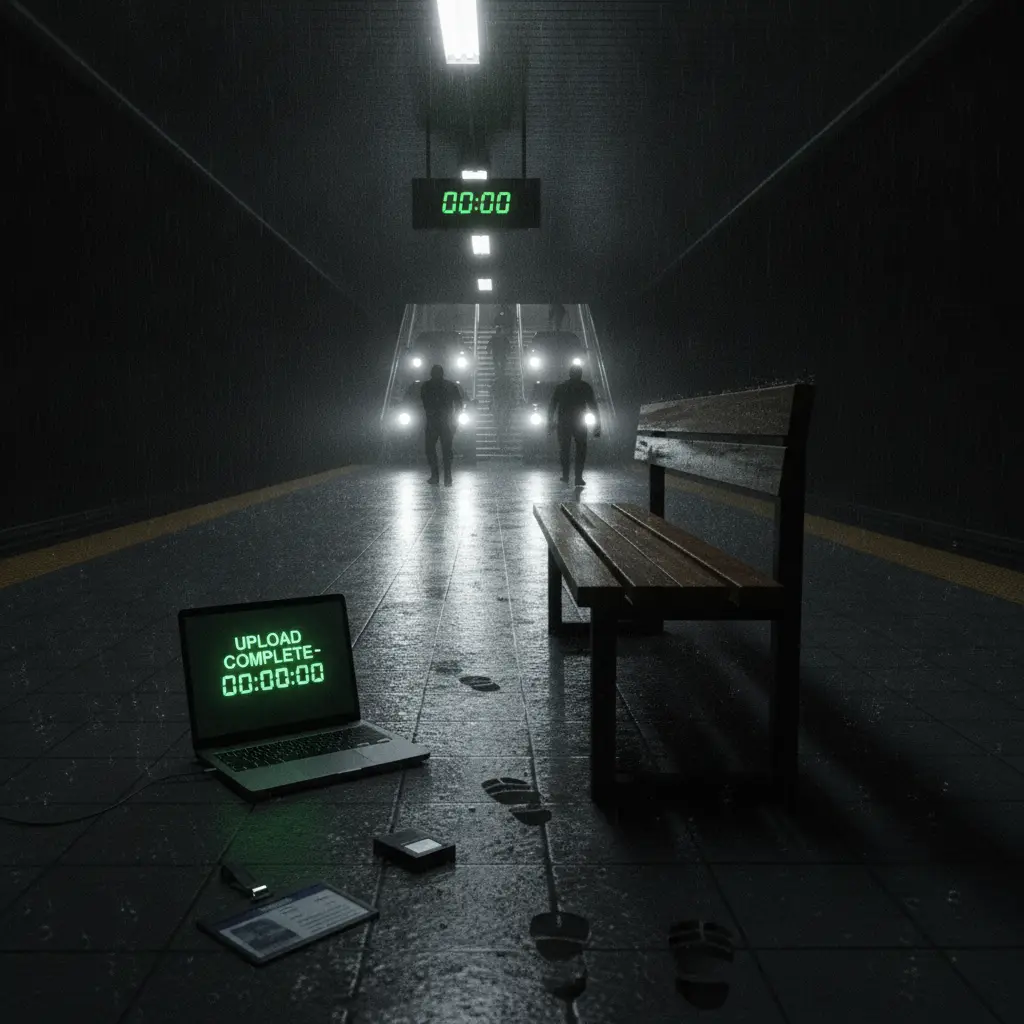 Generating… 42%RemixVariationsframe_02.png1024²
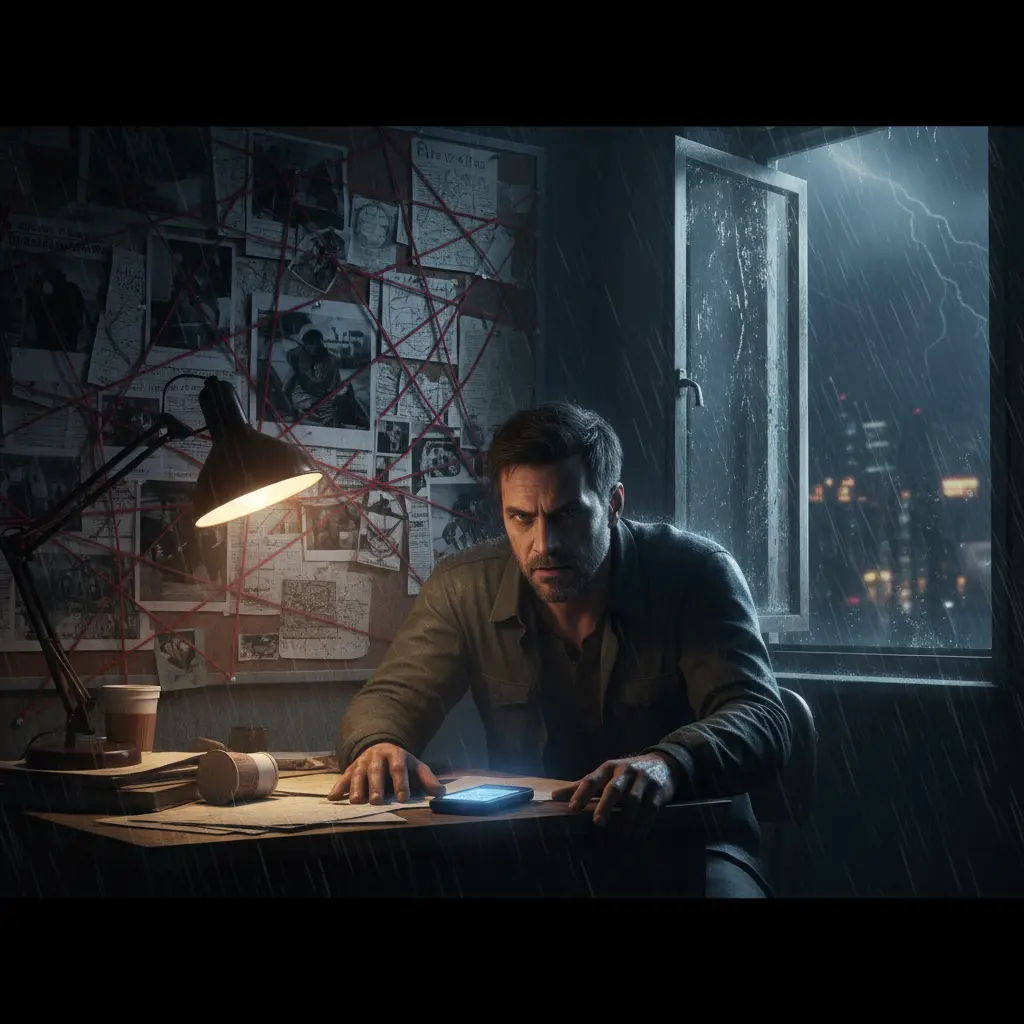 Generating… 68%RemixVariationsframe_03.png1024²
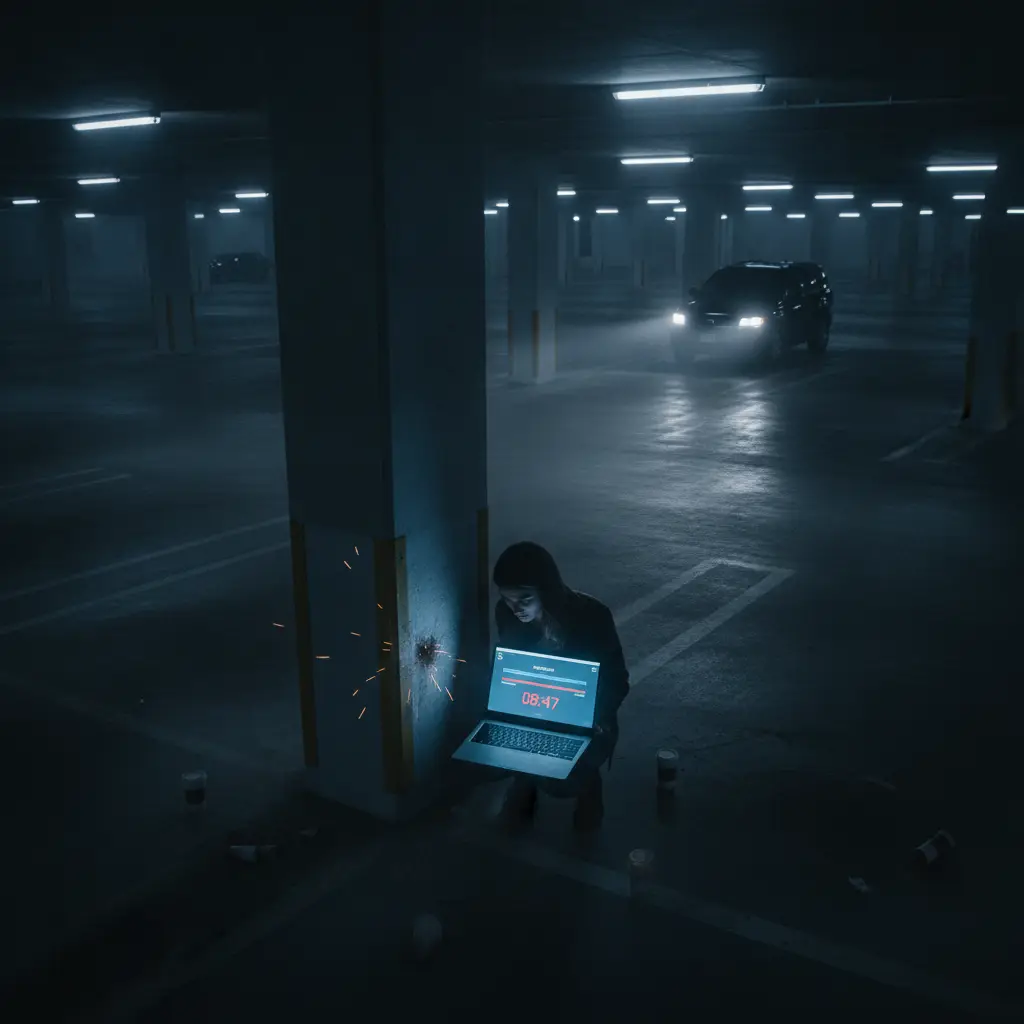 Generating… 55%RemixVariationsframe_04.png1024²
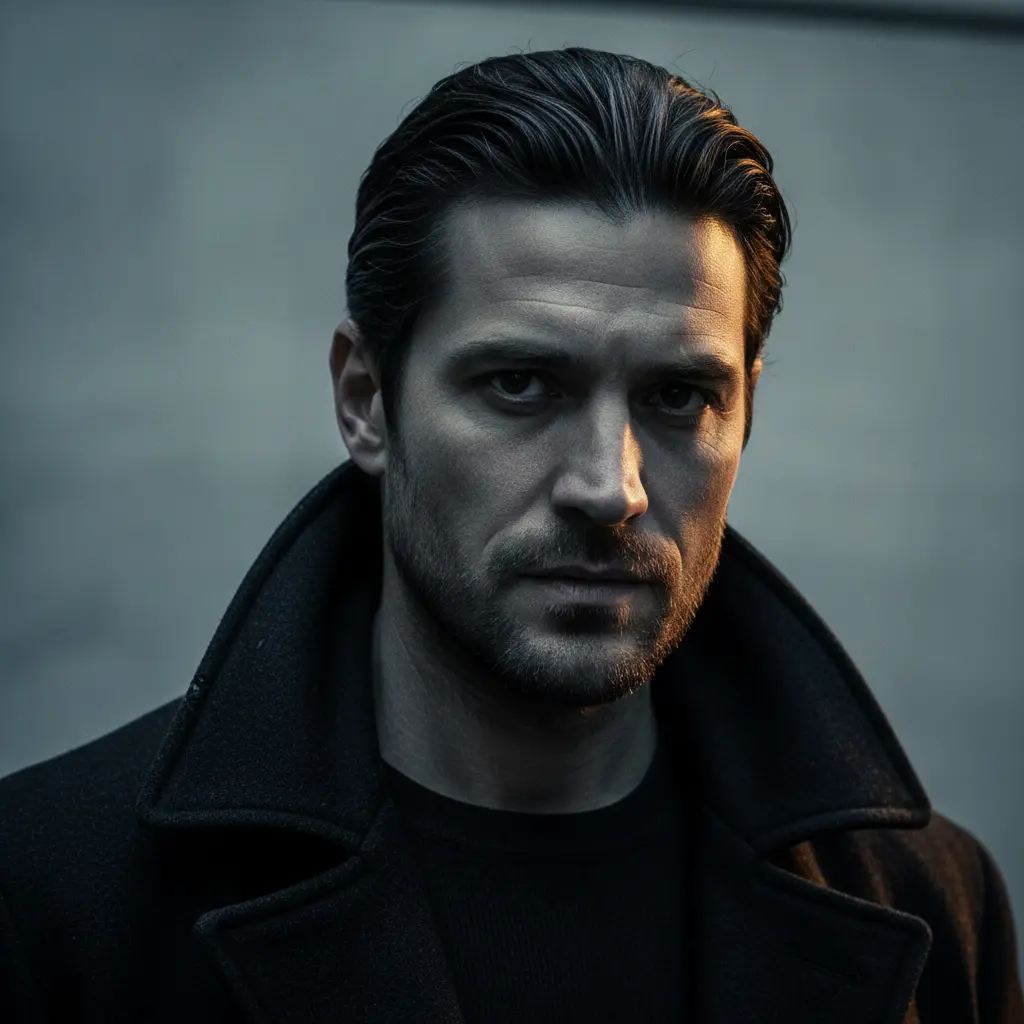 Generating… 80%RemixVariations
 - 6
Approve the plan and generate keyframes
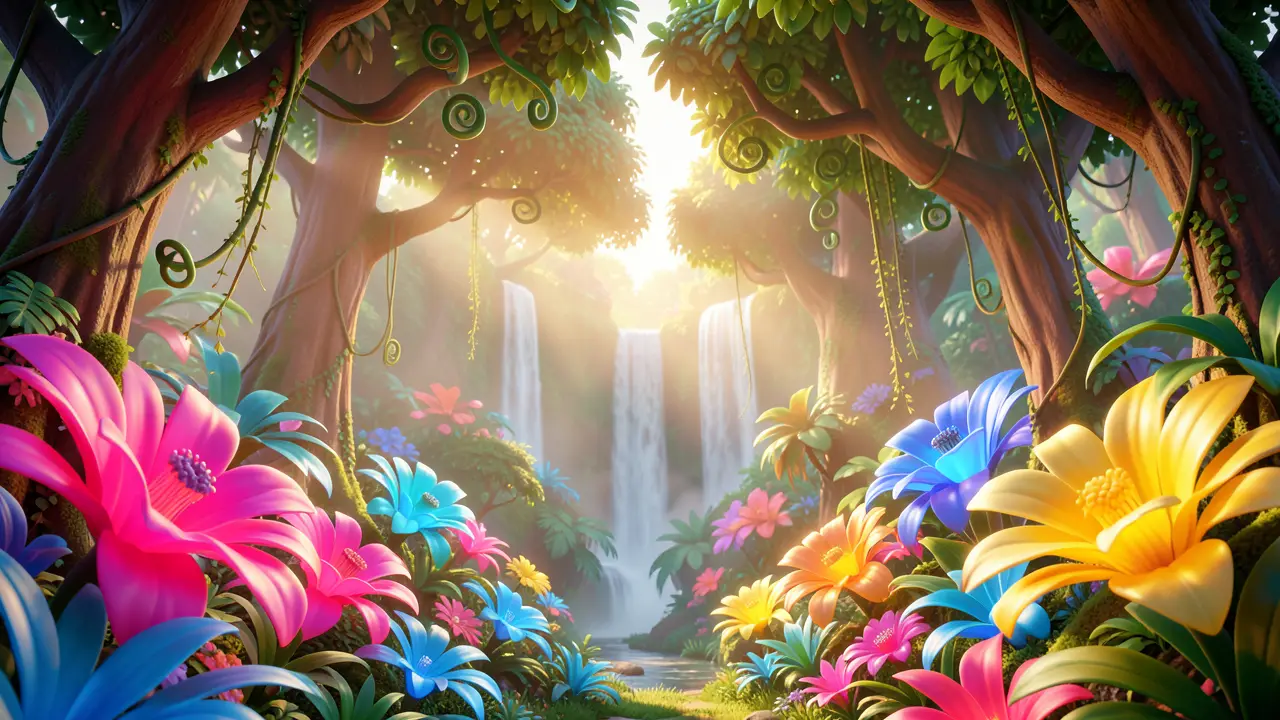
At the plan-confirm gate click "Approve → generate keyframes" (or "Change the brief" to return to the tabs). Once approved, the app creates a keyframe for each scene — an image that begins with the verbatim style block, using the character portraits and the Style Anchor as visual references. Then it pauses again: "Continue to production" or "Regenerate keyframes".
Film Movie StudioRenderCupcake'S First FlightNew projectFilesframe_1frame_2frame_3frame_4frame_560%frame_01.png1024² RemixVariationsframe_02.png1024²
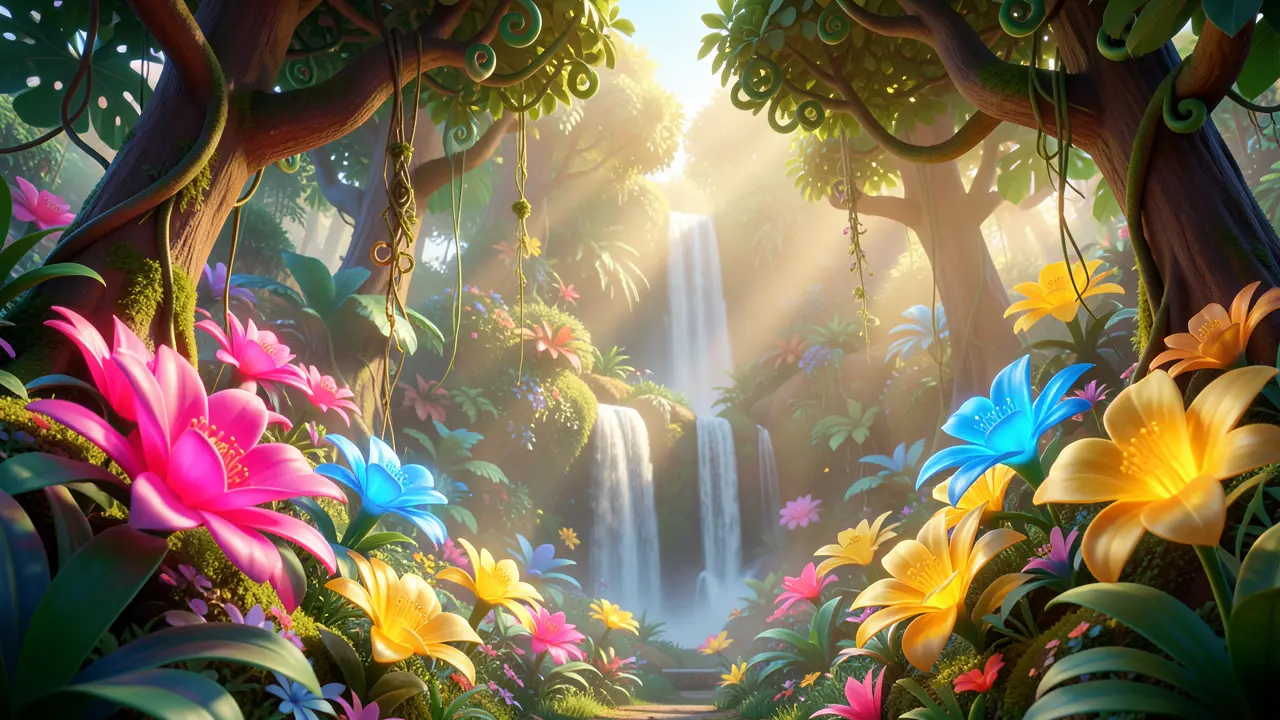 RemixVariationsframe_03.png1024²
 RemixVariationsframe_04.png1024²
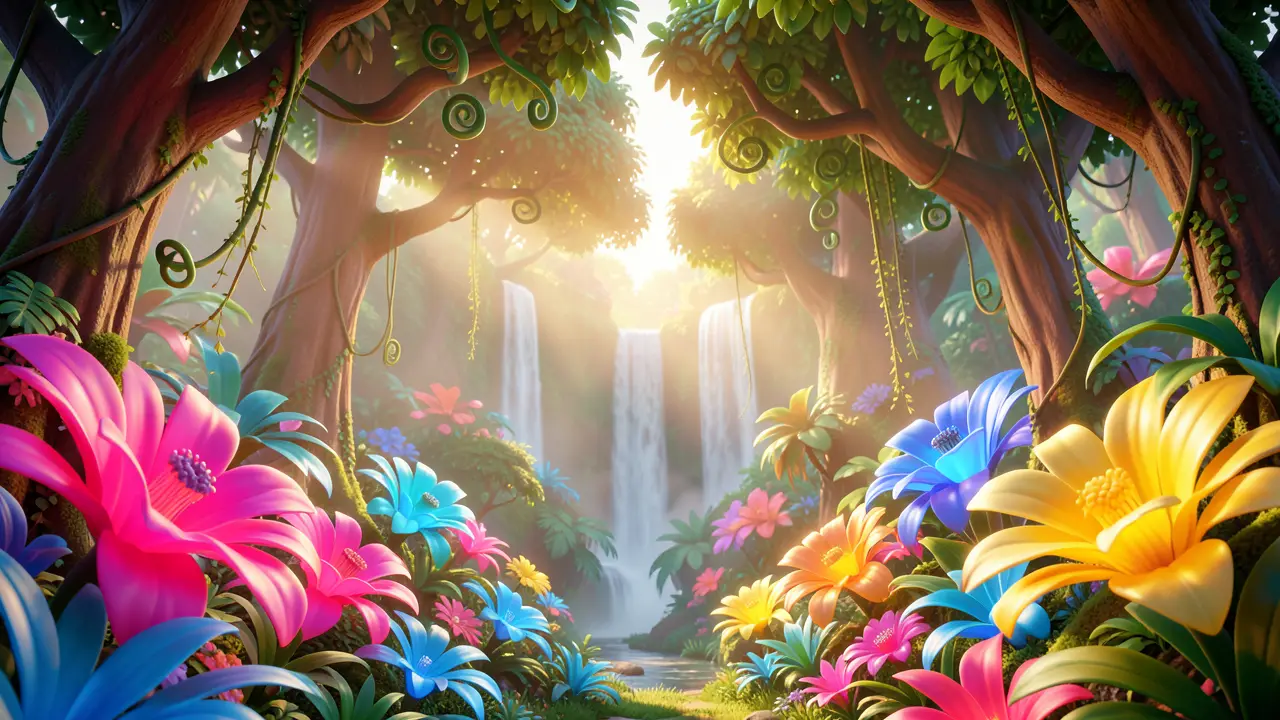 RemixVariationsframe_05.png1024²
 Generating… 35%RemixVariations
 - 7
Set the production brief and animate the clips
The second brief has three tabs: Scope (how much of the series to produce now), Audio (music / voiceover / mix) and Clip Duration (a whole number of seconds). On confirm, the app animates each keyframe into a video clip via image-to-video, embeds dialogue lines straight into the video with lip-sync for dialogue scenes, and adds a show-wide music track depending on your choice.
Film Movie StudioRenderLast Tuesday At LumièReNew projectFilesframe_1frame_2frame_3frame_4frame_5frame_6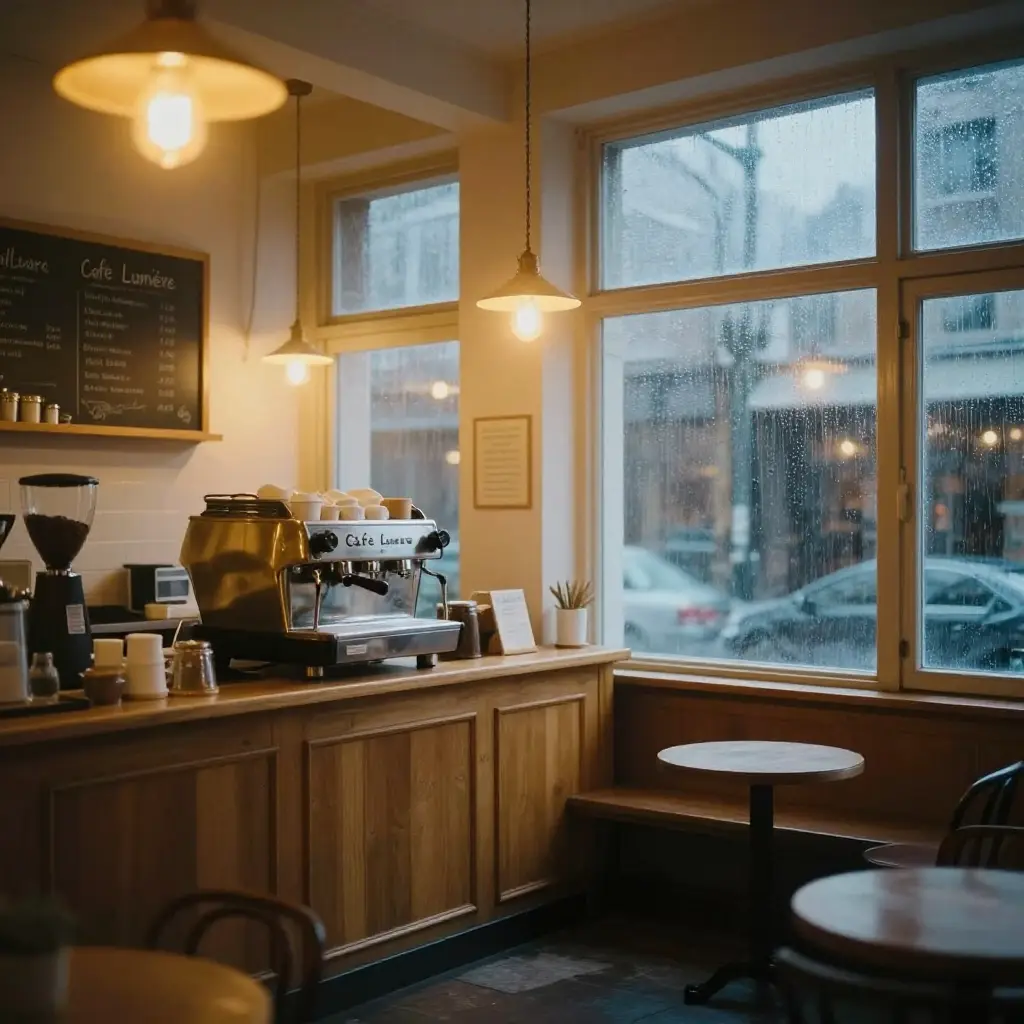 TimelineRenderVideoVoiceoverMusicSubtitlesTip: Image-to-video keeps continuity far better than text-to-video — that's why every clip grows from an already-approved keyframe, not from scratch.
 - 8
Open the timeline and review the cut
At the production gate choose "Open timeline". The Timeline docks at the bottom with tracks for video, dialogue, music, SFX and subtitles. You can trim clips, reorder them and fine-tune the cut. When you're satisfied, tell the app in chat that it can render.
Film Movie StudioRenderLumi'S Sky Lantern QuestNew projectFilesframe_1frame_2frame_360%frame_01.png1024² RemixVariationsframe_02.png1024²
 RemixVariationsframe_03.png1024²
 RemixVariations
 - 9
Render the finished drama
On "Render now" the app uses ffmpeg to stitch the clips with crossfades into a single MP4 and drops a "Final render" card on the canvas, linked to the source scenes and keyframes. This is the terminal step — you'll find the file saved locally in the project folder.
Film Movie StudioRenderNight Shift StrangerNew projectFilesframe_1frame_2frame_3frame_4Drag an image here, or click to upload
reference.png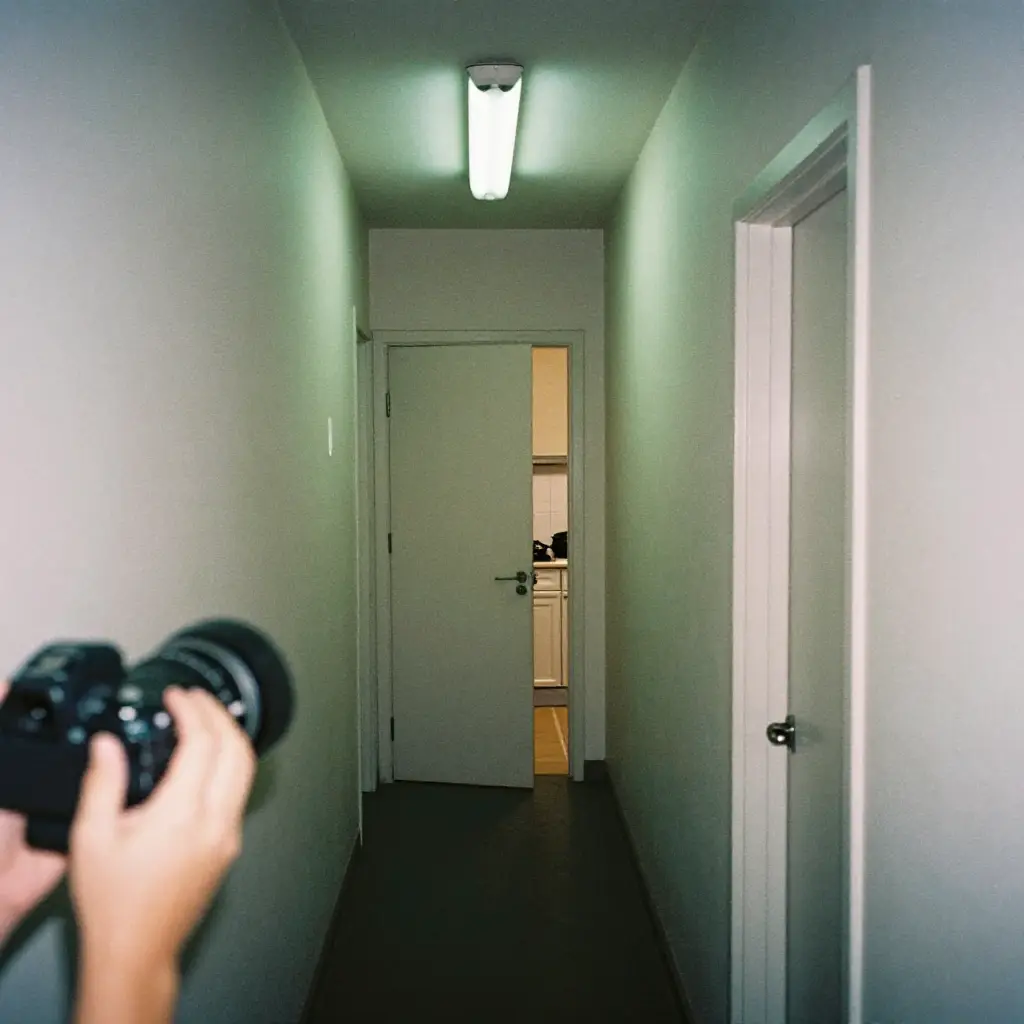 Tip: Want changes? Loop back through "Produce more" to the production options, or edit the timeline and render again.
What you get
From a single sentence you've produced a complete short drama: a recognized intent, character profiles with portraits, a locked visual style, a plan with episodes and scenes, keyframes, animated clips with lip-synced dialogue, music and a finished MP4 saved locally. Because the style and the character portraits ride along into every shot, the cast and the look stay consistent across the whole drama — and thanks to the creative gates you stayed in control of every important decision.
Pro tips
- Character consistency rides on the portraits: every keyframe sends the portraits of the characters in that scene as references — that's why they look the same across shots.
- The style block ("Style Bible") is copied verbatim into every prompt; one paraphrase is all it takes to smuggle a photoreal shot into a storybook look.
- The briefs aren't formalities — Episode Count and Clip Duration are whole numbers that directly drive what, and how much, gets produced.
Try it yourself
FilmMovie Studio is a desktop app that walks you from idea to finished export. Download it and start creating.
Get FilmMovie Studio