Sometimes you don't need a whole script — you just want one specific shot: a wave breaking on a cliff, or a slow camera push onto a face. The /video-generator skill is built for exactly that: a single-shot generator that turns a short request into one short video (text-to-video) or animates an attached image (image-to-video). In this guide we'll make one such clip, from typing the idea to a finished card on the canvas.
What you'll need
- FilmMovie Studio installed, with a project open.
- A video provider configured in Settings (a kie.ai or deAPI key).
- An idea for one short shot — and optionally a first-frame image you want to animate.
Step by step
- 1
Open a project and the chat panel
From the Launchpad, open an existing project or create a new one. The chat panel appears on the right — that's where you'll generate. The canvas can stay empty; a single shot stands on its own.
Film Movie StudioRenderCupcake'S First FlightNew projectLaunchpadHubAll projectsRecent project 1
 project 2
 project 3Settings
Film Movie Studio
A new way to create media with AI
Describe what you want to create…
SkillsModelsType / to explore AI skills
Short DramaE-commerceMusic VideoGamesDocumentary - 2
Pick the /video-generator skill
In the chat box, type "/" and pick /video-generator from the list, or choose it from the skill icon. This tells the app you want one finished video clip, not a whole script.
Film Movie StudioRenderCupcake'S First FlightNew projectSearch skills…AllWorkflowsQuickvideoShort DramaViral vertical mini-series, end to end.imageImage CreatorGenerate single images from a prompt.audioAudio StudioVoiceover, SFX and music tracks.copyApp BuilderMulti-screen apps with live preview.imageE-commerce DesignPro product shots for any platform.videoMusic VideoBeat-synced clips cut to your track.Tip: If you don't pick the skill, the app will often choose it anyway when you type something like "animate this image". - 3
Describe the shot: subject, motion, camera
Type one sentence covering what's in frame, what it does and how the camera moves — e.g. "A wave breaks slowly over a cliff, the camera dips toward the foam, golden dusk light". Concrete verbs like "slow dolly-in" work better than "cinematic".
Film Movie StudioRenderCupcake'S First FlightNew projectSkills/video-generator/short-drama/image-creator/audio-studio/app-builder/video-generator Downward-tracking wide shot that follows Cupcake's gentle descent into a glowing meadow, settling at ground level as she lands with a confident hop. Her chest is…
SkillsModelsType / to switch skills anytime
Tip: Keep it under ~6 seconds of action. Short clips are more reliable on today's models and look cleaner. - 4
Optional: animate a first frame
If you have an image card on the canvas, attach it to chat (via the "Add to chat" context menu) and the app uses it as the first frame. This is image-to-video mode — describe only the motion, not the static composition that's already in the image.
Film Movie StudioRenderCupcake'S First FlightNew projectFiles frame_1.pngclip_2.mp4
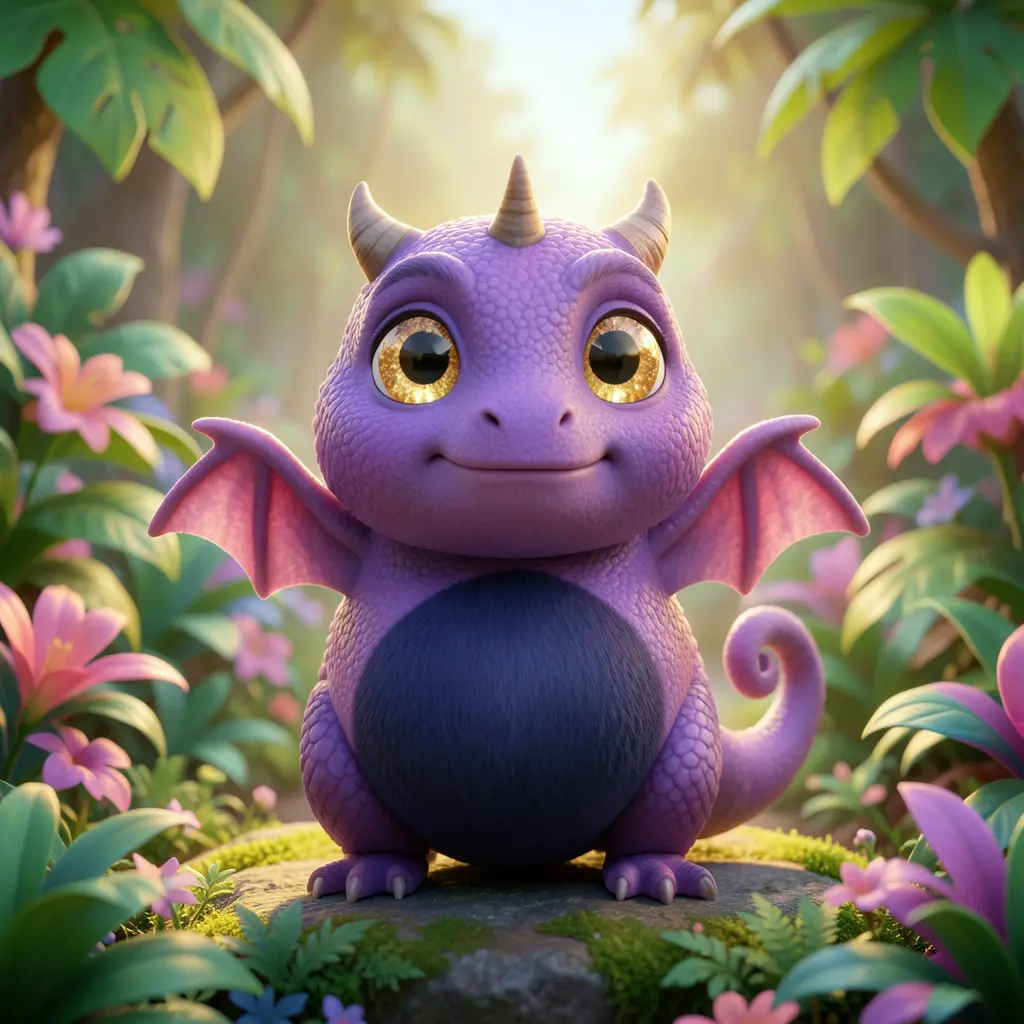 frame_3.png
Drag an image here, or click to upload
reference.pngTip: Image-to-video gives far better continuity than pure text-to-video. When you care about a specific look, make the image first, then animate it. - 5
Generate and watch the card
Send the message. A video card drops onto the canvas — it shimmers first (generating), then fills with the finished clip. The card gets a short descriptive name based on your request.
Film Movie StudioRenderCupcake'S First FlightNew projectFilesclip_1.mp4frame_2.pngframe_3.pngframe_4.png60%promptclip_01.mp4Remixframe_02.pngRemixframe_03.pngRemixframe_04.pngGenerating… 80%Remixoutput - 6
Play it back and refine
Click the card to play the clip. If the motion is off, open the context menu and choose "Remix", or edit your sentence (a stronger verb, a different camera move) and generate again. Each attempt adds a new card, so you can compare versions side by side.
Film Movie StudioRenderCupcake'S First FlightNew projectFilesframe_1.pngframe_2.pngframe_3.pngframe_4.pngframe_5.pngframe_01.pngRemixVariationsAdd to timelineFullscreenDelete - 7
Use the shot downstream
Once you're happy, you have a finished video card saved locally in the project. From the context menu you can add it to the timeline alongside other shots, or just leave it — a single shot is a finished output on its own.
Film Movie StudioRenderCupcake'S First FlightNew projectFilesframe_1.pngframe_2.pngframe_3.pngframe_4.pngclip_5.mp4frame_6.pngTimelineRenderVideoVoiceoverMusicSubtitles
What you get
From a single sentence or one image, you have a short moving shot saved as a card on the canvas — no script, no timeline, in seconds of work. This quick loop is the foundation: it's how you make the individual clips you later assemble into a larger project.
Pro tips
- Animate your best first frame via image-to-video — it gives a cleaner, steadier result than pure text-to-video.
- Describe motion, not a static scene: "camera slowly rises", "wind lifts her hair" — observable verbs win.
- Don't ask for "8k" or "ultra-realistic" — on today's video models those are just noise.
Try it yourself
FilmMovie Studio is a desktop app that walks you from idea to finished export. Download it and start creating.
Get FilmMovie Studio