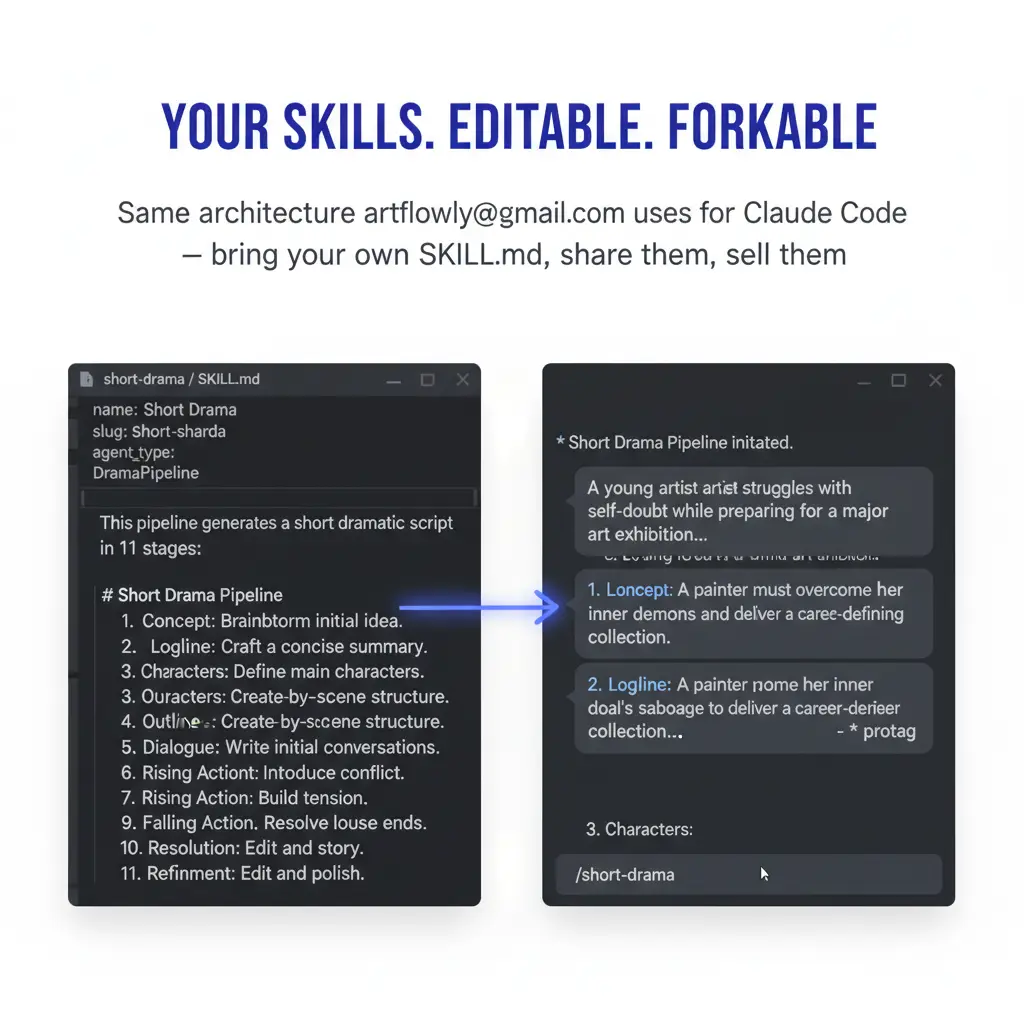
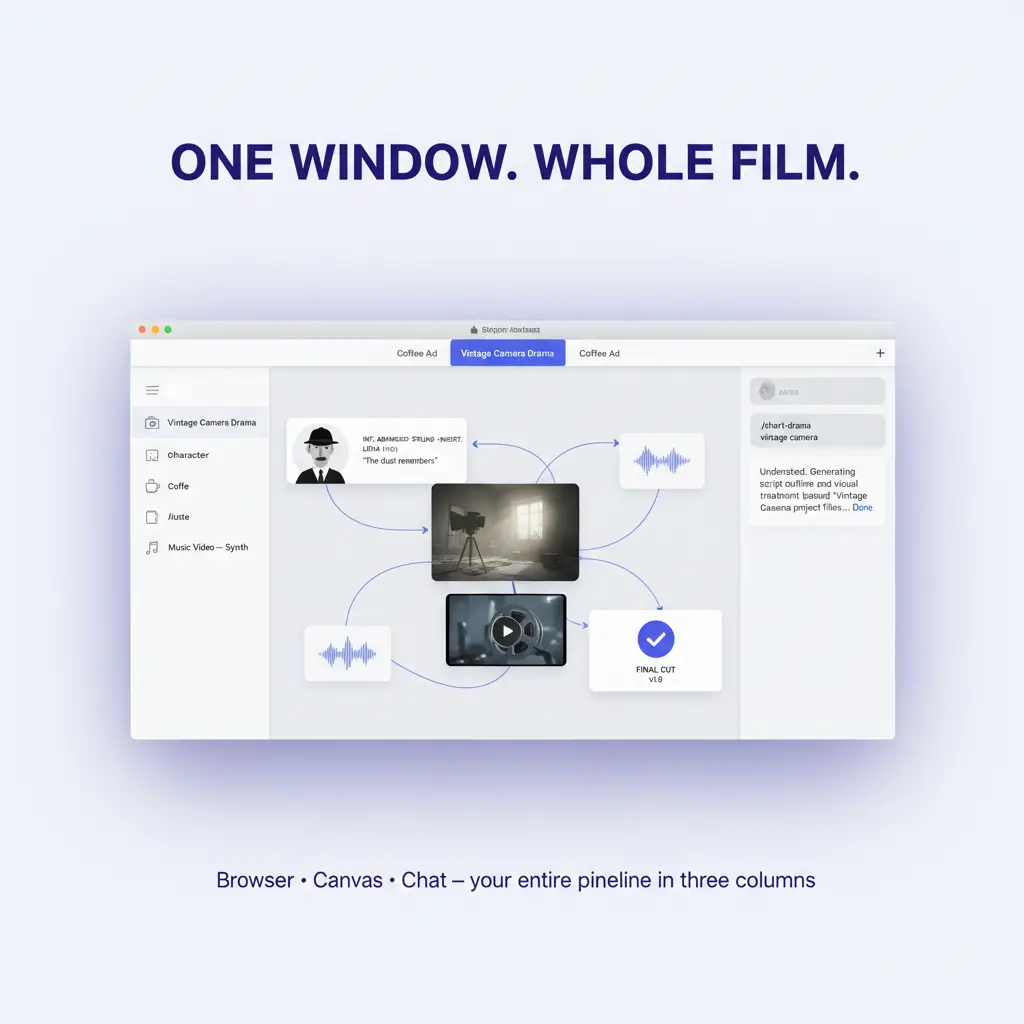
The /sword-dance skill in FilmMovie Studio works like a wuxia director: you own the idea, the app handles design, choreography and staging. It follows two iron laws — one choreographic phrase per clip, and one face for the whole film. That keeps the dancer from being recast mid-shot and ensures every clip carries exactly one named sword move. This guide walks the full loop, from a single sentence to a rendered clip in the ink-wash-meets-photoreal look.
What you'll need
- FilmMovie Studio with a provider configured for image, video and audio (kie.ai or deAPI).
- A one-sentence concept — a mood or a line is enough (e.g. "a girl in vermillion hanfu dancing at dusk as petals fall").
- Optionally a face photo for likeness reference — attach it via the paperclip icon (it is not a face-swap; expect a resemblance, not an exact match).
Step by step
- 1
Launch the /sword-dance skill and give a concept
In the Workspace, create a project and type /sword-dance in the chat panel, optionally adding the concept right after the command. If you want the dancer to resemble someone, attach a photo via the paperclip icon — the app uses it as a likeness reference, not a face-swap. Typed filenames won't work; attach the actual file.
Film Movie StudioRenderKinetic Beat Sync EditNew projectLaunchpadHubAll projectsRecent project 1
 project 2
 project 3Settings
Film Movie Studio
A new way to create media with AI
Describe what you want to create…
SkillsModelsType / to explore AI skills
Short DramaE-commerceMusic VideoGamesDocumentaryTip: One sentence about mood or story is enough. The skill fills in the staging, costume and lighting for you. - 2
Pick the mood, setting and length
The app opens a short brief with tabs. Choose the mood (Graceful / Fierce / Melancholic), the setting for the establishing shots (misty ridge, bamboo grove, temple courtyard or ancient study) and the length (30s = 3 dance beats, 45s = 6, 60s = 8). The aspect ratio is always 16:9.
Film Movie StudioRenderKinetic Beat Sync EditNew projectFilesframe_1.pngframe_2.pngframe_3.png frame_4.png
 frame_5.png60%promptframe_01.pngGenerating… 42%Remixframe_02.pngGenerating… 68%Remixframe_03.pngGenerating… 55%Remixframe_04.pngGenerating… 80%Remixoutput
 - 3
Lock the character design (identity anchor)
The skill generates one full-body design of the dancer in hanfu with a silver sword and jade hairpin. At the creative gate, click "Lock it in", or "Regenerate with notes" and add adjustments. The locked card is the identity anchor — it becomes the reference for every later frame.
Film Movie StudioRenderKinetic Beat Sync EditNew projectFilesframe_1.pngframe_2.pngframe_3.png frame_4.png
 frame_5.png
 frame_6.png60%promptframe_01.pngRemixframe_02.pngRemixframe_03.pngRemixframe_04.pngGenerating… 80%RemixoutputTip: This card is what guarantees one face for the whole film. It travels with every keyframe and every clip.
 - 4
Let it create the two establishing shots
The skill generates exactly two environment images with no dancer — the world before and around her. One should be vast and one intimate (e.g. a petal-filled sky and an empty study). The character design is deliberately not passed as a reference here, so no figure leaks into the clean environment.
Film Movie StudioRenderKinetic Beat Sync EditNew projectFilesframe_1.pngframe_2.pngframe_3.png60%promptframe_01.pngGenerating… 42%Remixframe_02.pngGenerating… 68%Remixframe_03.pngGenerating… 55%Remixoutput - 5
Approve the choreography document (creative gate)
The app drafts a document of named sword phrases (e.g. Drawing the Sword, Crouching River Strike, Sky-Pointing Finish) — for each beat a move, a camera shot and a tempo, building from a slow open to a strike. At the gate, choose "Approve", "Revise" or "Different mood". It won't continue without approval.
Film Movie StudioRenderKinetic Beat Sync EditNew projectFilesframe_1.pngframe_2.pngframe_3.png frame_4.png60%promptframe_01.pngRemixframe_02.pngRemixframe_03.pngRemixframe_04.pngGenerating… 80%RemixoutputTip: When revising, comment on the mood and the arc, not just the move names — the build matters more than the individual phrases.
 - 6
Generate the keyframes and clips
For each beat, a keyframe shows the dancer at the most legible instant of the move, with the character design as the first reference. Each keyframe then becomes a 6-second clip carrying a single phrase (4s for a strike, 8s for the finishing pose). Watch the canvas as cards appear and fill in.
Film Movie StudioRenderKinetic Beat Sync EditNew projectFilesframe_1.pngframe_2.pngframe_3.pngclip_4.mp4clip_5.mp460%promptframe_01.pngRemixframe_02.pngRemixframe_03.pngRemixclip_04.mp4Generating… 80%Remixoutput - 7
Add the score and render the timeline
The skill creates an instrumental track — guzheng with dizi flute and drums, tuned to your mood. It then opens the timeline, where clips and music auto-populate in the order establishing → dance beats → finish, and runs the render. Render is the terminal step — it drops a finished-clip card onto the canvas, saved locally.
Film Movie StudioRenderKinetic Beat Sync EditNew projectFilesframe_1.pngframe_2.pngframe_3.png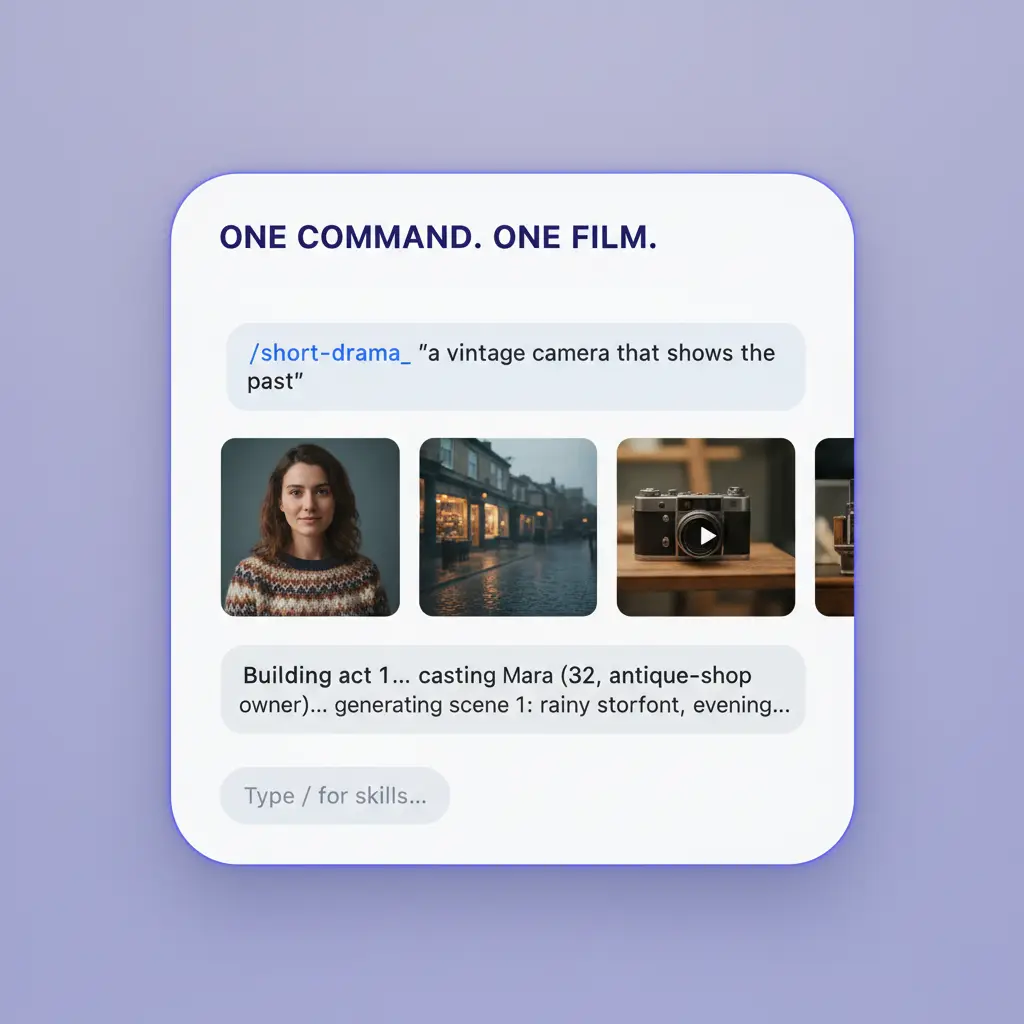 frame_4.png
 frame_5.png
 frame_6.png
Drag an image here, or click to upload
reference.pngTip: Render is the loop's last step. To change anything, edit the keyframes or clips and render again.
What you get
The result is a short wuxia music video in a unified ink-wash-meets-photoreal look: an opening shot, a sequence of dance beats with one face and one phrase per clip, a closing shot and a guzheng score — all assembled on the timeline and rendered to a single file saved locally. You repeat the same loop (lock the character → approve the choreography → keyframes → clips → render) for any new concept.
Pro tips
- The character design is the identity anchor: if a frame recasts the dancer (different face, costume or sword), regenerate it with the design as the first reference — never let an off-model frame reach video.
- One phrase per clip. A clip that tries to hold two moves blurs both — split or trim the move instead.
- The style suffix (ink-wash painting + photoreal, cinnabar red and gold in velvety darkness) is added verbatim. Avoid terms like "8K" or "masterpiece" — they spoil the look.
Try it yourself
FilmMovie Studio is a desktop app that walks you from idea to finished export. Download it and start creating.
Get FilmMovie Studio