Every skill in the app is a single SKILL.md file: YAML frontmatter plus numbered stages in prose. The model that runs a skill sees only that file and the app's tool catalog — so it has to be self-contained and accurate. /skill-creator is a meta-tool for power users: it takes the workflow that just happened on your canvas (or an idea you describe) and scaffolds a complete SKILL.md against the real tool catalog. The app won't install the skill for you — the deliverable is a polished document you install by hand via the Hub. In this guide we run the whole loop: from source material through a review round to installation.
What you'll need
- FilmMovie Studio installed with at least one generation provider configured.
- A workflow that worked for you — ideally a finished loop already on the canvas you want to repeat, or a clear idea for a new one.
- A basic grasp of what the tools do (generate_image, generate_video, generate_audio, render_timeline and so on).
Step by step
- 1
Run /skill-creator
In the chat box, type /skill-creator and confirm. The skill author opens — it understands you're authoring a workflow, not generating media. It works best right after you've nailed a loop on the canvas, while it's still fresh.
Film Movie StudioRenderHabit Tracker — Mobile AppNew projectSkills/skill-creator/short-drama/image-creator/audio-studio/app-builder/skill-creator iOS app icon, 1:1, for a habit tracker app called "Streaks". A bold minimal mark: a stylized flame merging with an upward check/streak line, indigo #6366F1 to violet…
SkillsModelsType / to switch skills anytime
Tip: The best skills come from a workflow you've already run by hand once. Dial the idea in via chat first, then capture it. - 2
Pick the source: from session or from an idea
The app asks what to build the skill from. "From this session" — it reads the canvas (list_canvas_nodes) and reconstructs which tools ran and in what order. "From an idea" — it opens a short brief (ask_user_brief) where you describe the goal, inputs and media types.
Film Movie StudioRenderHabit Tracker — Mobile AppNew projectSearch skills…AllWorkflowsQuickvideoShort DramaViral vertical mini-series, end to end.imageImage CreatorGenerate single images from a prompt.audioAudio StudioVoiceover, SFX and music tracks.copyApp BuilderMulti-screen apps with live preview.imageE-commerce DesignPro product shots for any platform.videoMusic VideoBeat-synced clips cut to your track. - 3
Confirm the workflow reconstruction
If you chose the session, the app shows the workflow in 3–5 bullet points: which tools ran, what it asked you, where the creative decisions were. Check the order and fill in anything missing — this is the skeleton of your future skill.
Film Movie StudioRenderHabit Tracker — Mobile AppNew projectFiles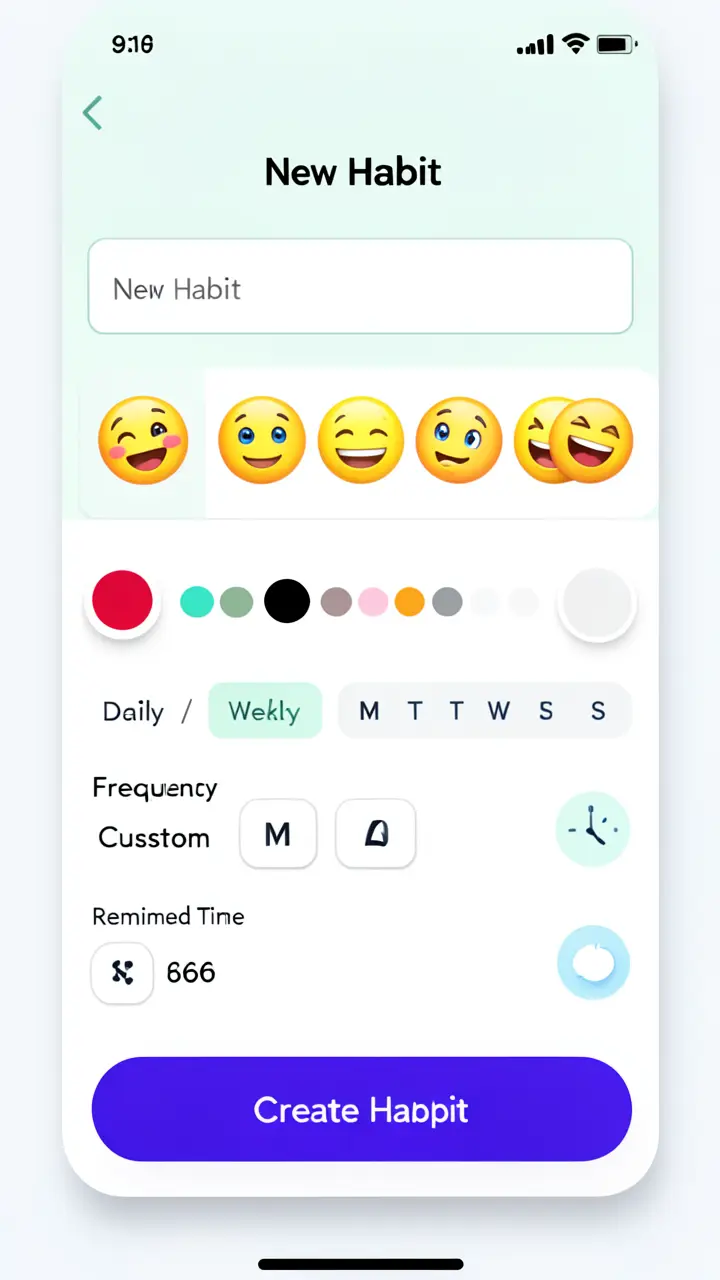 frame_1.png
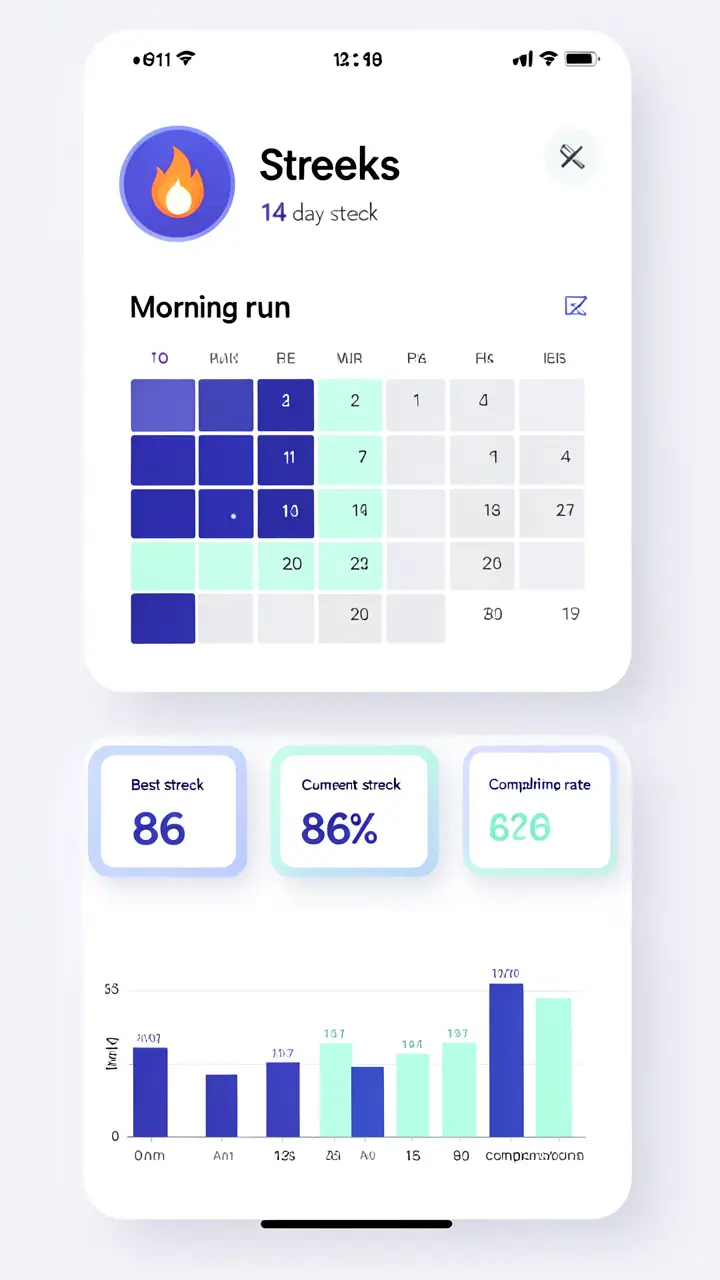 frame_2.png
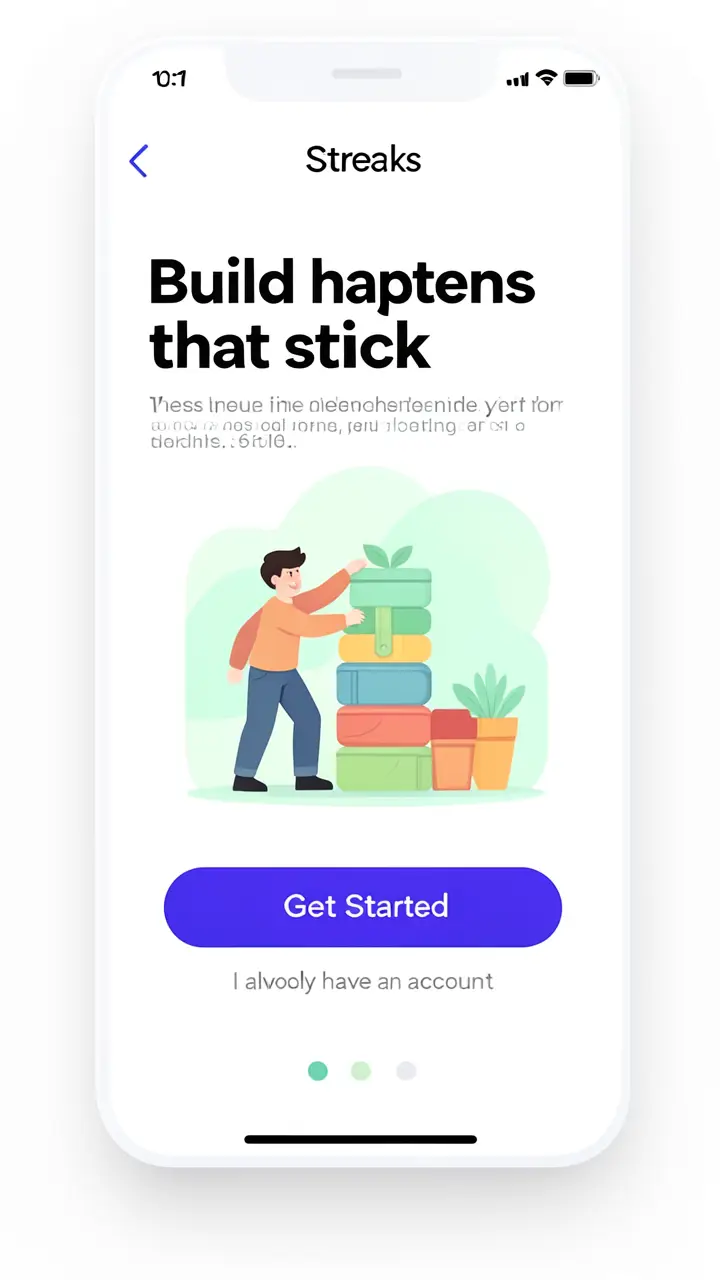 frame_3.png
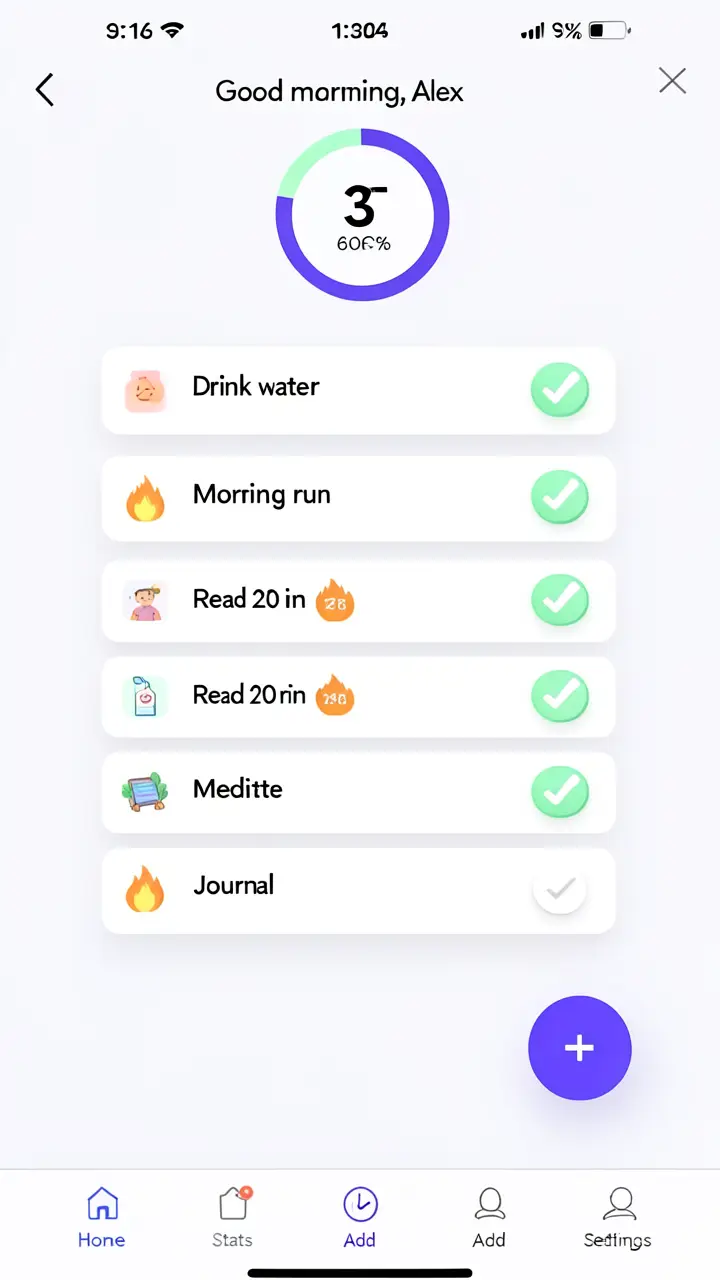 frame_4.png
 frame_5.png
 frame_6.pngframe_01.pngRemixVariationsAdd to timelineFullscreenDelete
 - 4
Let it scaffold the SKILL.md
The app writes a complete SKILL.md: YAML frontmatter (name, slug, version, description with trigger phrases, category, agent_type) and numbered stages with concrete tool calls in backticks. The finished document drops onto the canvas as a "<slug> — SKILL.md" card.
Film Movie StudioRenderHabit Tracker — Mobile AppNew projectFilesframe_1.pngframe_2.pngframe_3.pngDrag an image here, or click to upload
reference.pngTip: Keep every generation prompt in the skill in English, and never reference a tool outside the catalog — that's the #1 reason a generated skill breaks. - 5
Run the review round
The app summarizes the skill in three lines and offers a choice (ask_user_choice): install as-is / revise something / add a stage. Request revisions and the app rewrites the card on the canvas (update_canvas_node) until you're satisfied.
Film Movie StudioRenderHabit Tracker — Mobile AppNew projectFilesframe_1.pngframe_2.pngframe_3.pngframe_4.png60%promptframe_01.pngGenerating… 42%Remixframe_02.pngGenerating… 68%Remixframe_03.pngGenerating… 55%Remixframe_04.pngGenerating… 80%Remixoutput - 6
Open the Hub and install the skill
Copy the markdown from the card (copy-text button). Open Hub → Install Skill → paste the markdown and confirm. Alternatively, save the document as a file and use Install from file.
Film Movie StudioRenderHabit Tracker — Mobile AppNew projectSearch skills…AllWorkflowsQuickvideoShort DramaViral vertical mini-series, end to end.imageImage CreatorGenerate single images from a prompt.audioAudio StudioVoiceover, SFX and music tracks.copyApp BuilderMulti-screen apps with live preview.imageE-commerce DesignPro product shots for any platform.videoMusic VideoBeat-synced clips cut to your track. - 7
Run it from your own slash command
Once installed, the skill appears in the slash menu as /<your-slug>. Run it on a fresh project and verify it does exactly what the original workflow did. Editing later = reinstalling an updated markdown under the same slug.
Film Movie StudioRenderHabit Tracker — Mobile AppNew projectSkills/skill-creator/short-drama/image-creator/audio-studio/app-builder/skill-creator iOS app icon, 1:1, for a habit tracker app called "Streaks". A bold minimal mark: a stylized flame merging with an upward check/streak line, indigo #6366F1 to violet…
SkillsModelsType / to switch skills anytime
Tip: One skill per run. To capture a second workflow, run /skill-creator again.
What you get
From a workflow you'd dialed in, you now have your own reusable skill: a self-contained SKILL.md installed in the Hub and available in the slash menu under your own command. Instead of repeating the same steps by hand, you now run your workflow with a single command — and tweak it any time by reinstalling an updated markdown under the same slug.
Pro tips
- Keep the skill self-contained: no references to external files, databases or URLs it can't reach at runtime.
- Fill the frontmatter with sharp trigger phrases — they're what the app later uses to suggest the skill when you type a similar idea.
- Always end video-producing skills with a single render_timeline call; keep intermediate outputs as cards on the canvas.
Try it yourself
FilmMovie Studio is a desktop app that walks you from idea to finished export. Download it and start creating.
Get FilmMovie Studio