A still image can come alive if you move a camera through it along a precise route. The /path-guided-camera-move skill turns a drawn arrow (or a described route) into an FPV-style image-to-video prompt — the camera smoothly follows a subject or flies through the scene like a drone. The drawn lines are an "invisible director route": they define the move but never appear in the video. The app reads the route with vision, splits it into segments, assigns camera grammar and a speed profile, and adds diegetic sound only — no music. In this advanced guide we walk the whole workflow from attaching the image to a generated clip.
What you'll need
- An image of the scene you want to animate — ideally with spatial depth (a corridor, street, landscape).
- An image-to-video provider configured in Settings (a kie.ai or deAPI key).
- An idea of the camera route — either an arrow drawn on the image, or a description (start → waypoints → end).
Step by step
- 1
Attach the source image via the paperclip icon
In the chat panel, click the paperclip icon and pick the image of your scene. The camera route must come from a real file — typed filenames won't work. The image appears as a card on the canvas and as an attached reference in chat.
Film Movie StudioRenderLumi'S Sky Lantern QuestNew projectFiles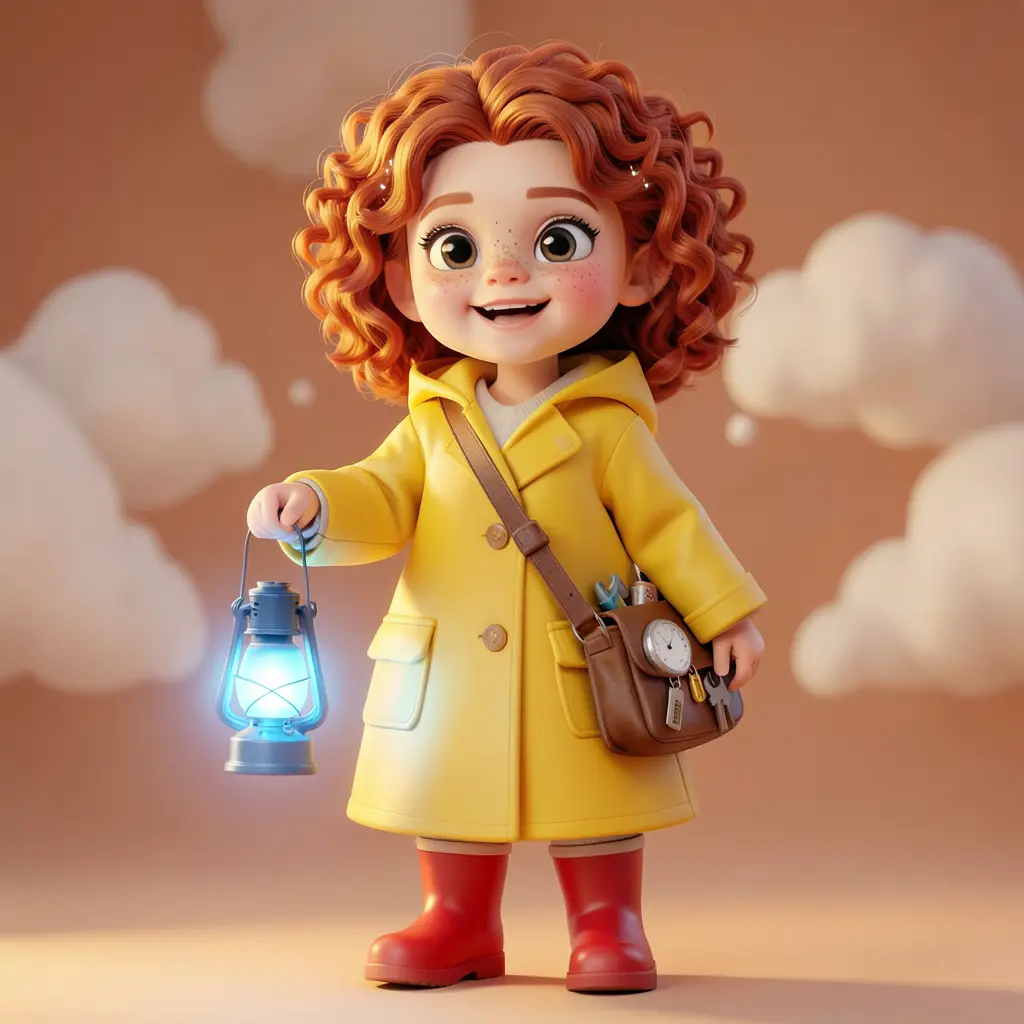 frame_1.png
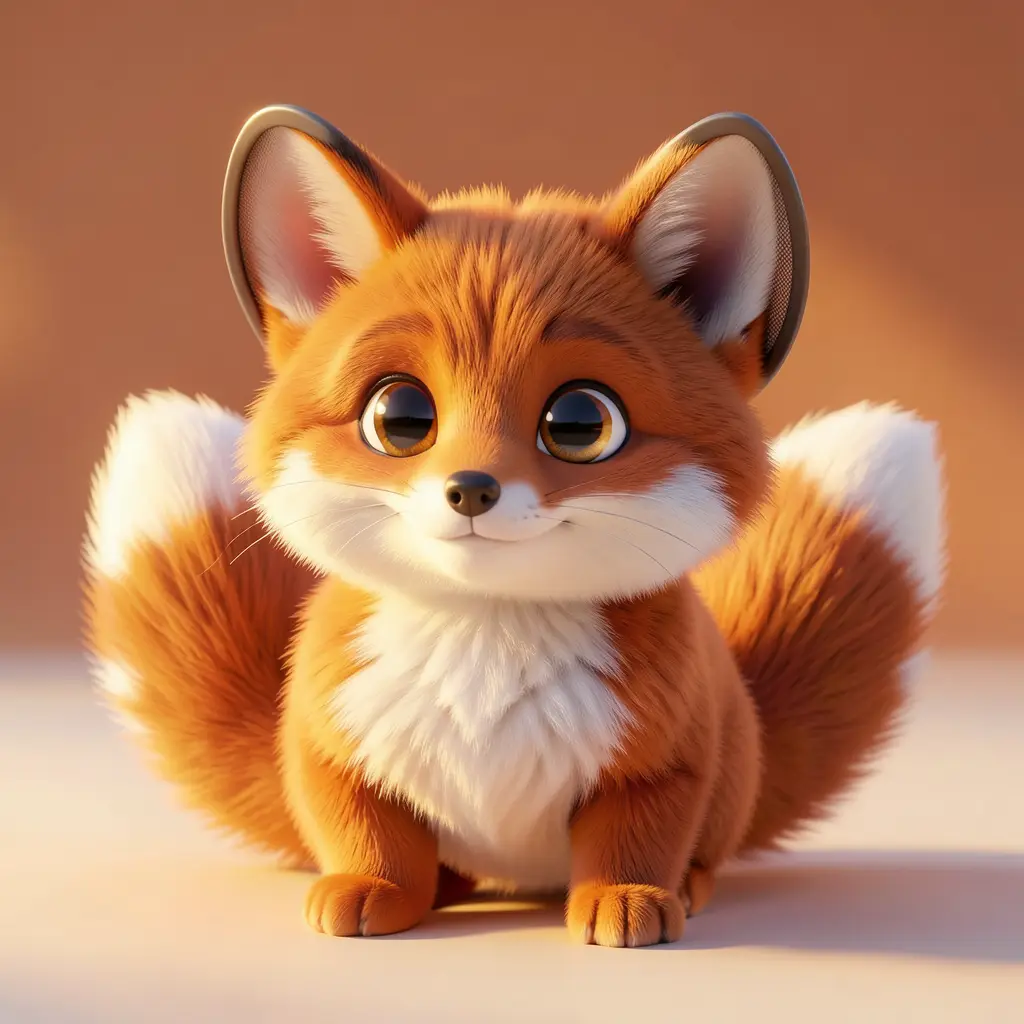 frame_2.png
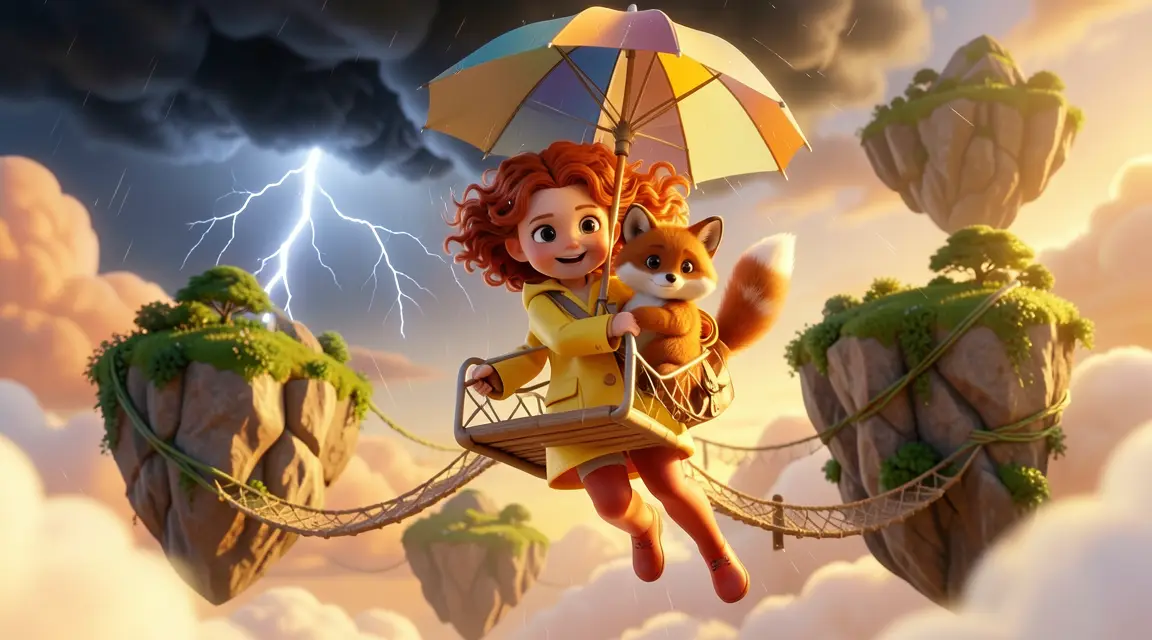 frame_3.png
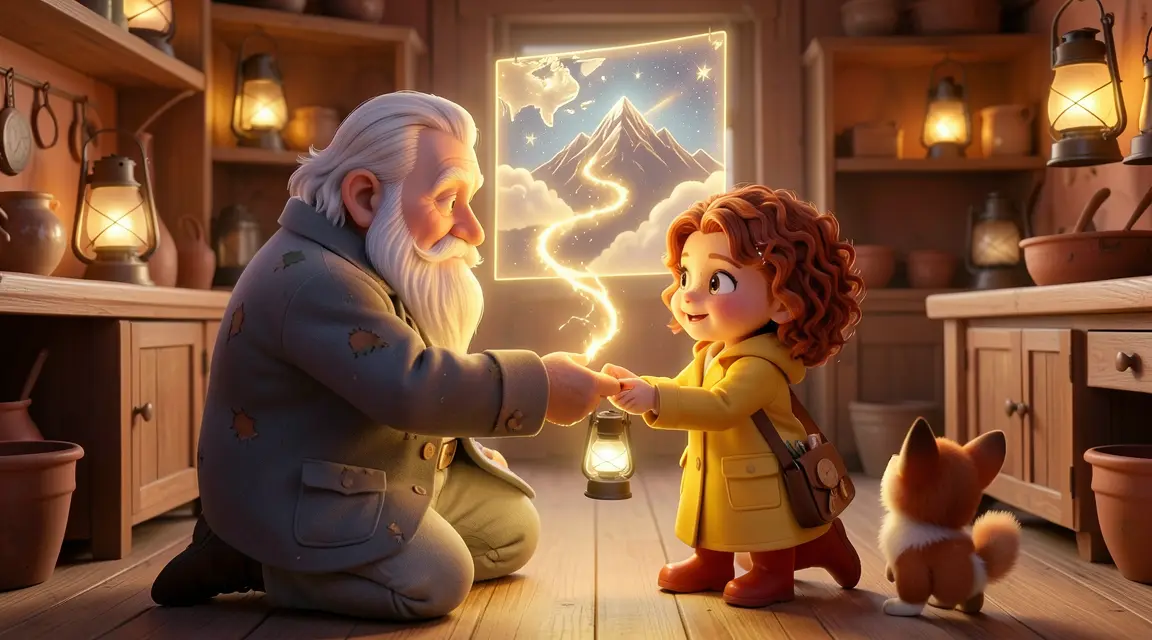 frame_4.png
Drag an image here, or click to upload
reference.pngTip: Shots with clear depth and spatial anchors (a door, shelves, a window) for the camera to ride along work best. - 2
Draw the camera route or describe it
On the image, draw an arrow or line marking the camera's path — from the start, through waypoints, to the end. If you leave the image clean, you must describe the route in words in chat. Drawn markings are an invisible director route: they never show up in the final video.
Film Movie StudioRenderLumi'S Sky Lantern QuestNew projectSkills/path-guided-camera-move/short-drama/image-creator/audio-studio/app-builder/path-guided-camera-move A brilliant cascade of golden light blazes from the Great Lantern, rivers of light flowing down through the sky and relighting every village lantern. Lumi hugs Pip…
SkillsModelsType / to switch skills anytime
- 3
Run the /path-guided-camera-move skill
Type /path-guided-camera-move into chat (or pick the skill icon) and send it with the attached image. The app starts by reading the route — if there's neither an image nor a described path, it first prompts you to attach one or describe the route.
Film Movie StudioRenderLumi'S Sky Lantern QuestNew projectFilesframe_1.pngframe_2.png frame_3.pngframe_4.pngframe_5.png
 frame_6.png
Drag an image here, or click to upload
reference.png - 4
Let the app read the route with vision
FilmMovie Studio analyses the image with vision: it traces the drawn arrow (start, the objects and landmarks it passes in order, direction changes, end), checks whether a movable subject sits on the path, lists the spatial anchors that must stay consistent, and the real diegetic sounds the scene would make (wind, water, footsteps, traffic).
Film Movie StudioRenderLumi'S Sky Lantern QuestNew projectFilesframe_1.pngframe_2.pngframe_3.png60%promptframe_01.pngRemixframe_02.pngRemixframe_03.pngGenerating… 55%RemixoutputTip: If the read-back is off, add one sentence in chat — e.g. "the arrow goes left to right past the counter" — and the app corrects its reading. - 5
Decide the mode: subject-follow vs camera flythrough
If a clear subject sits on the path (a person, animal, vehicle), the camera tightly follows it as an invisible FPV camera and never loses it. If there's no subject, the camera itself flies the route like an FPV drone. The app infers the mode from the analysis; you can confirm or change it in chat.
Film Movie StudioRenderLumi'S Sky Lantern QuestNew projectFilesframe_1.pngframe_2.pngframe_3.pngframe_4.png60%promptframe_01.pngGenerating… 42%Remixframe_02.pngGenerating… 68%Remixframe_03.pngGenerating… 55%Remixframe_04.pngGenerating… 80%Remixoutput - 6
Review the prompt document on the canvas
The app drops a document card "Camera Path Prompt — <scene>" on the canvas with a fixed structure: mode and move type, the prompt itself split into route segments, camera grammar (dolly, tracking, orbit, crane, FPV glide), a mandatory speed profile, and an audio line. Check the segments and tweak them in chat if needed.
Film Movie StudioRenderLumi'S Sky Lantern QuestNew projectFilesframe_1.pngframe_2.pngframe_3.pngframe_4.pngframe_5.png60%promptframe_01.pngRemixframe_02.pngRemixframe_03.pngRemixframe_04.pngGenerating… 80%Remixoutput - 7
Verify the speed profile and diegetic-only sound
Smooth moves must not be constant-speed — the prompt carries a speed shape tied to the route's geography (e.g. slow start, accelerate through the open stretch, ease to a stop at the end). Sound is strictly diegetic (the scene's real ambience), louder up close and fading with distance. The "no music, no soundtrack" line is mandatory.
Film Movie StudioRenderLumi'S Sky Lantern QuestNew projectSkills/path-guided-camera-move/short-drama/image-creator/audio-studio/app-builder/path-guided-camera-move A brilliant cascade of golden light blazes from the Great Lantern, rivers of light flowing down through the sky and relighting every village lantern. Lumi hugs Pip…
SkillsModelsType / to switch skills anytime
- 8
Generate the video
The app offers a choice: "Generate with defaults" (8s, image as first frame, diegetic sound only), "Adjust duration first" (4 / 6 / 8 / 15s), or "Prompt only — stop here". On confirmation it runs image-to-video with the image as the first frame and adds the finished clip to the canvas as a card linked to the document.
Film Movie StudioRenderLumi'S Sky Lantern QuestNew projectSkills/path-guided-camera-move/short-drama/image-creator/audio-studio/app-builder/path-guided-camera-move A brilliant cascade of golden light blazes from the Great Lantern, rivers of light flowing down through the sky and relighting every village lantern. Lumi hugs Pip…
SkillsModelsType / to switch skills anytime
Tip: Nothing generates without your explicit yes — "Prompt only" leaves you the document on its own for further tuning.
What you get
From a single still image and a drawn route you've created a smooth FPV shot: the camera leaves the start, travels the route segments with their own grammar and speed profile, and stops at the end — all in one unbroken take, with the scene's real ambience and no music whatsoever. The prompt document and the finished clip stay linked on the canvas, so you can re-tune the move and regenerate any time.
Pro tips
- Combine at most two camera grammars in route order (e.g. dolly forward then orbit) — more moves feel jerky and lose the path.
- Never describe the drawn arrow as video content in the prompt ("a red line shows the way") — it's invisible direction, not a scene element.
- No cuts or teleports: the workflow always makes one continuous move from start to end and avoids "AI-tell" words like 8K, 4K or hyper-realistic.
Try it yourself
FilmMovie Studio is a desktop app that walks you from idea to finished export. Download it and start creating.
Get FilmMovie Studio