Multi-Shot is a "virtual camera operator": you hand it one image of a subject and it re-renders that same subject — same face, wardrobe, materials, environment and lighting direction — from a new camera angle. Only the viewpoint changes. It's perfect when you need the same character three-quarter and in profile, or a product front and back for a product card. In this guide we'll run one angle from prompt to canvas card, then chain more shots of the same subject.
What you'll need
- An open FilmMovie Studio project with access to the Workspace.
- One source image of a subject — character, product or scene — saved on disk.
- An image provider configured in Settings (a kie.ai or deAPI key).
Step by step
- 1
Launch the /multi-shot skill in chat
In the Workspace, click the chat box on the right and pick the skill icon, or type /multi-shot. The app switches to virtual-camera mode and asks for a source image.
Film Movie StudioRenderLighthouse Keeper Family Sh…New projectSearch skills…AllWorkflowsQuickvideoShort DramaViral vertical mini-series, end to end.imageImage CreatorGenerate single images from a prompt.audioAudio StudioVoiceover, SFX and music tracks.copyApp BuilderMulti-screen apps with live preview.imageE-commerce DesignPro product shots for any platform.videoMusic VideoBeat-synced clips cut to your track.Tip: Multi-Shot is a quick, image-only skill — no timeline, no render. Each pass produces a single image card. - 2
Attach the source image via the paperclip
The app asks what to re-shoot. Click the paperclip icon in the chat box and attach the actual subject file. A bare filename typed into chat won't work — the identity lock needs the real pixels, so it needs the file itself.
Film Movie StudioRenderLighthouse Keeper Family Sh…New projectFiles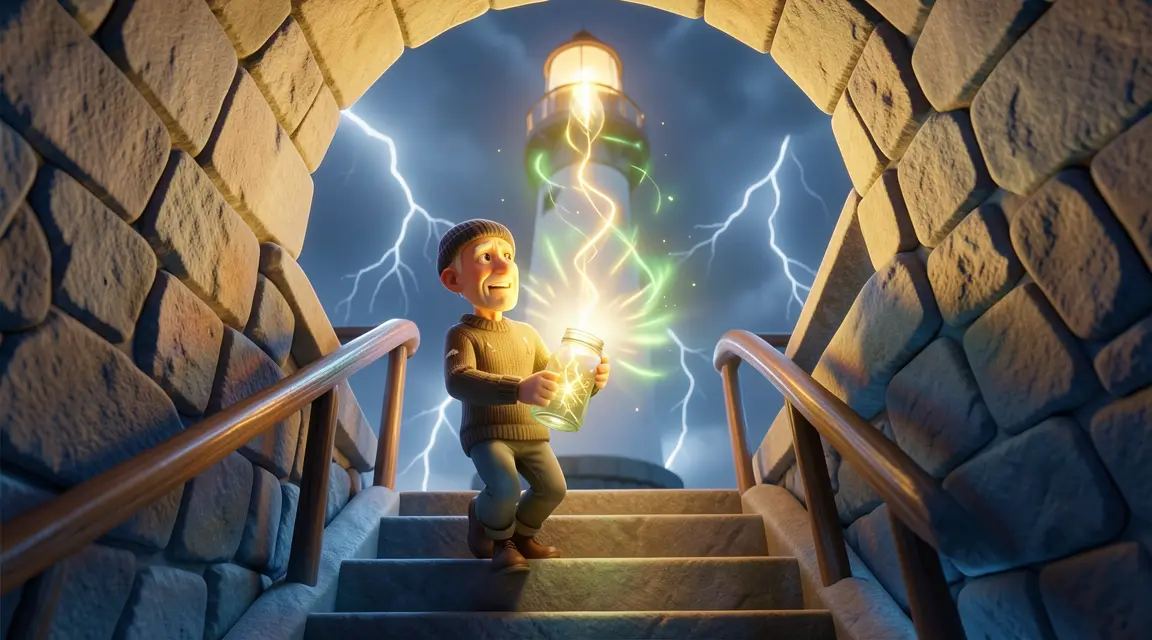 frame_1.png
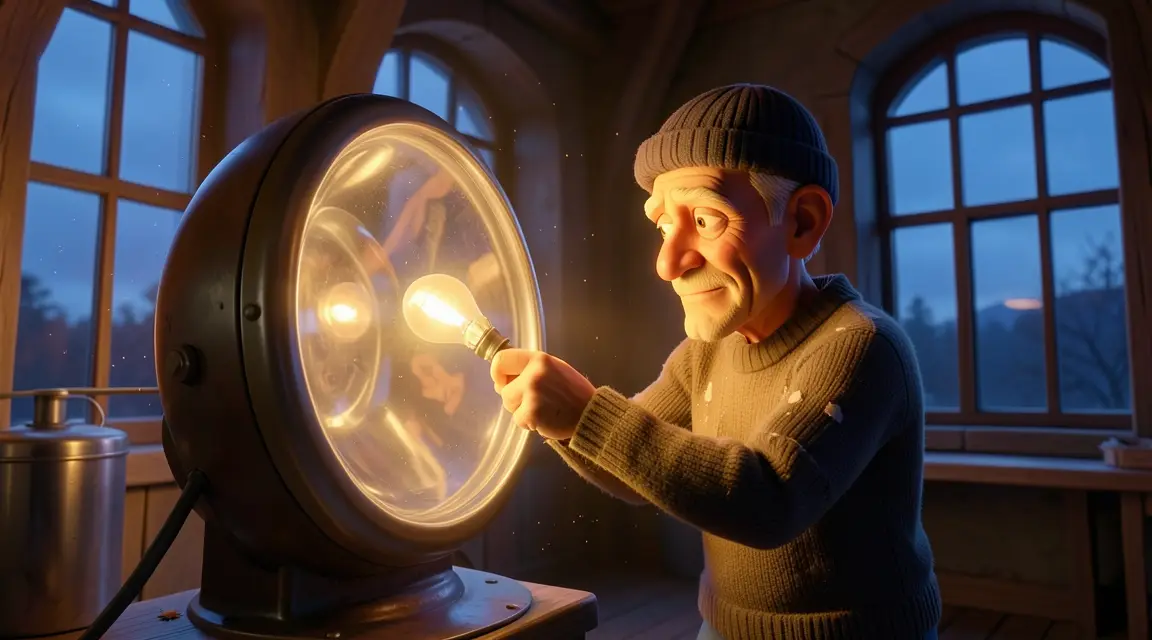 frame_2.png
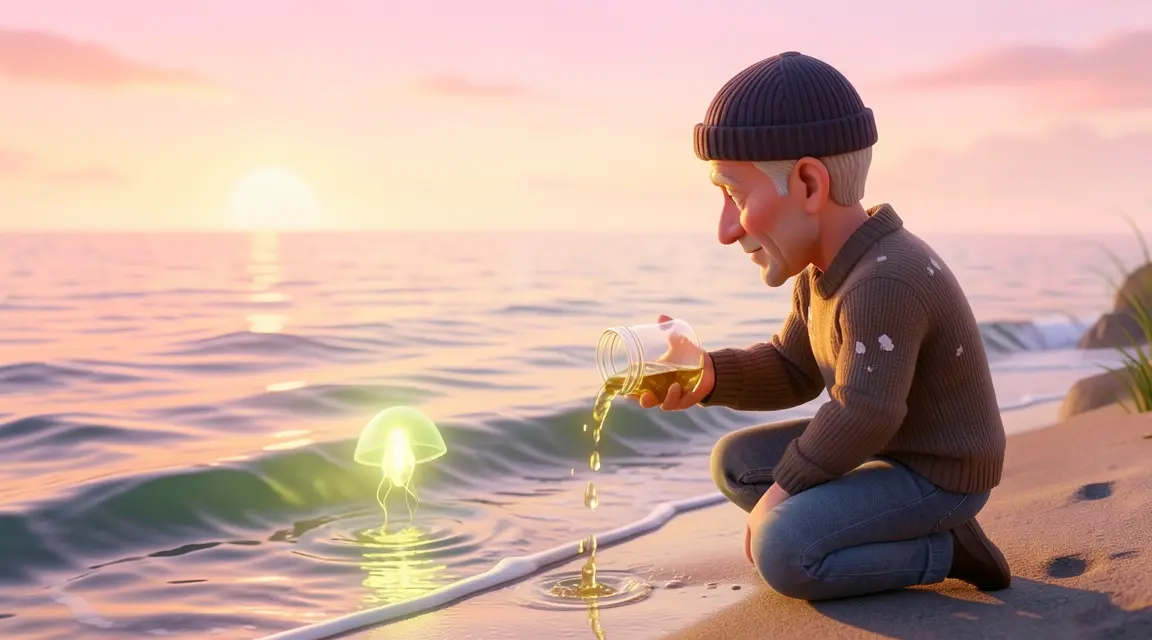 frame_3.png
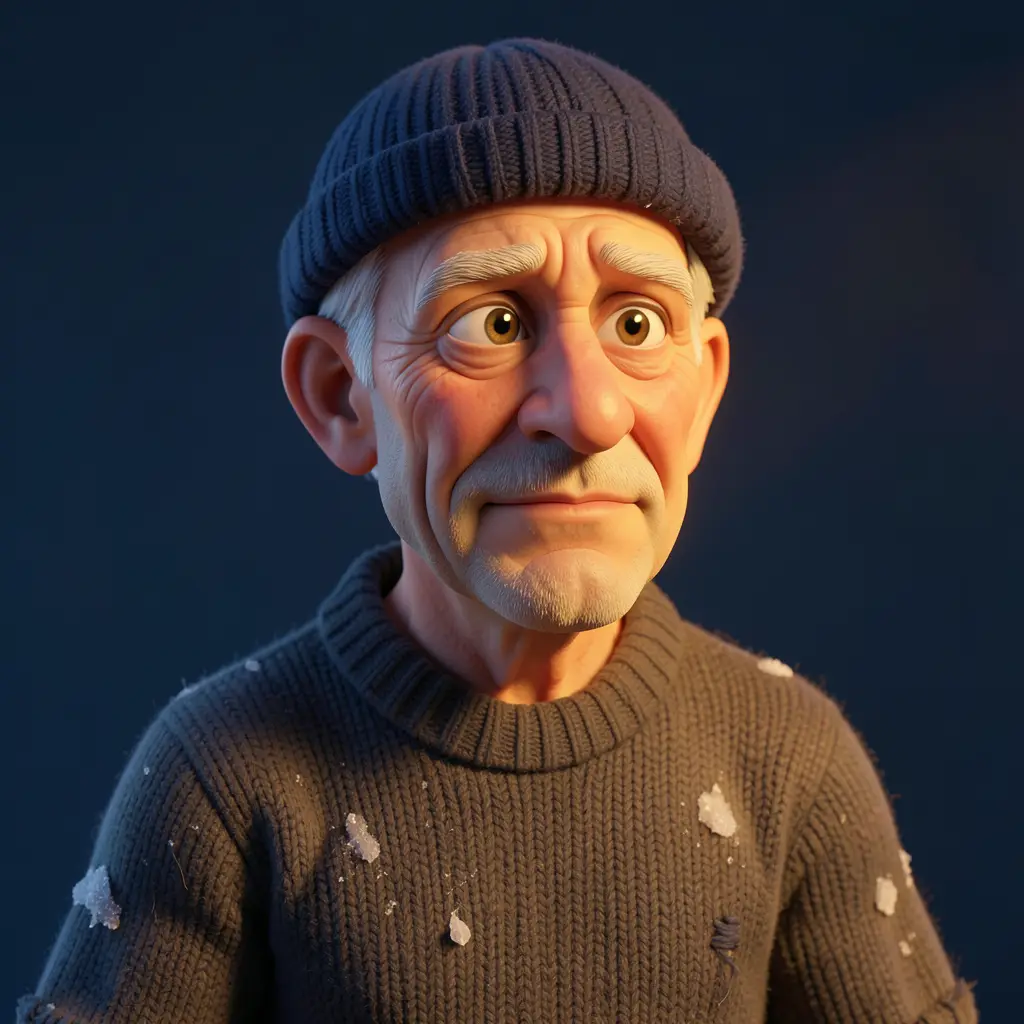 frame_4.png
 frame_5.png
Drag an image here, or click to upload
reference.pngTip: If you have several photos of the same subject, attach them all at once. Extra views improve the identity lock. - 3
Pick the camera angle
The app shows an angle picker: Front, Three-quarter left, Profile, Back, Low-angle hero, Top-down and Dutch tilt. Click the angle you want. If you already named an angle in your prompt, this step is skipped.
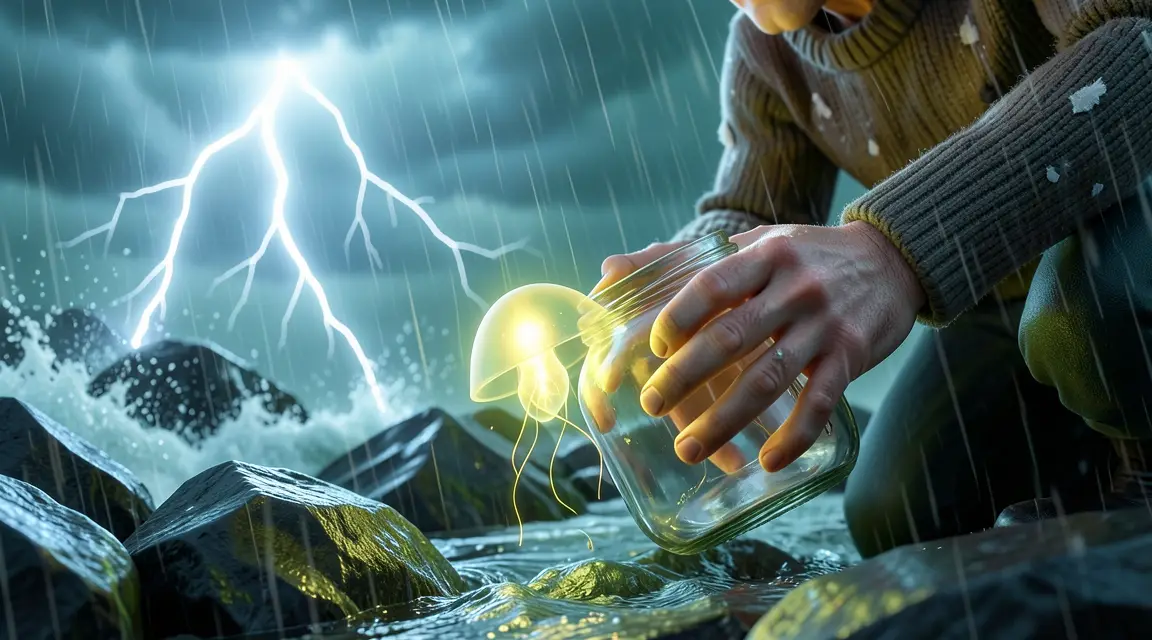
Film Movie StudioRenderLighthouse Keeper Family Sh…New projectSkills/multi-shot/short-drama/image-creator/audio-studio/app-builder/multi-shot Low-angle tracking shot on jagged rocks during a violent storm. Old Tom kneels amid crashing waves, carefully scooping a small glowing jellyfish into a glass jar. Rain…
SkillsModelsType / to switch skills anytime
- 4
Watch the shot generate
The app calls image generation with the source as a reference and a new card drops onto the canvas named "<angle> — <subject>". While generating, the card shimmers, then fills with the result. Identity, wardrobe, environment and lighting stay locked — only the viewpoint changes.
Film Movie StudioRenderLighthouse Keeper Family Sh…New projectFilesframe_1.pngframe_2.pngframe_3.png60%promptframe_01.pngRemixframe_02.pngRemixframe_03.pngGenerating… 55%Remixoutput - 5
Check the identity lock
Compare the new card with the source. The face, materials, colors and lighting direction should match — if it looks like a recolor or a different style, the pass failed. On a slight drift, let the skill regenerate one shot with its 2–3 most distinctive features called out explicitly.
Film Movie StudioRenderLighthouse Keeper Family Sh…New projectFilesframe_1.pngframe_2.pngframe_3.pngframe_4.png60%promptframe_01.pngGenerating… 42%Remixframe_02.pngGenerating… 68%Remixframe_03.pngGenerating… 55%Remixframe_04.pngGenerating… 80%Remixoutput - 6
Chain another angle of the same subject
When it's done, the app asks "Want another angle of the same subject?". Click "Yes — pick another angle" and repeat the picker. The new card parents to the previous one, so the angle series links up on the canvas. "Done" ends the skill.
Film Movie StudioRenderLighthouse Keeper Family Sh…New projectFilesframe_1.pngframe_2.pngframe_3.pngframe_4.pngframe_5.pngframe_01.pngRemixVariationsAdd to timelineFullscreenDeleteTip: Extreme angles (top-down, back) sometimes invent the unseen side. If a pass fails, choose a gentler preset, e.g. Three-quarter left. - 7
Arrange the series on the canvas
Drag the cards into a row side by side — e.g. front, three-quarter, profile — so you can see the subject from every side at a glance. From a card's context menu you can remix, copy or view it fullscreen.
Film Movie StudioRenderLighthouse Keeper Family Sh…New projectFilesframe_1.pngframe_2.pngframe_3.pngframe_4.pngframe_5.png frame_6.png
Drag an image here, or click to upload
reference.png
What you get
From a single source image you now have a series of linked cards — the same subject from several camera angles, with identity, lighting and style intact. Use these shots as references for a consistent character across scenes, as product views for a card, or as input for other skills that turn images into video.
Pro tips
- Don't mix an angle change with a style change. "Make it anime while you're at it" is a different job — rotate the camera first, then handle a recolor or restyle as a separate generation.
- Multi-Shot only changes the camera position. Changing pose, expression or wardrobe mid-rotation breaks the identity lock — the camera moves, the world doesn't.
- When you chain angles, the new card auto-parents to the previous one, so the whole subject series stays grouped and tidy on the canvas.
Try it yourself
FilmMovie Studio is a desktop app that walks you from idea to finished export. Download it and start creating.
Get FilmMovie Studio