The /film-shot skill is a visual shot designer that works like a pre-production cinematographer. From a description of a subject and your intent it assembles film stills with precise camera language — shot type, camera position, movement implication, lighting, emotion and time of day. It first locks one of eight calibrated visual styles and a medium (realistic / anime / 3D) so the look never drifts, and thanks to a "subject identity lock" your character stays recognizable in every shot. In this guide we'll walk the whole flow — from project to brief to a finished set of shots on the canvas.
What you'll need
- FilmMovie Studio installed with an image-generation provider configured.
- A reference photo of your character or subject (ideally a face) — or a description of the look if you have no photo.
- An idea of the scene's mood and style — e.g. "tense, cyberpunk, night street".
Step by step
- 1
Open the Launchpad and create a project
When the app starts you're on the Launchpad. Click "New project" at the top right, name it (e.g. "Film shots") and confirm. The Workspace opens with an empty canvas.
Film Movie StudioRenderThe Last Lighthouse KeeperNew projectLaunchpadHubAll projectsRecent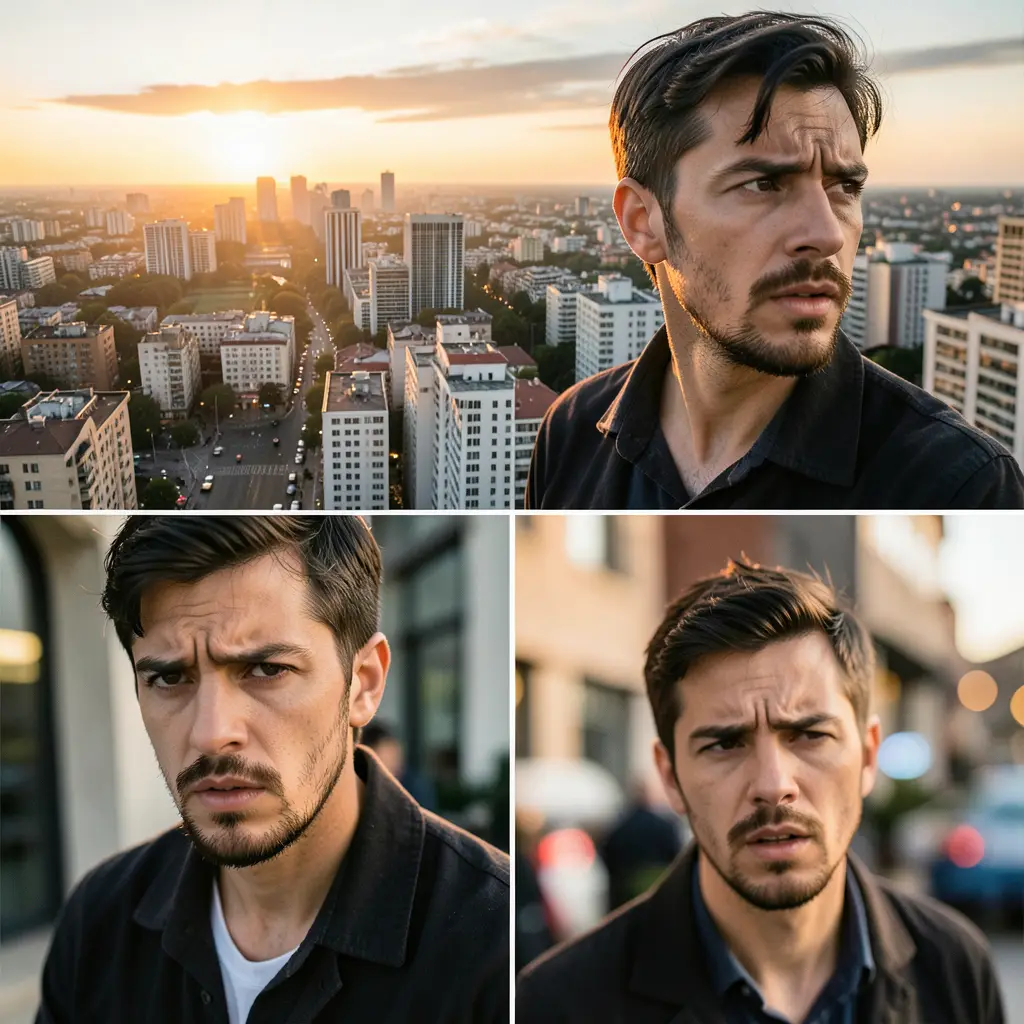 project 1
 project 2
 project 3Settings
Film Movie Studio
A new way to create media with AI
Describe what you want to create…
SkillsModelsType / to explore AI skills
Short DramaE-commerceMusic VideoGamesDocumentaryTip: Use one project for a single coherent set of shots — all the cards stay together and are easy to compare. - 2
Get your bearings in the Workspace
The Workspace has the Canvas on the left, where shot cards will appear, and the chat panel on the right where you talk to the AI. Project tabs sit across the top. You won't need the timeline now — /film-shot makes still shots, not video.
Film Movie StudioRenderThe Last Lighthouse KeeperNew projectSkills/film-shot/short-drama/image-creator/audio-studio/app-builder/film-shot | # | Shot | Size | Camera | Lens | Audio / Notes | | --- | --- | --- | --- | --- | --- | | 1 | Establishing — city skyline | WS | Drone, slow push-in | 24mm | Ambient…
SkillsModelsType / to switch skills anytime
- 3
Launch /film-shot and attach a reference
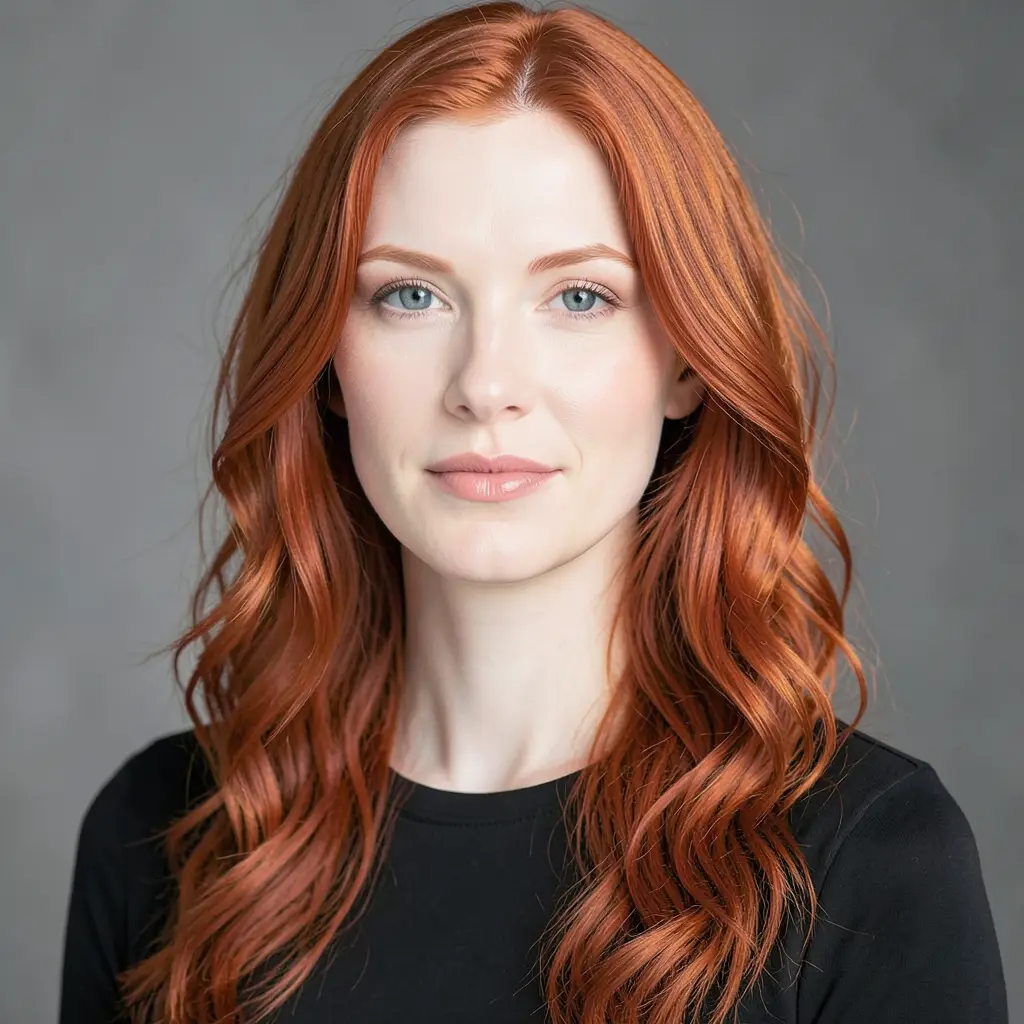
In the chat box type "/film-shot" and pick the skill from the list. Use the paperclip icon to attach a reference photo of your subject — the app builds an "identity card" from it that keeps the face recognizable across every shot. If you have no photo, type "skip" and describe the look in words.
Film Movie StudioRenderThe Last Lighthouse KeeperNew projectFilesframe_1.png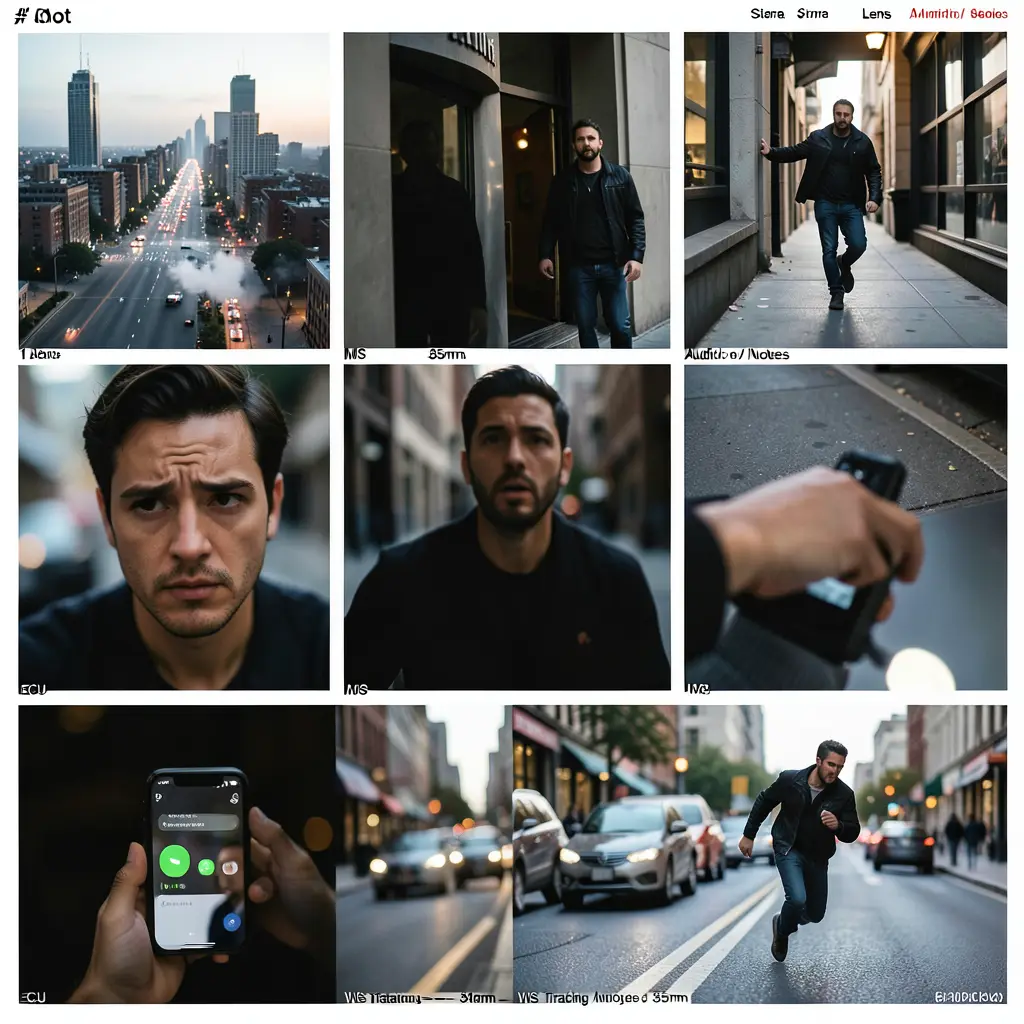 frame_2.png
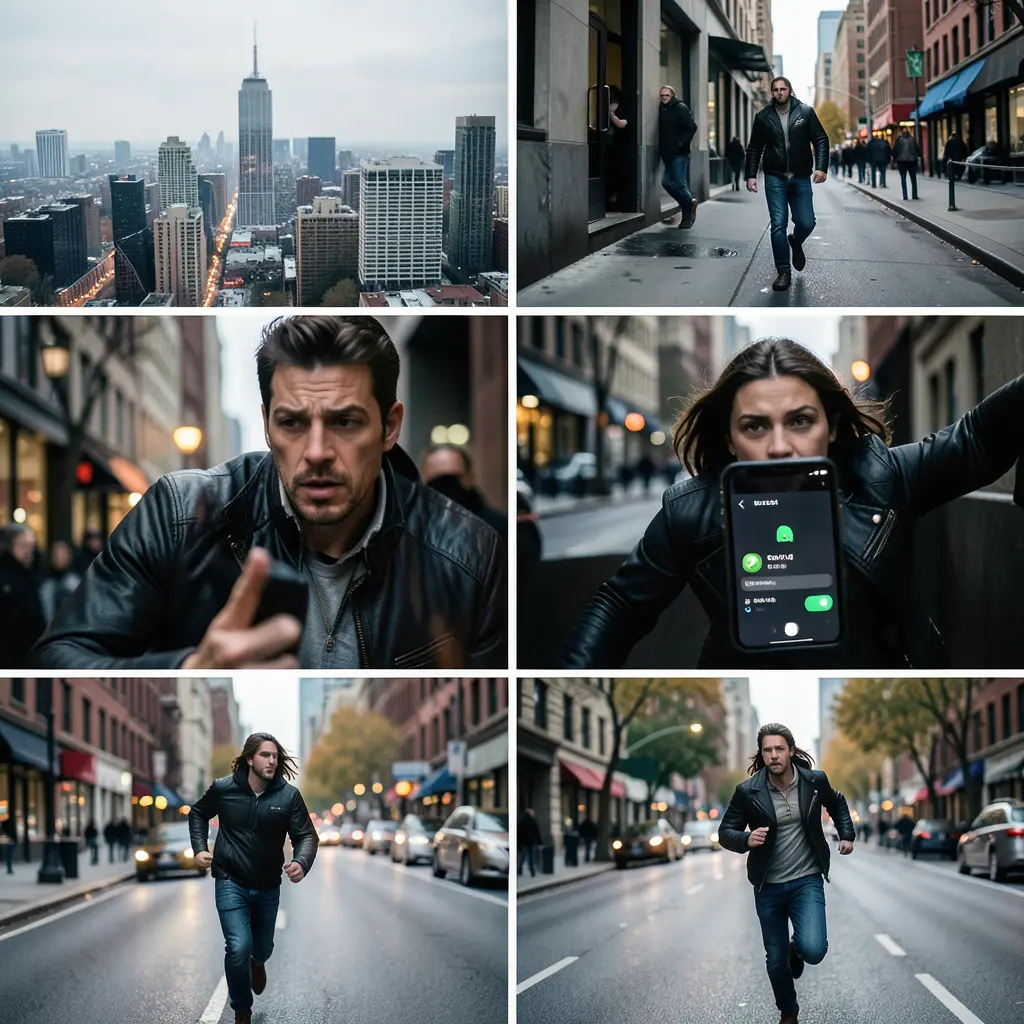 frame_3.pngframe_4.pngframe_5.png
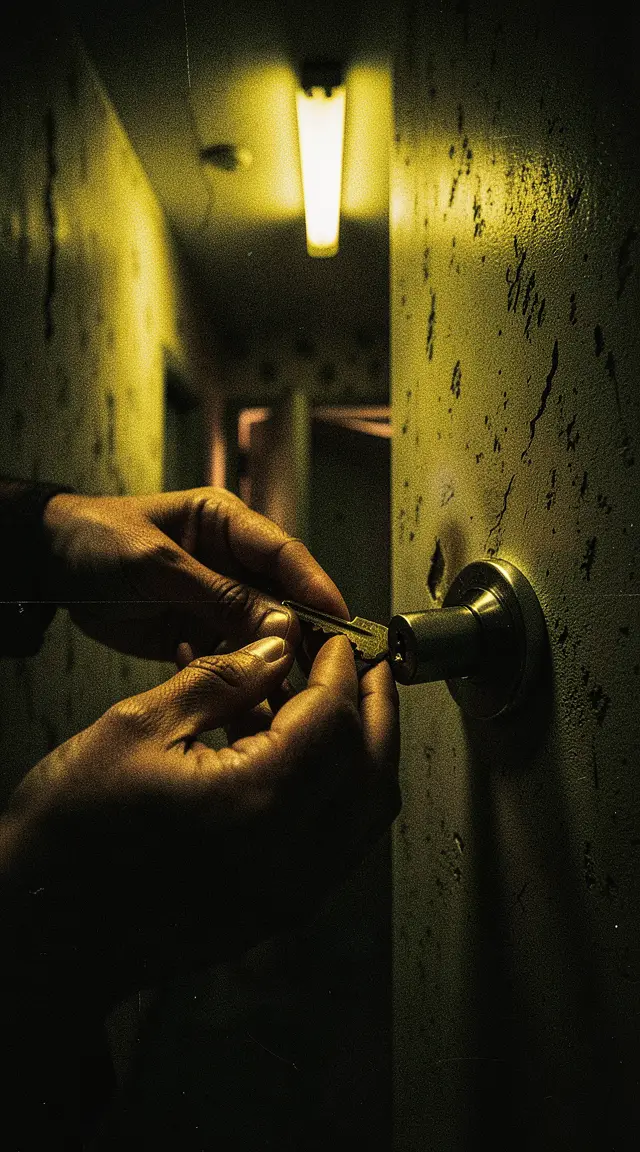 frame_6.png
Drag an image here, or click to upload
reference.pngTip: Attach the actual file via the paperclip — a filename typed in chat alone won't work. - 4
Fill in the brief — the creative gate
The app pauses and opens a brief with four tabs: medium (realistic / anime / 3D), visual style (cyberpunk, Hong Kong noir, IMAX epic, symmetrical candy color, Nordic minimal, 70s film, film noir, natural realism), dominant emotion and the number of shots. Pick and confirm — this is where the whole set's look gets locked.
Film Movie StudioRenderThe Last Lighthouse KeeperNew projectFilesframe_1.pngframe_2.pngframe_3.png60%promptframe_01.pngRemixframe_02.pngRemixframe_03.pngGenerating… 55%RemixoutputTip: Style and medium lock before the shots on purpose: mixing two styles or skipping the medium lock breaks the frame. - 5
Review the shot plan on the canvas
First a "Shot Plan" document card appears — a plan that, for each shot, spells out six dimensions (shot type, camera position, movement implication, lighting, mood, time of day) and a final English prompt. It's the parent card of the whole set; scroll through it and check the dimensions make sense.
Film Movie StudioRenderThe Last Lighthouse KeeperNew projectSkills/film-shot/short-drama/image-creator/audio-studio/app-builder/film-shot | # | Shot | Size | Camera | Lens | Audio / Notes | | --- | --- | --- | --- | --- | --- | | 1 | Establishing — city skyline | WS | Drone, slow push-in | 24mm | Ambient…
SkillsModelsType / to switch skills anytime
- 6
Watch the shots appear on the canvas
For each shot in the plan the app generates an image and a card drops onto the canvas named "Shot 1 — wide", "Shot 2 — close-up" and so on. Adjacent shots vary in size, so the set reads like a real film sequence rather than a contact sheet. A card shimmers first, then fills with the result.
Film Movie StudioRenderThe Last Lighthouse KeeperNew projectFilesframe_1.pngframe_2.pngframe_3.pngframe_4.pngframe_5.png60%promptframe_01.pngRemixframe_02.pngRemixframe_03.pngRemixframe_04.pngGenerating… 80%Remixoutput - 7
Refine a shot from the context menu
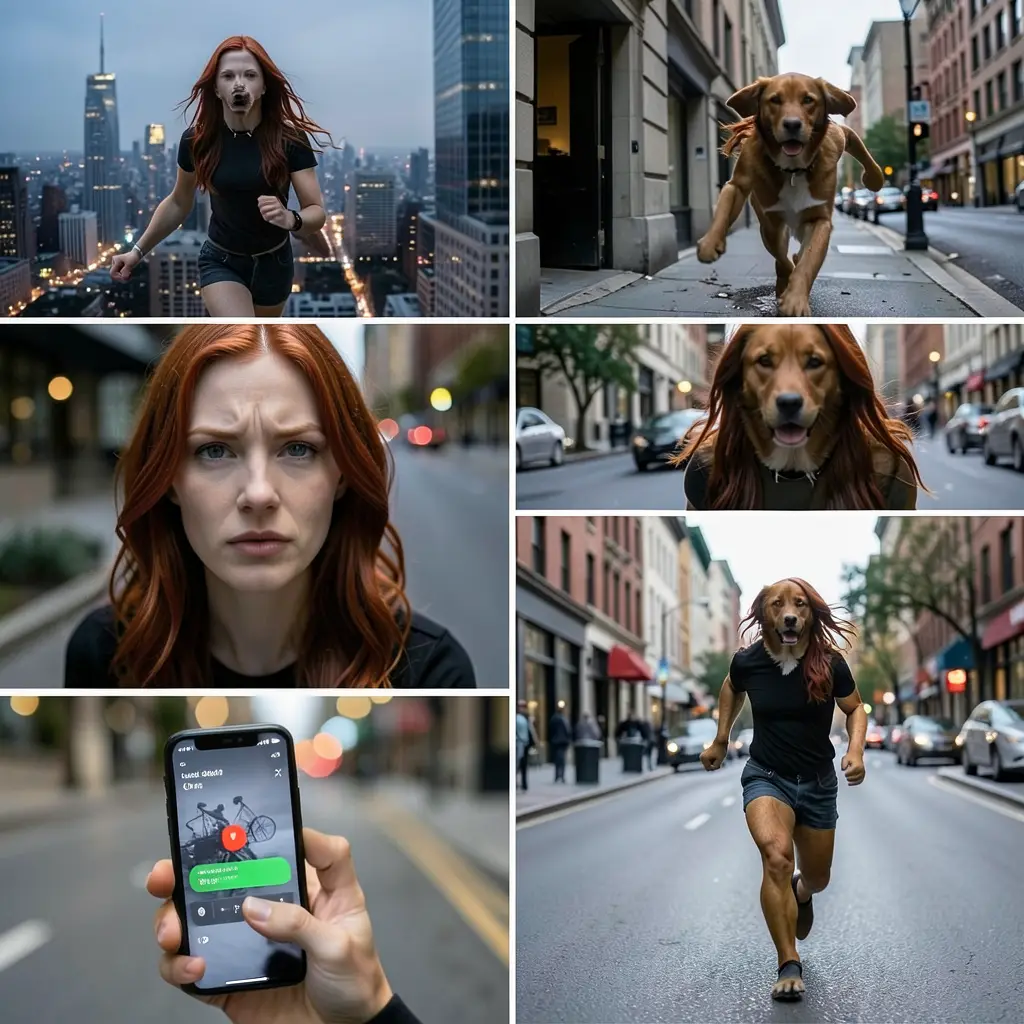
Once generated, the app runs a silent consistency check (same face, medium, style). If a shot drifts, right-click it: the menu offers remix, color grade, fullscreen and copy. Use "remix" to regenerate the shot with a strengthened identity lock.
Film Movie StudioRenderThe Last Lighthouse KeeperNew projectFilesframe_1.pngframe_2.pngframe_3.pngframe_4.pngframe_5.png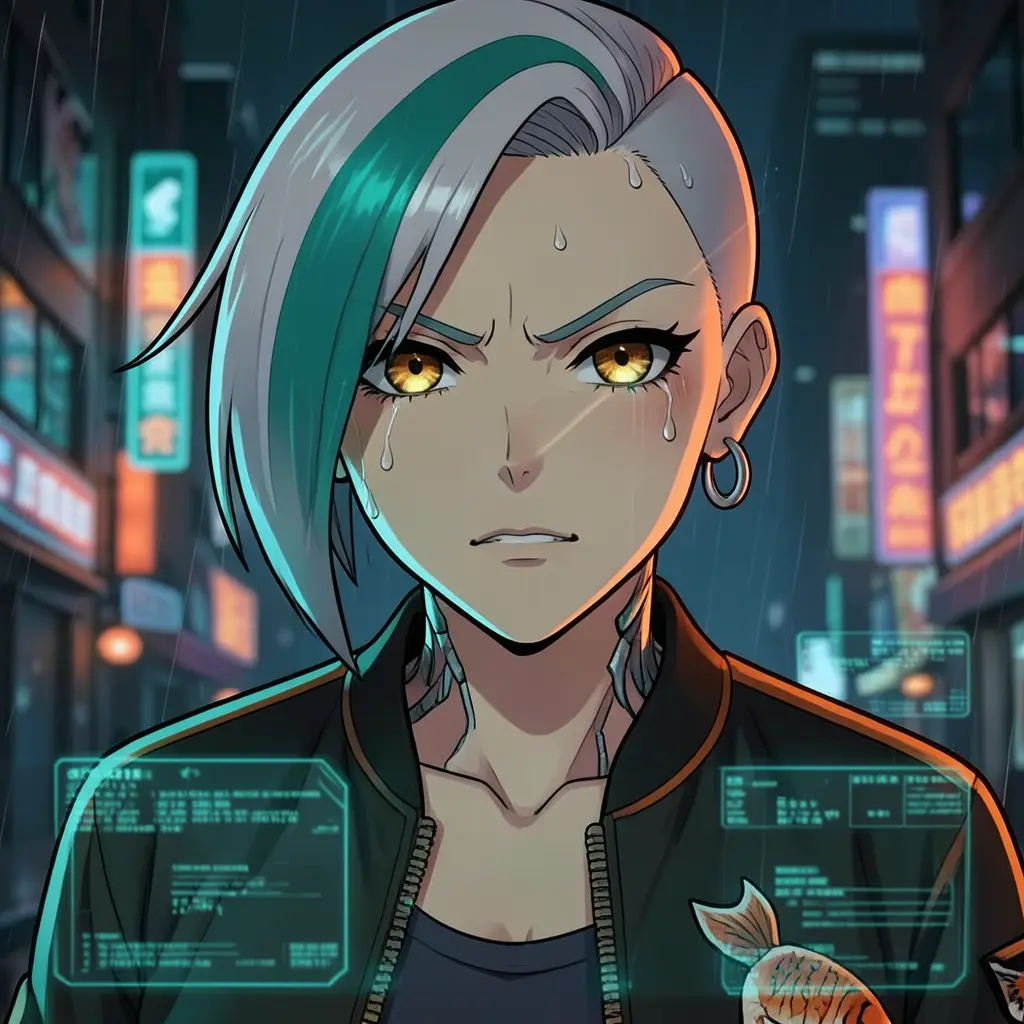 frame_6.pngframe_01.pngRemixVariationsAdd to timelineFullscreenDelete
 - 8
Add an optional character card and save the set
At the end the app offers an optional "character card" — a 16:9 reference sheet with a full-body pose plus three head close-ups. Confirm or decline. All cards are saved locally in the project folder; export individual images via the context menu.
Film Movie StudioRenderThe Last Lighthouse KeeperNew projectFilesframe_1.pngframe_2.pngframe_3.pngFinal render1080p · MP4SaveFilesTip: The character card is a great reference for reusing the same subject later in another scene or a video skill.
What you get
You have a consistent set of film stills: one subject, one locked style and medium, varied shot sizes and camera angles — plus an optional character card as reference. Everything is saved locally in the project and ready to use as a storyboard, moodboard or a starting point for video in the next skills.
Pro tips
- Lock the style before the shots: mixing two of the eight styles, or skipping the medium lock (realistic/anime/3D), reliably breaks the frame.
- Avoid real director names in prompts — providers reject them; the app uses a style keyword set instead.
- Vary sizes between adjacent shots (wide → close-up → medium). Six medium shots is a contact sheet, not a film sequence.
Try it yourself
FilmMovie Studio is a desktop app that walks you from idea to finished export. Download it and start creating.
Get FilmMovie Studio