Sometimes you don't need a full set of product photos — just one solid shot for a listing, an Instagram post or a newsletter. The /ecommerce-image command is the lightweight version of the full /ecommerce-design workflow: instead of hero, packshot, lifestyle and detail shots, it produces one targeted image from your real product photo, which you then turn into a few variants with Remix and pick the best. The original photo rides along as a reference on every generation, so shape, colors and logo stay faithful.
What you'll need
- FilmMovie Studio installed with an image provider configured (a kie.ai or deAPI key).
- One clear photo of your product — studio or even a phone shot, on a neutral background.
- An idea of where the image will go: the platform (e.g. Shopify, Instagram) and the shot type (hero, white-background packshot or lifestyle).
Step by step
- 1
Create a project and open the canvas
In the Launchpad click "New project", name it (e.g. "Product shot") and confirm. The Workspace opens with an empty canvas and the chat panel on the right.
Film Movie StudioRenderHunting Club WebsiteNew projectLaunchpadHubAll projectsRecent project 1
 project 2
 project 3Settings
Film Movie Studio
A new way to create media with AI
Describe what you want to create…
SkillsModelsType / to explore AI skills
Short DramaE-commerceMusic VideoGamesDocumentary - 2
Attach the product photo with the paperclip
In the chat box, click the paperclip icon and pick one photo of your product. This is essential — the photo rides along as a reference on every generation, so the image shows your real product, not a lookalike. A filename typed without the attachment won't work.
Film Movie StudioRenderHunting Club WebsiteNew projectFilesframe_1.pngframe_2.png frame_3.pngframe_4.png
 frame_5.png
Drag an image here, or click to upload
reference.pngTip: A sharp photo on a neutral background, showing the whole product, logo and material, works best. - 3
Run the /ecommerce-image skill
Type /ecommerce-image in chat (or pick it from the skills icon) and add a short description, e.g. "white-background packshot for Shopify". Press Enter.
Film Movie StudioRenderHunting Club WebsiteNew projectSkills/ecommerce-image/short-drama/image-creator/audio-studio/app-builder/ecommerce-image Cinematic wide landscape photo of a misty forest at dawn during hunting season. Golden morning light filtering through tall pine and oak trees, fog rolling across a…
SkillsModelsType / to switch skills anytime
- 4
Answer the quick brief
The app briefly asks for the platform (Amazon, Shopify, TikTok Shop, Instagram…) and one shot type — hero, white-background packshot or lifestyle. Unlike the full /ecommerce-design set, here you pick a single image, so the brief is short.
Film Movie StudioRenderHunting Club WebsiteNew projectSkills/ecommerce-image/short-drama/image-creator/audio-studio/app-builder/ecommerce-image Cinematic wide landscape photo of a misty forest at dawn during hunting season. Golden morning light filtering through tall pine and oak trees, fog rolling across a…
SkillsModelsType / to switch skills anytime
- 5
Watch the image card appear
The AI builds an English prompt from your photo and the brief, then generates a single image. The card shimmers first (loading) and then fills with the finished shot in the right aspect ratio for the chosen platform.
Film Movie StudioRenderHunting Club WebsiteNew projectFilesframe_1.pngframe_2.pngframe_3.pngframe_4.png60%promptframe_01.pngRemixframe_02.pngRemixframe_03.pngRemixframe_04.pngGenerating… 80%Remixoutput - 6
Make variants with Remix
Right-click the card and choose "Remix". This quickly spins up alternatives of the same shot — a different background, angle or mood. Remix two or three times and compare the cards side by side on the canvas.
Film Movie StudioRenderHunting Club WebsiteNew projectFilesframe_1.pngframe_2.pngframe_3.pngframe_4.png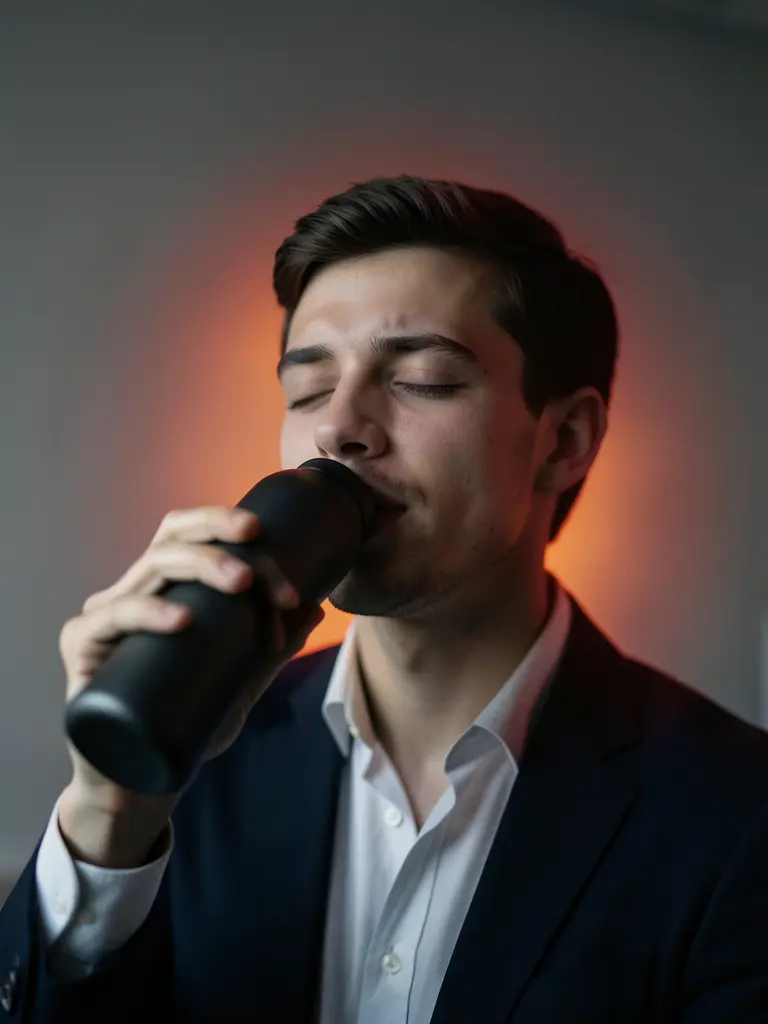 frame_5.pngframe_01.pngRemixVariationsAdd to timelineFullscreenDeleteTip: Remix keeps the product faithful (your original photo rides along) and only changes composition and light — perfect for an A/B listing test.
 - 7
Pick the winner and save it locally
When you have a favorite, open it fullscreen and check the details — logo, colors, material. From the context menu choose "Save" (or open the project folder); the image is stored locally and ready to upload to your store.
Film Movie StudioRenderHunting Club WebsiteNew projectFilesframe_1.pngframe_2.pngframe_3.pngframe_4.pngframe_5.png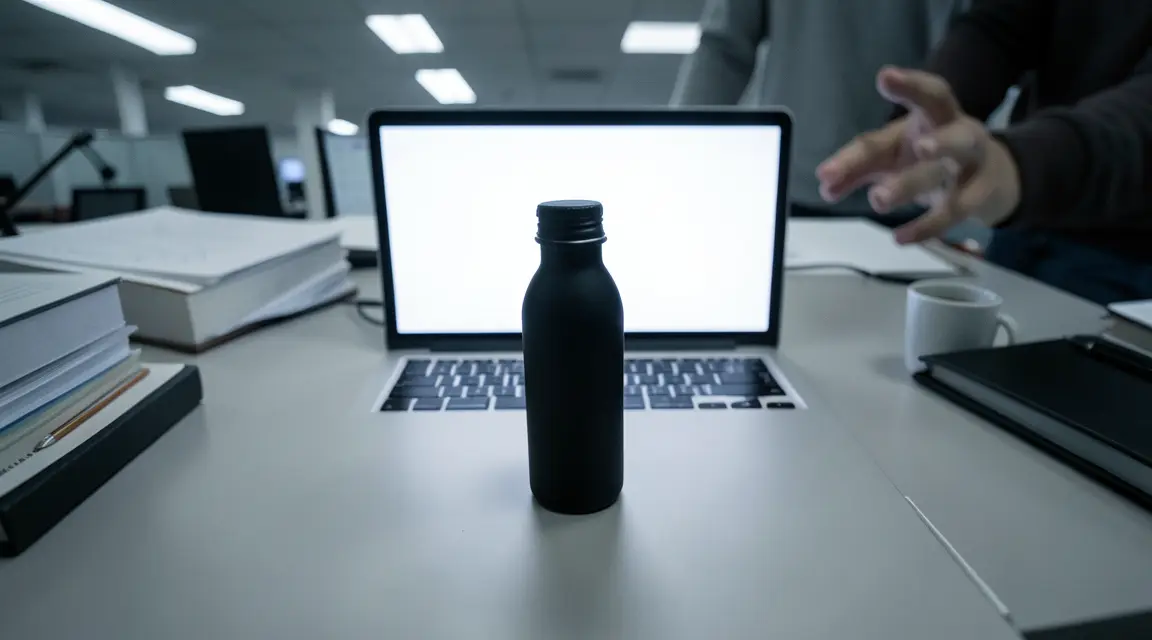 frame_6.png
Drag an image here, or click to upload
reference.png
What you get
You have one finished product image faithful to your photo and a few variants beside it on the canvas — all saved locally and ready for a listing. When you later need a full set (hero, packshot, lifestyle and details), reach for the full /ecommerce-design workflow; /ecommerce-image is the fast path when one shot is enough.
Pro tips
- Always attach the real product photo with the paperclip first — without it the AI makes a lookalike, not your product.
- Don't invent data that isn't in the photo (ingredients, certifications, numbers). The app sticks to what the photo actually shows.
- Let the platform decide the aspect ratio: Amazon 1:1, Shopify and Instagram 4:5, TikTok Shop 3:4 or 9:16.
Try it yourself
FilmMovie Studio is a desktop app that walks you from idea to finished export. Download it and start creating.
Get FilmMovie Studio