The /documentary skill is both director and editor: it turns one topic into a narrated film under a single rule — narration drives the cut. Every beat is one narration line, one shot and one clip, whose length comes from the measured duration of the recorded voiceover, not a preset. In this guide we walk the whole process: from naming a topic, through approving the script at the creative gate, style-locked shots, voiceover and clips, to subtitles, music and a final render. You'll work in FilmMovie Studio on a freeform canvas.
What you'll need
- The basic loop from the "Your first project" guide done — you know the canvas, cards and timeline.
- A provider for image, video and audio configured in Settings (kie.ai or deAPI).
- A one-sentence topic, e.g. "how octopuses think" or "my city's oldest café".
Step by step
- 1
Create a project and launch the /documentary skill
In the Launchpad create a new project and open the Workspace. In the chat panel pick the skill icon and choose /documentary. Type your topic in one sentence, e.g. "how octopuses think", and send.
Film Movie StudioRenderLumi And The Fading LanternNew projectLaunchpadHubAll projectsRecent project 1
 project 2
 project 3Settings
Film Movie Studio
A new way to create media with AI
Describe what you want to create…
SkillsModelsType / to explore AI skills
Short DramaE-commerceMusic VideoGamesDocumentaryTip: Just describe the topic in your own words. The skill reads its own workflow and starts asking questions. - 2
Fill in the film brief
The app opens a short brief with tabs: tone (Authoritative, Warm, Investigative, Poetic), length (1, 2 or 3 minutes), narration language and visual look (Cinematic realism, Archival, Nature-documentary, Illustrated). Pick the options and confirm. The default aspect ratio is 16:9.
Film Movie StudioRenderLumi And The Fading LanternNew projectFilesframe_1.pngframe_2.png frame_3.png
 frame_4.pngframe_5.png60%promptframe_01.pngGenerating… 42%Remixframe_02.pngGenerating… 68%Remixframe_03.pngGenerating… 55%Remixframe_04.pngGenerating… 80%RemixoutputTip: Length sets the beat count: 1 min ≈ 6, 2 min ≈ 13, 3 min ≈ 21. Each beat is one narration line.
 - 3
Approve the script at the creative gate
The skill researches the topic and generates a 3-act outline — hook and setup, escalating revelations, and resolution. A "plan" card (Documentary Outline) drops on the canvas with every beat, narration line and the style suffix. The app pauses and asks: approve, revise the outline, or change the angle. Read the narration and click "Approve".
Film Movie StudioRenderLumi And The Fading LanternNew projectFilesframe_1.pngframe_2.pngframe_3.pngframe_4.pngframe_5.png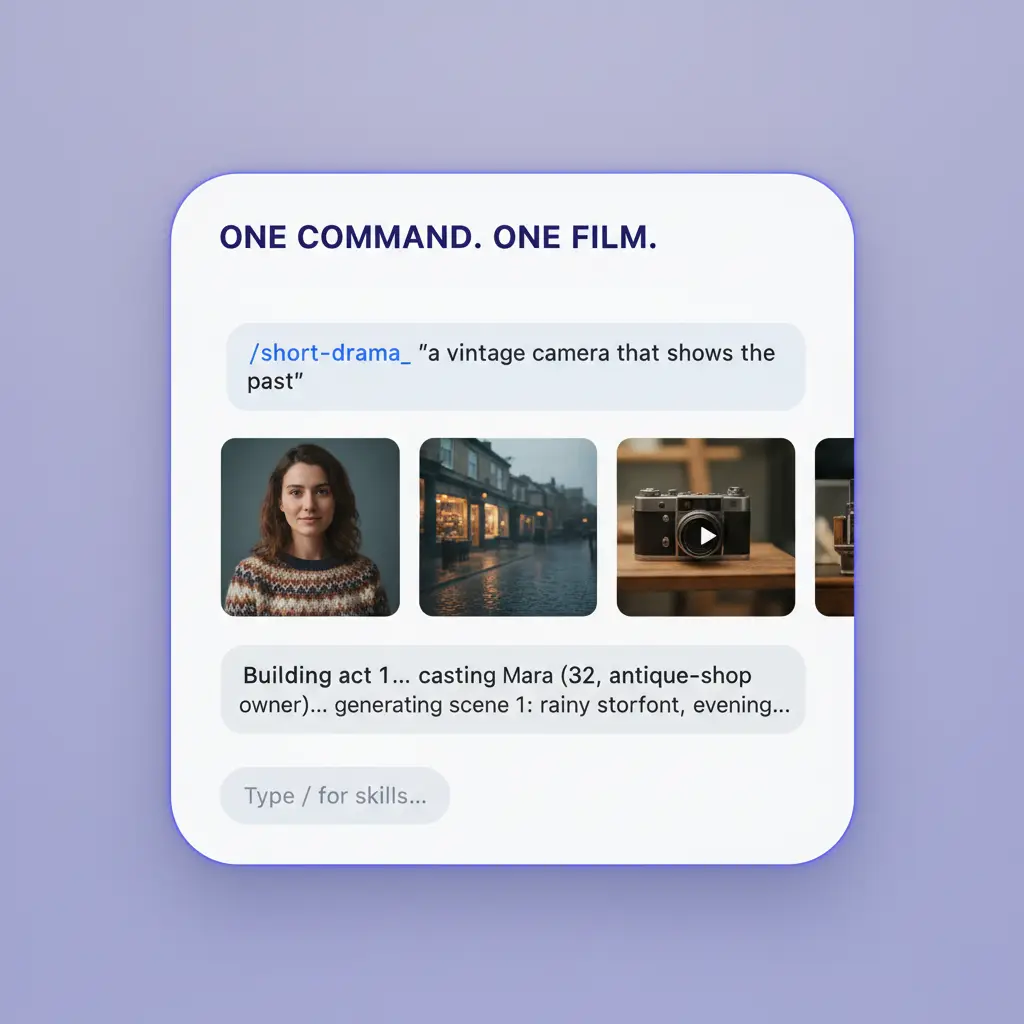 frame_6.png
Drag an image here, or click to upload
reference.png - 4
Watch the storyboard take shape
After approval, each beat gets a scene card holding its act, narration line, keyframe brief and motion brief. The cards lay out on the canvas as nodes wired to the plan card — this is the film's spine, the parent of every shot, voiceover and clip to come.
Film Movie StudioRenderLumi And The Fading LanternNew projectFilesframe_1.pngframe_2.pngframe_3.png60%promptframe_01.pngRemixframe_02.pngRemixframe_03.pngGenerating… 55%Remixoutput - 5
Let it generate the style-locked shots
The skill generates the first shot (keyframe) as the "style anchor" and every later shot references it so palette and grade stay locked — the same style suffix is appended to every prompt. An intro and an outro title card are added too. The shots appear on the canvas as cards that bloom in as they finish.
Film Movie StudioRenderLumi And The Fading LanternNew projectFilesframe_1.pngframe_2.pngframe_3.pngframe_4.png60%promptframe_01.pngRemixframe_02.pngRemixframe_03.pngRemixframe_04.pngGenerating… 80%RemixoutputTip: Vary shot sizes: two wide shots in a row read as a slideshow. Adjacent beats shouldn't share the same distance. - 6
Record the voiceover and measure its length
For each beat, audio generation (kind "voiceover") records that exact narration line. The app notes the measured duration (duration_sec) for each beat — the clip length is derived from it later. The intro and outro cards get no narration.
Film Movie StudioRenderLumi And The Fading LanternNew projectFilesframe_1.pngframe_2.pngframe_3.pngframe_4.pngframe_5.png60%promptframe_01.pngGenerating… 42%Remixframe_02.pngGenerating… 68%Remixframe_03.pngGenerating… 55%Remixframe_04.pngGenerating… 80%RemixoutputTip: If a line runs over ~9.5s, the skill shortens it and re-records. A clip never exceeds 10 seconds. - 7
Generate clips matched to the narration
Each shot becomes a clip via video generation — the shot is the first frame and the length (6, 8 or 10s) comes from the measured narration. Motion prompts use only visual verbs (drifts, cracks, glows), never cognition verbs (realizes). Clips drop on the canvas as nodes wired to their beat.
Film Movie StudioRenderLumi And The Fading LanternNew projectFilesframe_1.pngframe_2.pngframe_3.pngframe_4.pngframe_5.png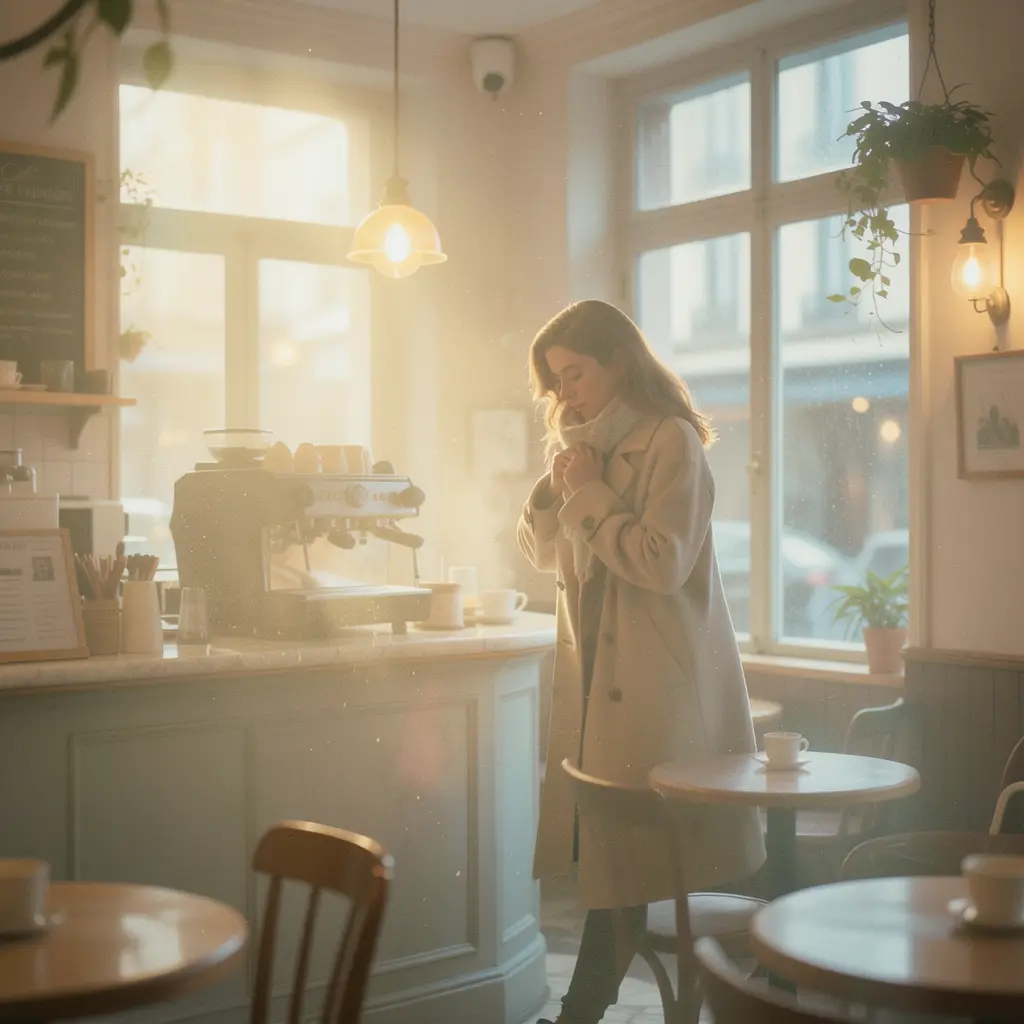 frame_6.png
Drag an image here, or click to upload
reference.png - 8
Add subtitles, color and music, then render
The skill lays in subtitles timed by the accumulated clip starts, optionally unifies the look by color-grading every clip with the same values, and generates instrumental background music. It opens the Timeline, where clips, narration, music and subtitles auto-populate, and runs Render. The finished MP4 is saved locally and a final-render card lands on the canvas.
Film Movie StudioRenderLumi And The Fading LanternNew projectFilesframe_1.pngframe_2.pngframe_3.pngFinal render1080p · MP4SaveFilesTip: Render is the terminal step — called once. To make changes, edit the cards or the timeline and render again.
What you get
From one sentence you have a finished narrated documentary: a 3-act script approved at the creative gate, style-consistent shots, voiceover narration, clips whose length matches the measured narration, synced subtitles, a unified color look and music — all assembled on the timeline and rendered to an MP4 saved locally. Narration drove the cut from start to finish.
Pro tips
- Open on a hook, not throat-clearing: the first line should surprise, not say "in this video we'll show you...".
- One style for the whole film: if a shot drifts, regenerate it with the style anchor and the style suffix at the front.
- If the film has a recurring character, generate its portrait once and reuse it as a reference in every beat it appears in.
Try it yourself
FilmMovie Studio is a desktop app that walks you from idea to finished export. Download it and start creating.
Get FilmMovie Studio