Once you already have a finished scene or short drama in a project, the hard part is shooting the next shot so it flows on — same lighting, same framing, the same characters. /continue-story solves this by not starting over: it reads where the story ended, pulls the last frame of the last clip as a visual anchor and generates the next scene from it. In this guide you'll reopen an earlier project and add one new shot that looks like a natural continuation.
What you'll need
- An existing project with at least one finished video clip on the canvas (e.g. from /short-drama).
- An image and video generation provider configured in Settings (kie.ai or deAPI).
- An idea of what happens in the next scene — or let the app propose the next beat.
Step by step
- 1
Reopen an earlier project from the Launchpad
Open FilmMovie Studio. On the Launchpad, find the project with your finished scene and click it. The Workspace opens exactly as you left it — cards, clips and characters are still on the canvas.
Film Movie StudioRenderThe Unlikely CompanionsNew projectLaunchpadHubAll projectsRecent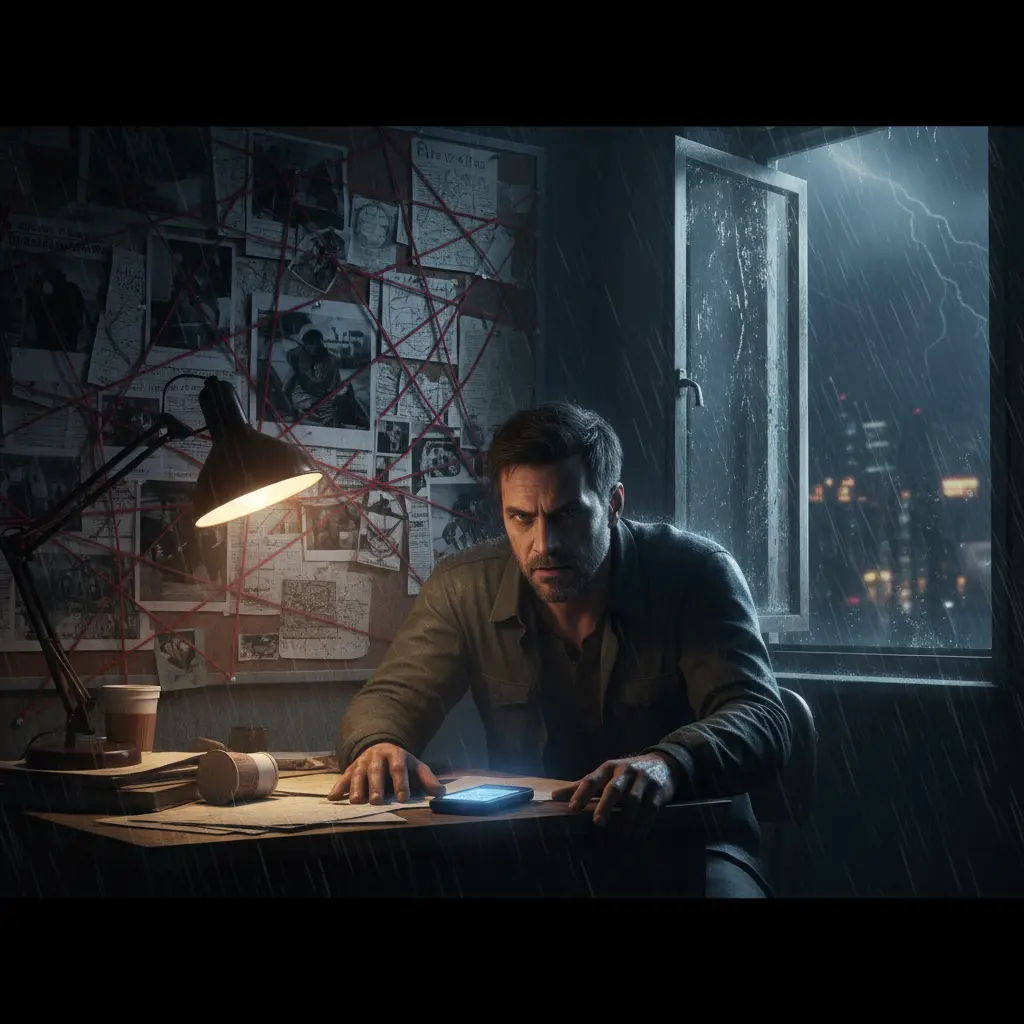 project 1
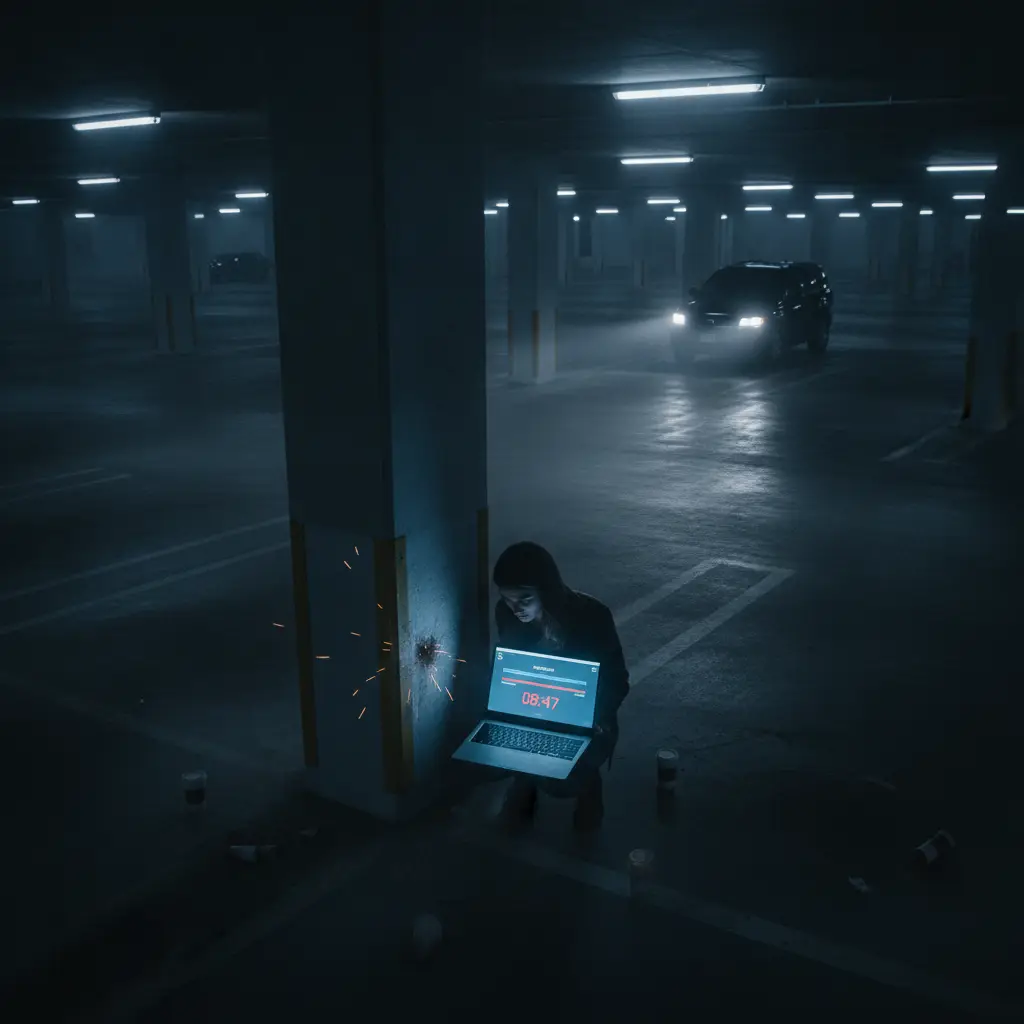 project 2
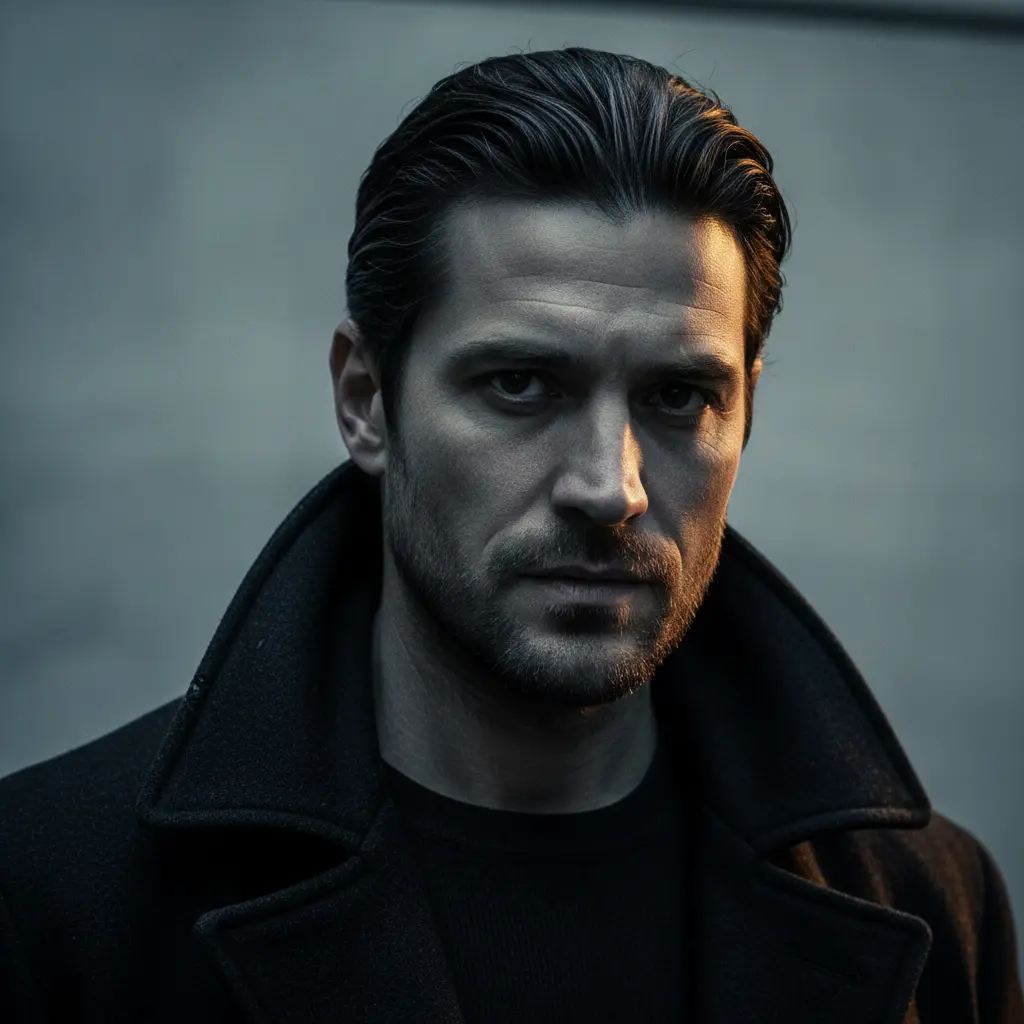 project 3Settings
Film Movie Studio
A new way to create media with AI
Describe what you want to create…
SkillsModelsType / to explore AI skills
Short DramaE-commerceMusic VideoGamesDocumentaryTip: Projects are saved locally, so you can pick up weeks later with no expired links. - 2
Run /continue-story in chat
In the chat panel, type /continue-story and add a sentence about what comes next, e.g. "the character steps outside into the rain". If you give no direction, the app proposes a natural next beat and asks you to confirm.
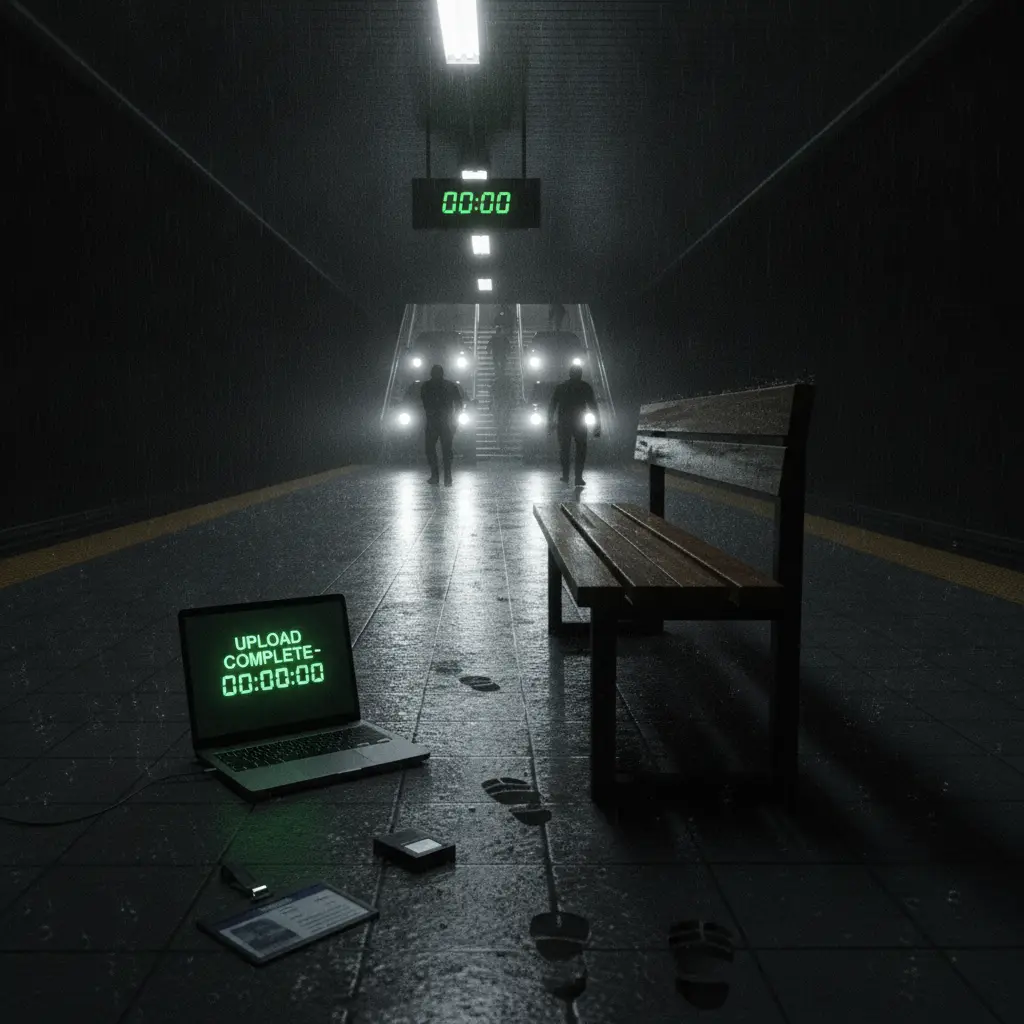
Film Movie StudioRenderThe Unlikely CompanionsNew projectSkills/continue-story/short-drama/image-creator/audio-studio/app-builder/continue-story Low-angle tracking shot running alongside two figures sprinting across a rain-soaked transit platform. Cross-cutting to a laptop screen showing an upload bar filling to…
SkillsModelsType / to switch skills anytime
- 3
Let the app read where the story ended
The app scans the cards on the canvas, finds the latest video clip and the character portraits, and reads the last scene or plan. That's how it knows the plot and tone — and won't restart the story.
Film Movie StudioRenderThe Unlikely CompanionsNew projectFilesframe_1.png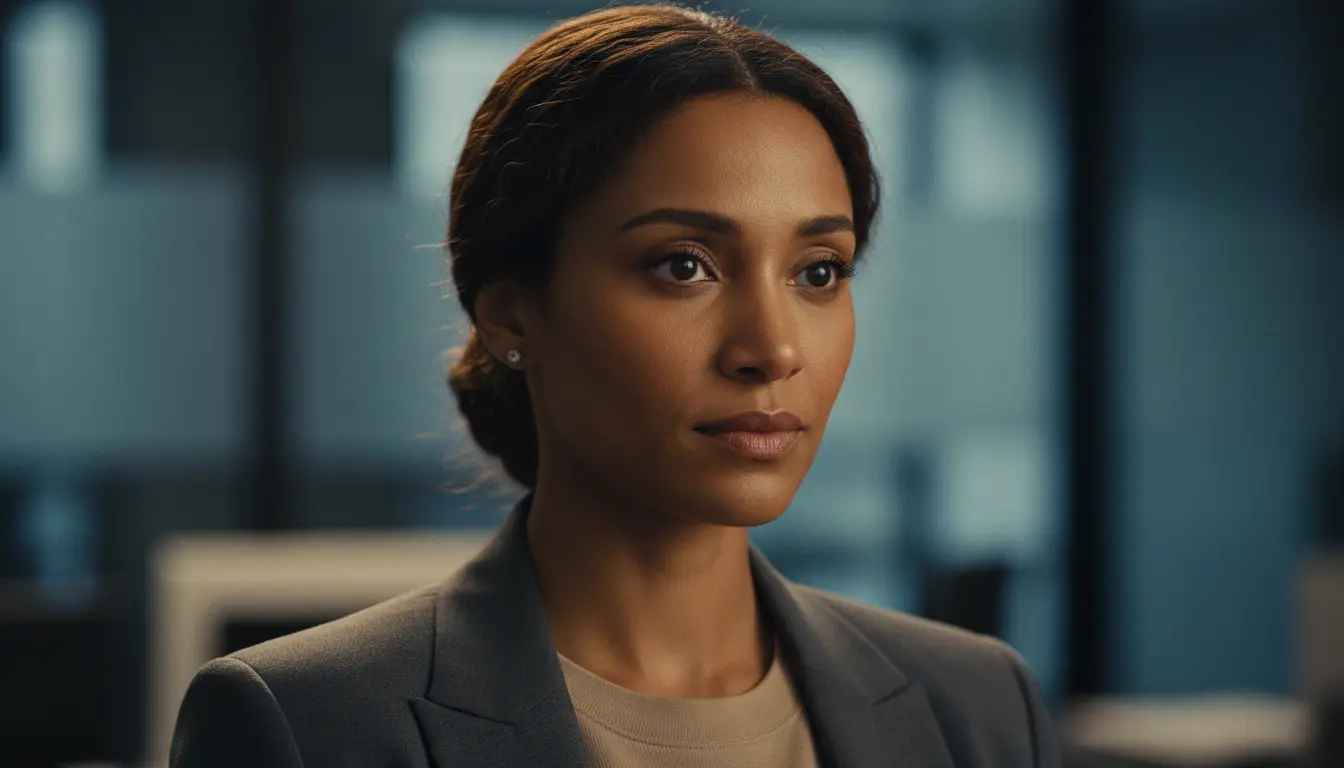 frame_2.png
 frame_3.pngframe_4.pngframe_5.png
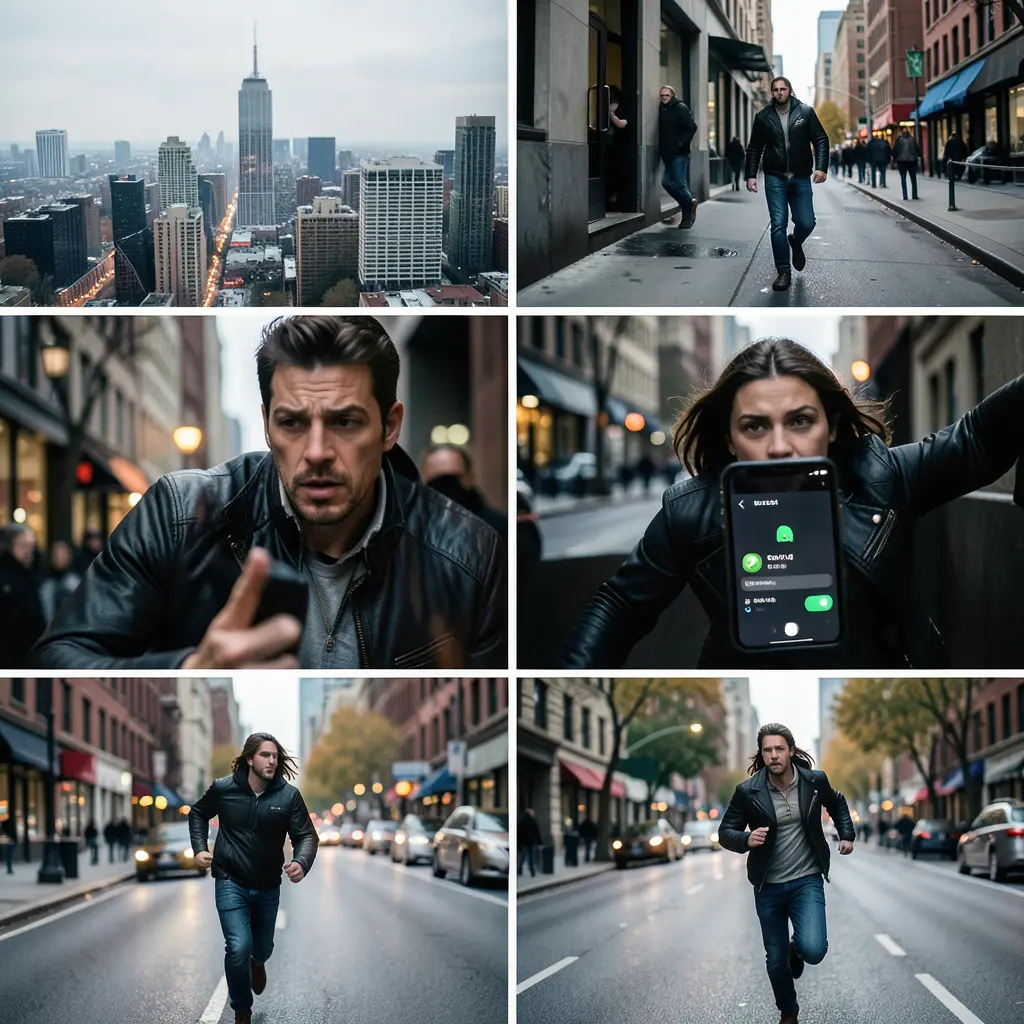 frame_6.pngframe_01.pngRemixVariationsAdd to timelineFullscreenDelete
 - 4
Extract the last frame as a continuity anchor
The last frame of the latest clip is extracted and dropped on the canvas as a PNG card. This frame is your anchor — the next shot starts exactly where the previous one ended: same lighting, framing and character positions.
Film Movie StudioRenderThe Unlikely CompanionsNew projectFilesframe_1.pngframe_2.pngframe_3.pngDrag an image here, or click to upload
reference.pngTip: Starting from an image (image-to-video) holds continuity far better than generating from plain text. - 5
Review the proposed next scene
The app writes a short description of the next beat — what happens, the camera motion and the setting — and adds it as a "scene" card linked under the previous one. The storyboard stays in left-to-right order.
Film Movie StudioRenderThe Unlikely CompanionsNew projectFilesframe_1.pngframe_2.pngframe_3.pngframe_4.png60%promptframe_01.pngGenerating… 42%Remixframe_02.pngGenerating… 68%Remixframe_03.pngGenerating… 55%Remixframe_04.pngGenerating… 80%Remixoutput - 6
Generate the scene keyframe
The app creates a keyframe image for the new scene: it uses the anchor's last frame and the character portraits as references, so the look and the characters stay consistent. The card links under the scene.
Film Movie StudioRenderThe Unlikely CompanionsNew projectFilesframe_1.pngframe_2.pngframe_3.pngframe_4.pngframe_5.png60%promptframe_01.pngRemixframe_02.pngRemixframe_03.pngRemixframe_04.pngGenerating… 80%Remixoutput - 7
Generate the next clip
From the keyframe (or the last frame, if you skipped the keyframe) the video generates with it as the first frame. The prompt carries the motion and camera direction for the new beat; the clip links under its scene.
Film Movie StudioRenderThe Unlikely CompanionsNew projectSkills/continue-story/short-drama/image-creator/audio-studio/app-builder/continue-story Low-angle tracking shot running alongside two figures sprinting across a rain-soaked transit platform. Cross-cutting to a laptop screen showing an upload bar filling to…
SkillsModelsType / to switch skills anytime
- 8
Decide what comes next
With the new scene on the canvas you have three choices: run /continue-story again for another scene, open the timeline and assemble the clips in order, or render a finished MP4 right away.
Film Movie StudioRenderThe Unlikely CompanionsNew projectSkills/continue-story/short-drama/image-creator/audio-studio/app-builder/continue-story Low-angle tracking shot running alongside two figures sprinting across a rain-soaked transit platform. Cross-cutting to a laptop screen showing an upload bar filling to…
SkillsModelsType / to switch skills anytime
Tip: One scene per run — the app deliberately doesn't loop, so you stay in control of the story.
What you get
From one finished scene you now have two that flow on seamlessly: the second shot starts exactly where the first ended, with the same lighting, framing and characters. You can extend the story scene by scene — one /continue-story run at a time — then assemble it all on the timeline and render it into a single MP4.
Pro tips
- If the project has a Style Lock (set by /short-drama), the app appends it to every generation automatically — no need to re-describe the art style.
- For the best continuity, don't skip the keyframe: an image as the first frame holds the look more reliably than video straight from text.
- You can view the previous clip's last frame fullscreen on the canvas to check what the new shot will pick up from.
Try it yourself
FilmMovie Studio is a desktop app that walks you from idea to finished export. Download it and start creating.
Get FilmMovie Studio