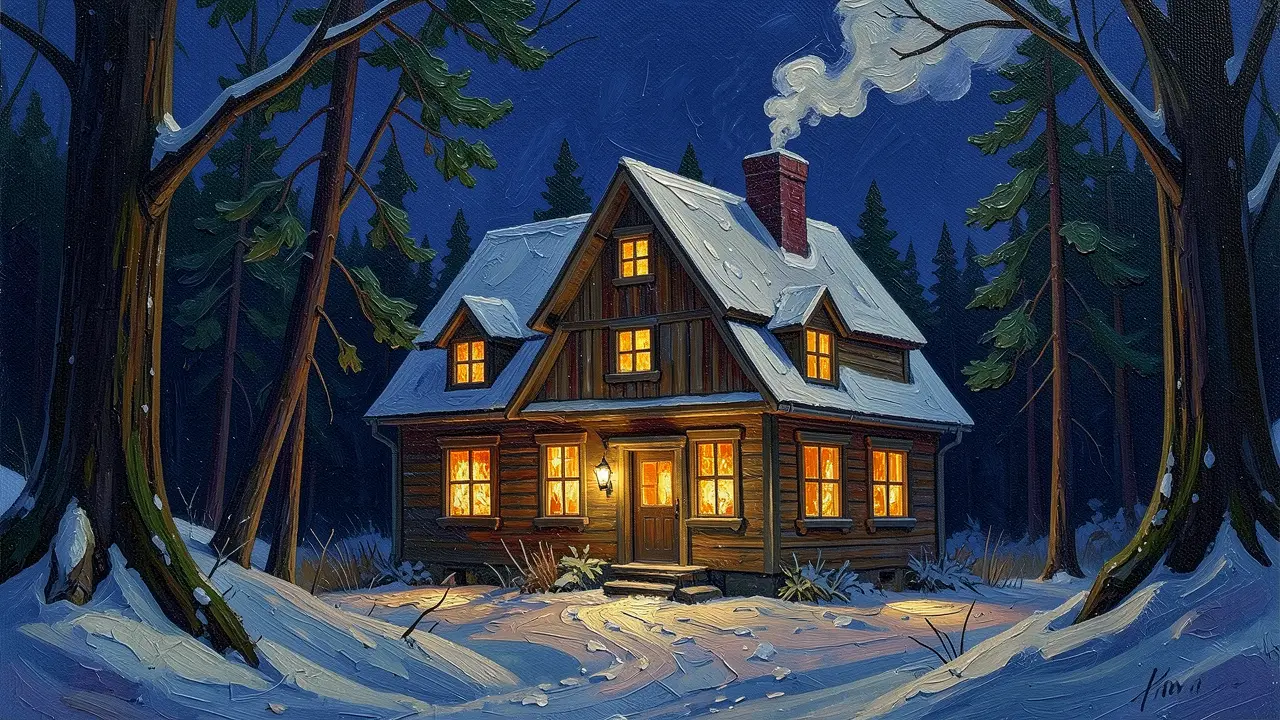
Cutting to the beat is the signature of a good music video: edits land exactly on a beat, shot lengths breathe with the song's energy, and the final shot resolves on the last downbeat. In this advanced guide you'll use the /beat-sync-editor skill, which drives the whole pipeline — beat detection, cut planning, clip prep and timeline assembly — pausing only at genuine decision points. All you need is a music track and a handful of clips or images.
What you'll need
- A FilmMovie Studio project with at least a few video clips or images on the canvas (or an idea to generate them).
- A music track — an attached file, an audio card on the canvas, or a brief to generate one (genre, mood, tempo/BPM, length).
- Basic familiarity with the timeline and the card context menu from the introductory guides.
Step by step
- 1
Prepare the music and clips on the canvas
Open your project and make sure the canvas holds a music card and a few video or image cards. You can attach music straight to chat, have it as an audio card, or let the app generate it. If you have none, the app will prompt you for a brief in the next step.
Film Movie StudioRenderBolt And The Last FlowerNew projectFiles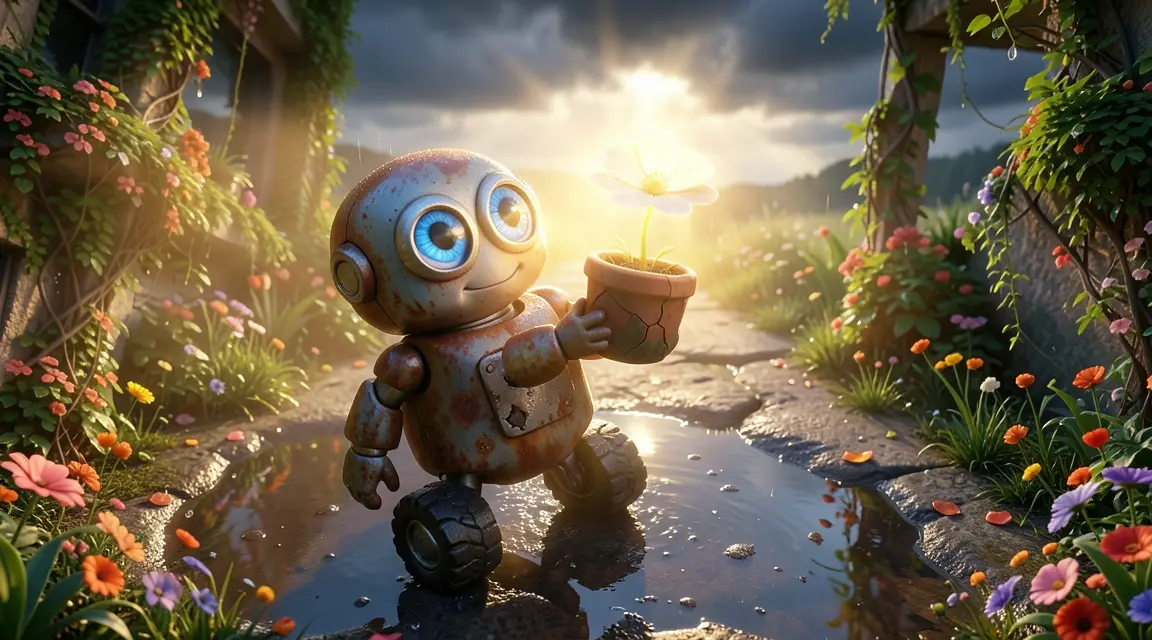 frame_1.png
 frame_2.png
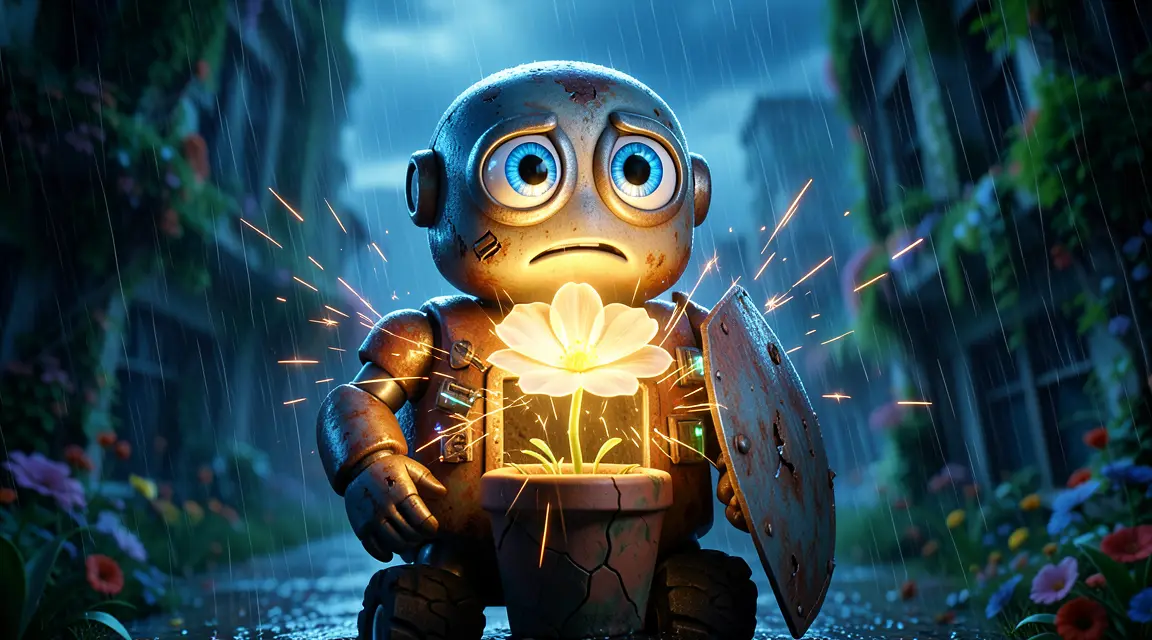 frame_3.png
 frame_4.png
Drag an image here, or click to upload
reference.pngTip: Put your strongest visual on the first shot and another standout at the song's peak — beat-sync edits work best when they lead with impact. - 2
Launch the /beat-sync-editor skill
In the chat box type /beat-sync-editor (or pick the skill icon) and briefly describe what you want — e.g. "an energetic montage of these clips set to this track". The app first establishes the music source: it uses an attached file, the single audio card, or asks you which of several.
Film Movie StudioRenderMoonlit Fox LullabyNew projectFiles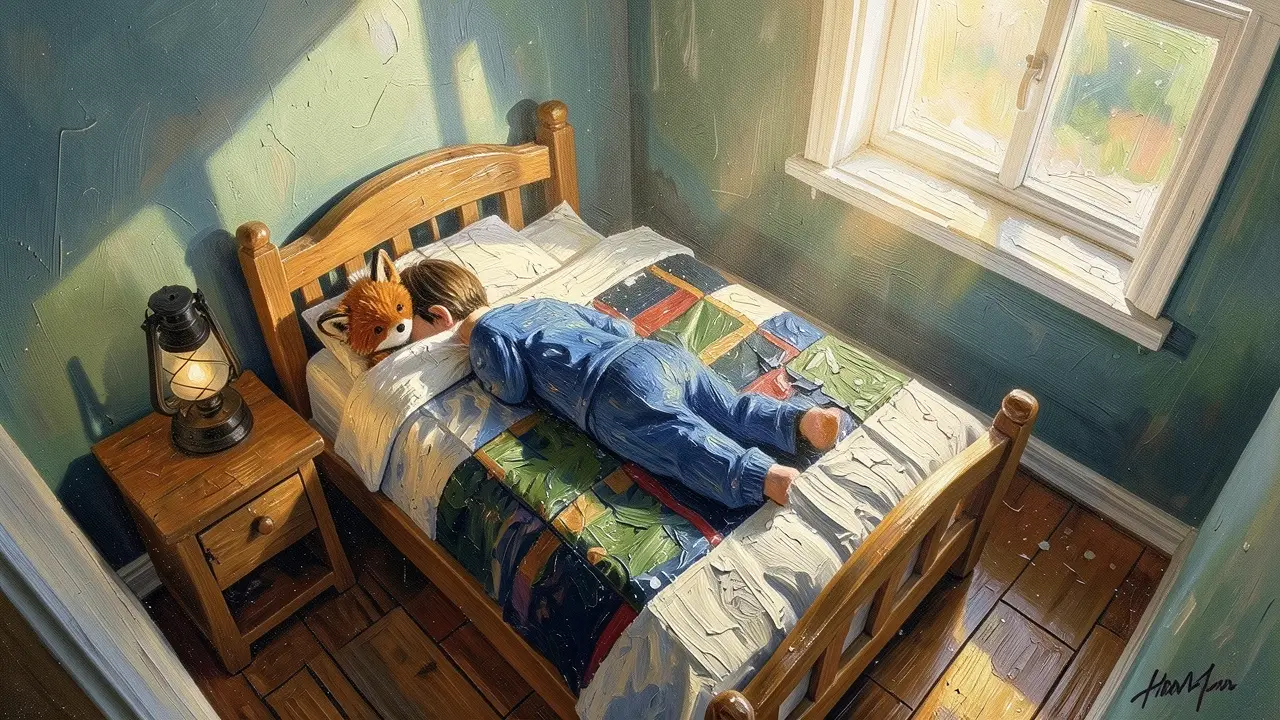 frame_1.png
 frame_2.png
 frame_3.pngclip_4.mp4
 frame_5.png60%promptframe_01.pngRemixframe_02.pngRemixframe_03.pngRemixclip_04.mp4Generating… 80%Remixoutput
 - 3
Let it detect the rhythm grid (beat detection)
The app runs beat detection on the music card and returns the BPM, beat count and exact beat times. A beat-analysis card appears on the canvas, linked to the music. For fast songs (BPM ≥ 140) it may suggest a sparser grid so the edit doesn't feel frantic.
Film Movie StudioRenderBolt And The Last FlowerNew projectFilesframe_1.pngframe_2.png frame_3.pngframe_4.pngframe_5.png
 frame_6.pngframe_01.pngRemixVariationsAdd to timelineFullscreenDeleteTip: If the song is longer than your target video, ask for "the best 30 seconds" — the app finds the highest-energy window and trims the music to it before analysing.
 - 4
Approve the cut plan
From the beat times the app derives a cut list: each slot spans one beat to another, with shot length varying by energy — short 0.5–1s shots in the chorus, calmer 1.5–2s shots in verses. The plan drops onto the canvas (one line per slot: index, start, duration, assigned asset). Confirm with "Approve plan", or choose "Faster cuts" / "Slower cuts" / "Let me adjust".
Film Movie StudioRenderBolt And The Last FlowerNew projectFilesframe_1.pngframe_2.pngframe_3.pngDrag an image here, or click to upload
reference.png - 5
Fill and trim assets to slot length
If there are fewer clips than slots, the app generates extra images in the same style and can animate key shots (a subtle push-in or drifting light). Long clips are split into scenes first so it can pick strong compositions. Each clip is trimmed frame-accurately to exactly its slot length; images need no trimming — they hold the slot on the timeline.
Film Movie StudioRenderBolt And The Last FlowerNew projectFilesframe_1.pngframe_2.pngframe_3.pngframe_4.pngTimelineRenderVideoVoiceoverMusicSubtitles - 6
Open the timeline and check the beat markers
The app opens the timeline: trimmed clips and images land back-to-back exactly on the beat times, the music runs on a track beneath them, and the videos' audio is muted in the mix so the music carries. On the timeline you'll see beat markers — each clip edge snaps to them. Here you can still drag or swap slots.
Film Movie StudioRenderBolt And The Last FlowerNew projectFilesframe_1.pngframe_2.pngframe_3.pngframe_4.pngframe_5.pngDrag an image here, or click to upload
reference.pngTip: The final shot should start on a late beat and run through the end of the music — so the video lands its ending and doesn't die mid-phrase. - 7
Render the finished music video
When you're happy with the timeline, choose "Render now" (or "Adjust first" if you want to tweak by hand). Using ffmpeg, the app stitches the clips on the beats together with the music into a single MP4 and drops a final-render card on the canvas. Render is the terminal step — it runs once at the very end.
Film Movie StudioRenderBolt And The Last FlowerNew projectFilesframe_1.pngframe_2.pngframe_3.pngframe_4.pngframe_5.png frame_6.png
Drag an image here, or click to upload
reference.png
What you get
The result is a music video where every cut lands exactly on a beat: faster edits in the chorus, calmer ones in verses, and the final shot carried through to the end of the song. The finished MP4 is saved locally in the project folder alongside the beat-analysis and cut-plan cards, so you can re-plan the whole pipeline anytime without re-running detection.
Pro tips
- Cut ON the beat, never "near" it — each clip edge on the timeline snaps to a beat marker, so the rhythm stays exact.
- Vary shot length with energy: short cuts at peaks, longer shots in calm passages. A wall of identical durations reads mechanical.
- Beat detection runs once; to change the edit's pace just re-plan the slots (faster/slower) — the beat grid never changes.
Try it yourself
FilmMovie Studio is a desktop app that walks you from idea to finished export. Download it and start creating.
Get FilmMovie Studio