The /avatar-studio skill turns a selfie or a text description into a stylized avatar and a character you then see from several angles and in different poses. The single most important rule is consistent identity: the face, hair, outfit and palette stay the same across the whole set. We get there by chaining references — both the original photo and your first good render act as anchors for every follow-up shot. In this guide we go from a photo through a hero render to a finished set of poses on the canvas.
What you'll need
- FilmMovie Studio installed with at least one image provider configured.
- One clear face photo (a selfie or portrait) — or a precise text description of the character.
- A sense of the style you want: anime, 3D render, pixel art, sticker, watercolour and so on.
Step by step
- 1
Start /avatar-studio in chat
In an open project, type /avatar-studio into the chat box and press Enter (or pick the skill from the skills icon). The app switches into character-creation mode and asks for the identity source.
Film Movie StudioRenderSkywick The Sky WhaleNew projectSearch skills…AllWorkflowsQuickvideoShort DramaViral vertical mini-series, end to end.imageImage CreatorGenerate single images from a prompt.audioAudio StudioVoiceover, SFX and music tracks.copyApp BuilderMulti-screen apps with live preview.imageE-commerce DesignPro product shots for any platform.videoMusic VideoBeat-synced clips cut to your track. - 2
Attach a photo or describe the character
Drag a selfie into the chat (or click the paperclip and choose a file) — this photo becomes the identity anchor. If you have no photo, describe the character in a sentence, e.g. "a young woman with short red hair and glasses".
Film Movie StudioRenderSkywick The Sky WhaleNew projectFiles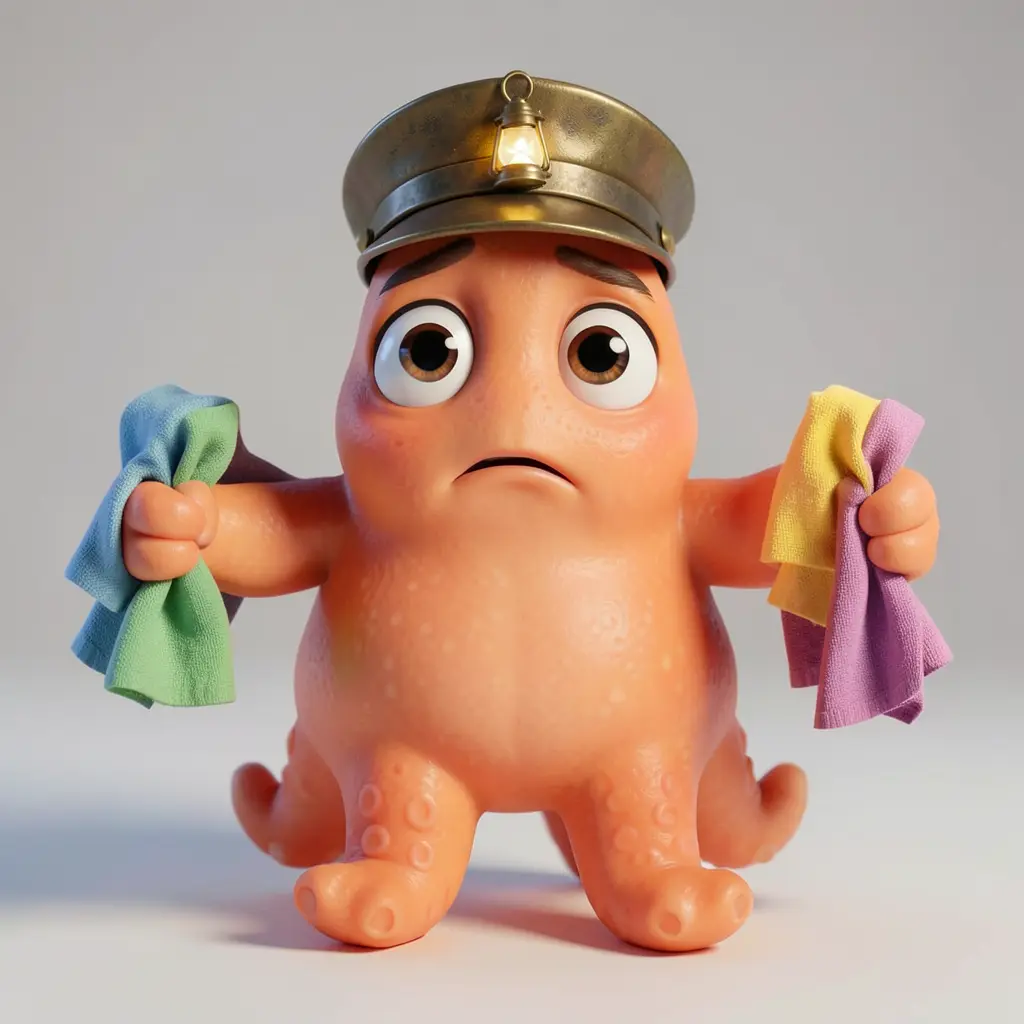 frame_1.png
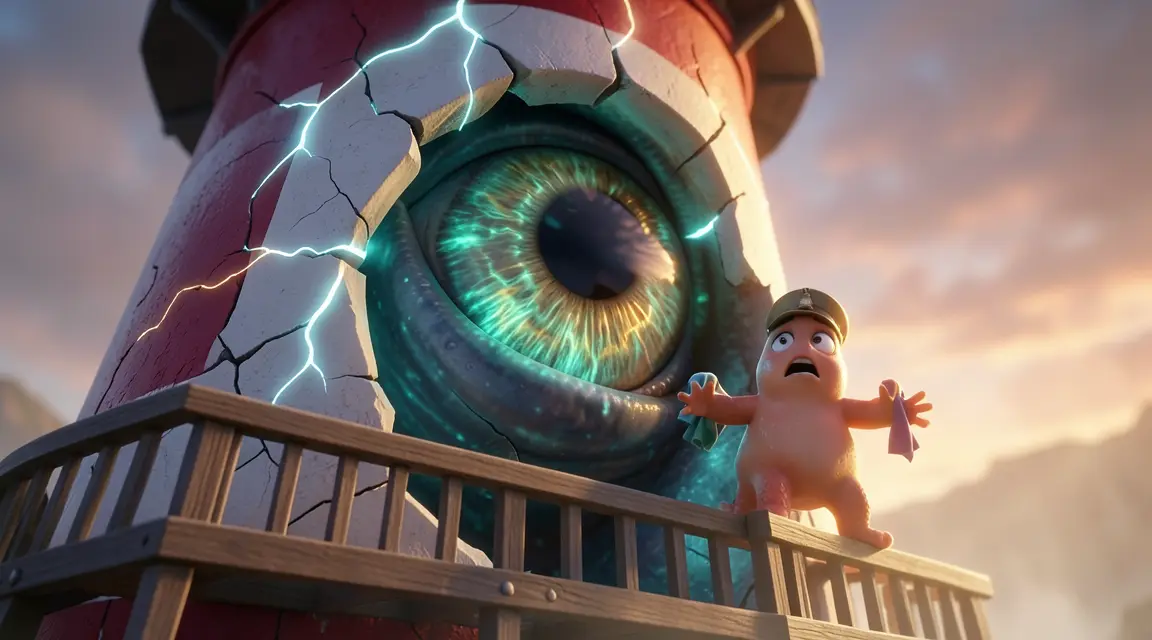 frame_2.png
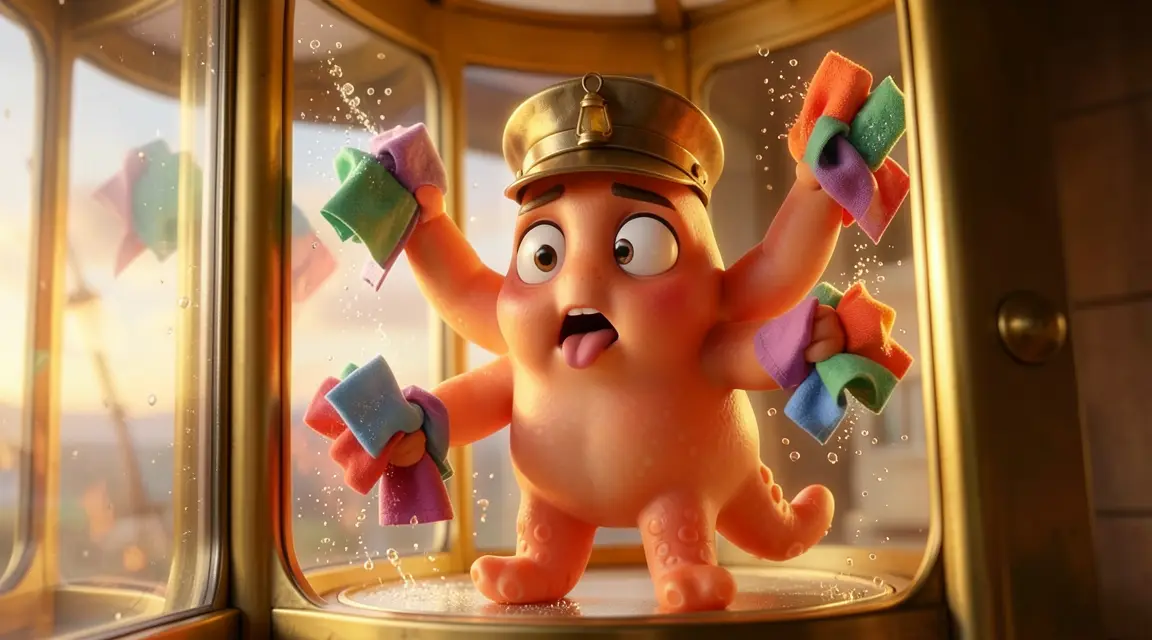 frame_3.png
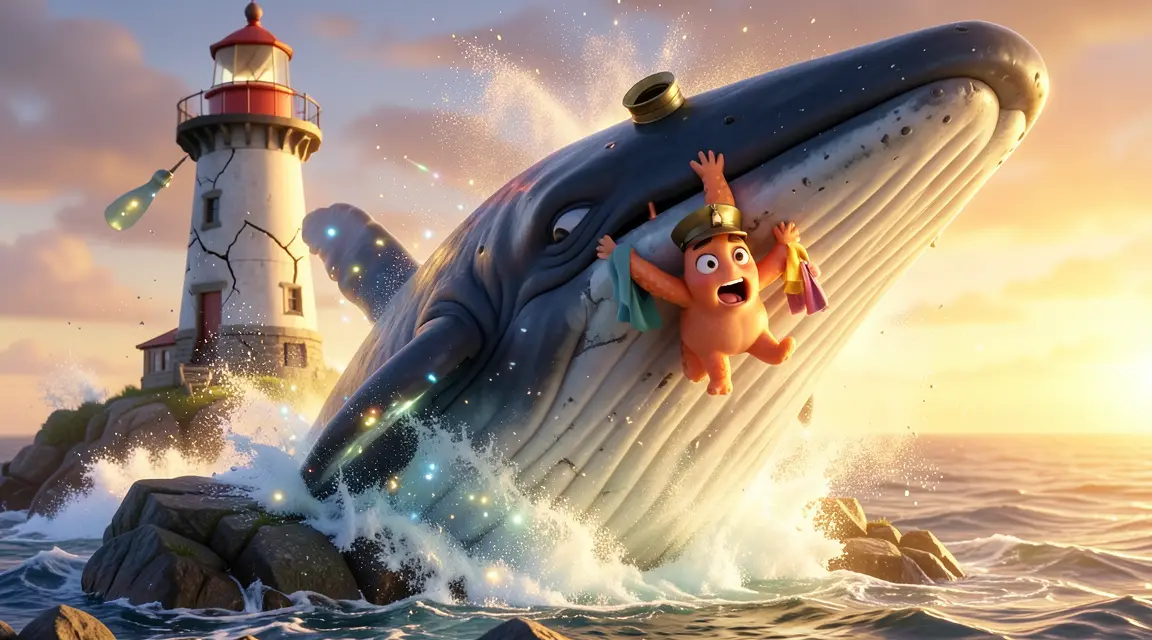 frame_4.png
 frame_5.png
Drag an image here, or click to upload
reference.pngTip: A sharp, well-lit, front-facing face photo with no other people in frame works best. - 3
Choose a mode
The app offers a choice (ask_user_choice): Avatar · Action figure · Sticker pack · Character sheet · 3D turntable. For a consistent character across poses, pick Avatar (and later Sticker pack or Character sheet).
Film Movie StudioRenderSkywick The Sky WhaleNew projectFilesframe_1.pngframe_2.pngframe_3.pngframe_4.pngframe_5.png frame_6.pngframe_01.pngRemixVariationsAdd to timelineFullscreenDelete
 - 4
Pick a style
Choose the avatar's style — e.g. anime, 3D render, chibi, sticker, watercolour or cyberpunk. If you don't name one, the app offers a few fitting options to choose from.
Film Movie StudioRenderSkywick The Sky WhaleNew projectFilesframe_1.pngframe_2.pngframe_3.pngFinal render1080p · MP4SaveFiles - 5
Generate the hero render
The app calls image generation at a square aspect ratio (1:1) with your photo as the reference. The first avatar card drops onto the canvas. This is your "hero" shot — it becomes the anchor for every later pose.
Film Movie StudioRenderSkywick The Sky WhaleNew projectFilesframe_1.pngframe_2.pngframe_3.pngframe_4.png60%promptframe_01.pngRemixframe_02.pngRemixframe_03.pngRemixframe_04.pngGenerating… 80%Remixoutput - 6
Lock identity across poses
Ask for variations or extra angles, e.g. "make 6 expressions in the same style". For each generation the app passes both the original photo and the hero render as references, so the face, hair and outfit stay the same.
Film Movie StudioRenderSkywick The Sky WhaleNew projectFilesframe_1.pngframe_2.pngframe_3.pngframe_4.pngframe_5.pngFinal render1080p · MP4SaveFilesTip: Rule #1: reference, reference, reference. A drifting face is the most common failure — anchoring on the photo plus the first render keeps it locked. - 7
Build a sticker pack or character sheet
Let the app generate the full set — a sticker pack of varied expressions, or a character sheet with front, 3-4, side and back views. Each card is produced on its own and the whole set is identity-locked.
Film Movie StudioRenderSkywick The Sky WhaleNew projectFilesframe_1.pngframe_2.pngframe_3.pngframe_4.pngframe_5.png frame_6.png60%promptframe_01.pngGenerating… 42%Remixframe_02.pngGenerating… 68%Remixframe_03.pngGenerating… 55%Remixframe_04.pngGenerating… 80%Remixoutput
 - 8
Review the result on the canvas
Lay the cards out side by side and check that the identity holds. Right-click any card to open its context menu — you can remix, view fullscreen, or send it to the timeline for further work.
Film Movie StudioRenderSkywick The Sky WhaleNew projectFilesframe_1.pngframe_2.pngframe_3.pngTimelineRenderVideoVoiceoverMusicSubtitlesTip: For a larger batch (e.g. a 12-angle turntable) the app asks for confirmation first, since it costs credits and time.
What you get
On the canvas you have a hero avatar plus a whole set of poses and expressions of the same character — face, hair and outfit matched across every card. Use the set as a profile picture, stickers, or a base for an action figure or 3D turntable. The same reference-chaining principle keeps the identity consistent in every further shot.
Pro tips
- After your first good render, always add it as a reference for the next shots — it keeps both style and face locked.
- Use a square 1:1 aspect ratio for avatars, figures and stickers (the profile-picture shape).
- The 3D turntable isn't a real 3D model — it's generated angles in a drag-to-spin viewer; for an editable mesh (GLB/VRM) you need a different tool.
Try it yourself
FilmMovie Studio is a desktop app that walks you from idea to finished export. Download it and start creating.
Get FilmMovie Studio