Tell a model just "make it anime" and you get a generic, soulless result. The /anime-style-forge skill does what a real style director does: it first traces the style's provenance (family, era, production method — Japanese cel, Ghibli, Korean webtoon, Chinese ink wash, chibi, pixel and more), folds it into three axes — Form / Aesthetic / Mood — names the style's "soul", and writes it all into a Style Spec. You approve that spec and it becomes a reusable card on the canvas — generate character after character in one consistent style, or convert an attached photo into your chosen anime look. This guide covers both modes: pure text and photo conversion.
What you'll need
- An open project in FilmMovie Studio and at least one image generation provider configured in Settings.
- An idea of the target style (e.g. "90s cel anime", "Ghibli", "Korean webtoon") or a photo you want to convert.
- A short character or scene description — one or two sentences is enough.
Step by step
- 1
Launch the /anime-style-forge skill
In the chat panel click the skill icon and pick /anime-style-forge (or type the command). The skill runs in two modes: pure text (a character description + a style name) and conversion of an attached photo.
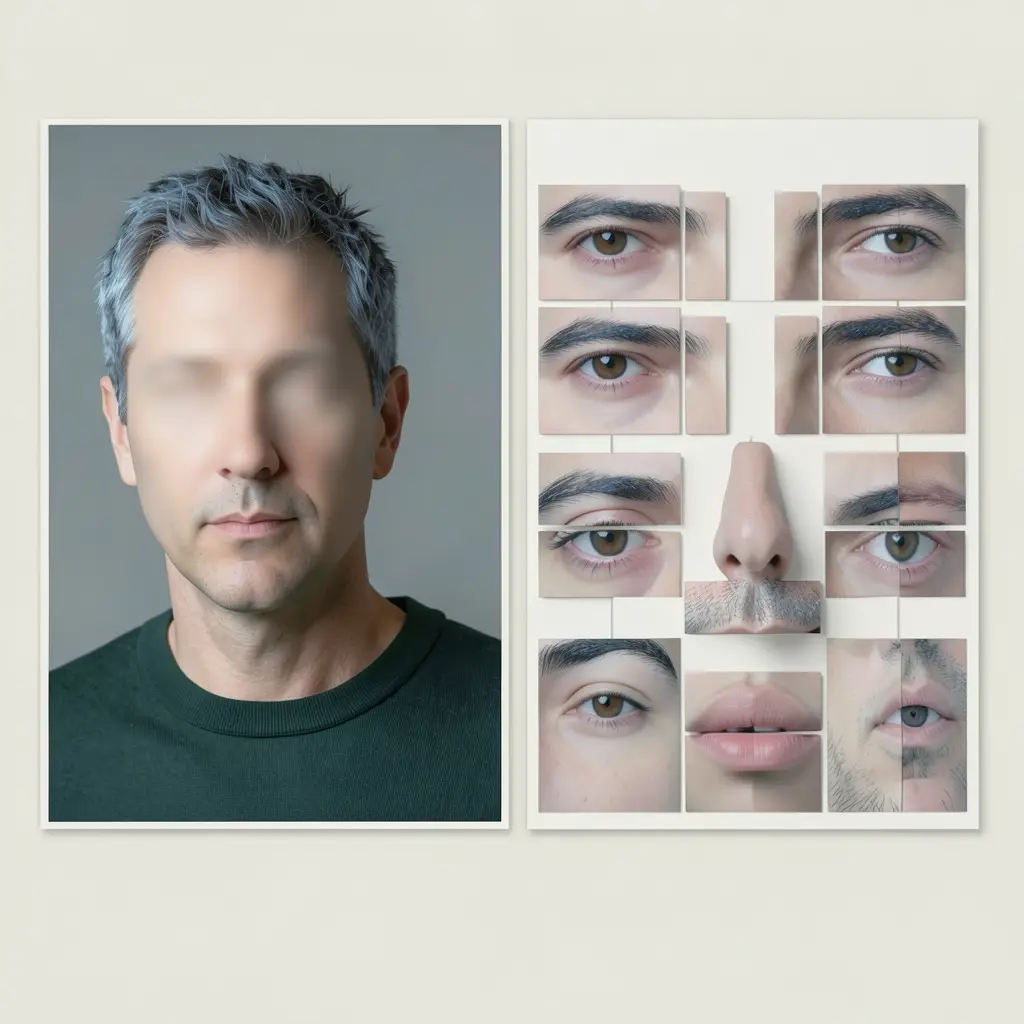
Film Movie StudioRenderCubist Portrait Deconstruct…New projectFiles frame_1.png
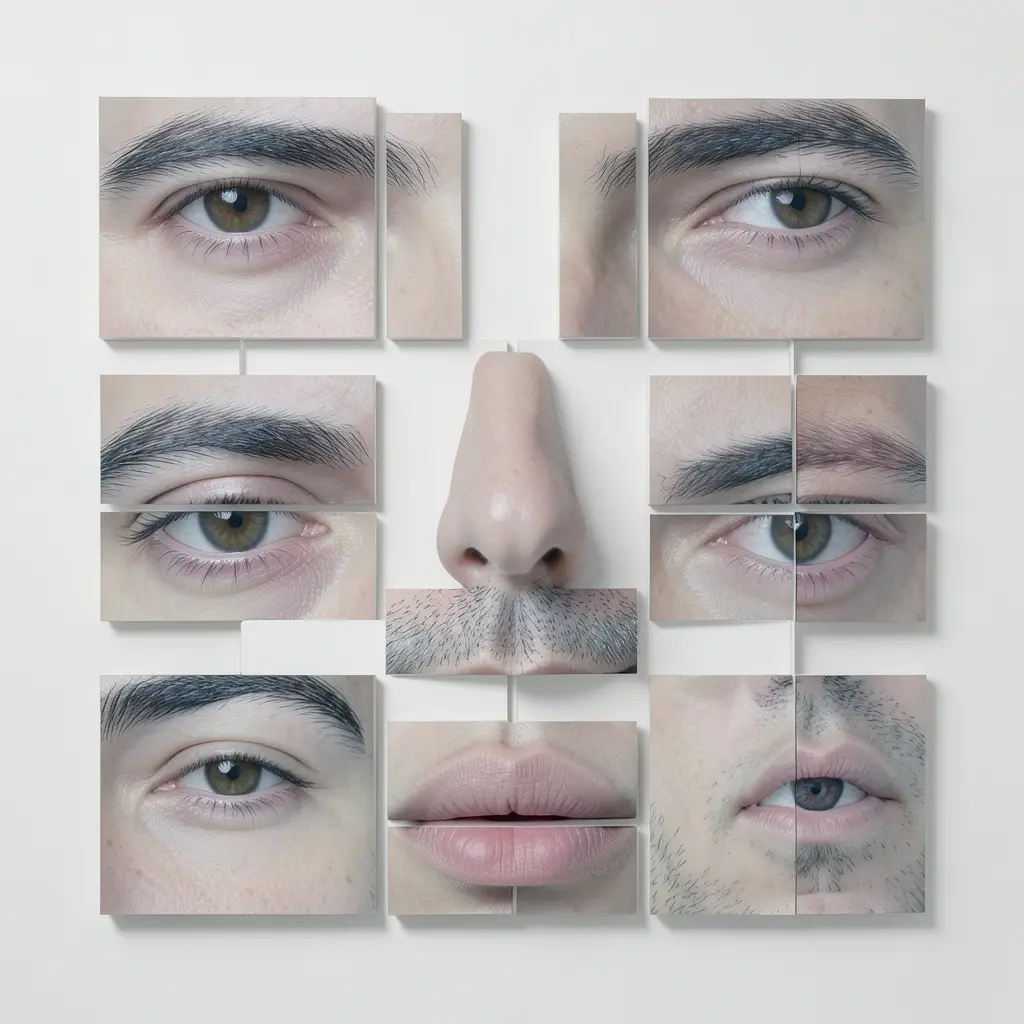
 frame_2.png
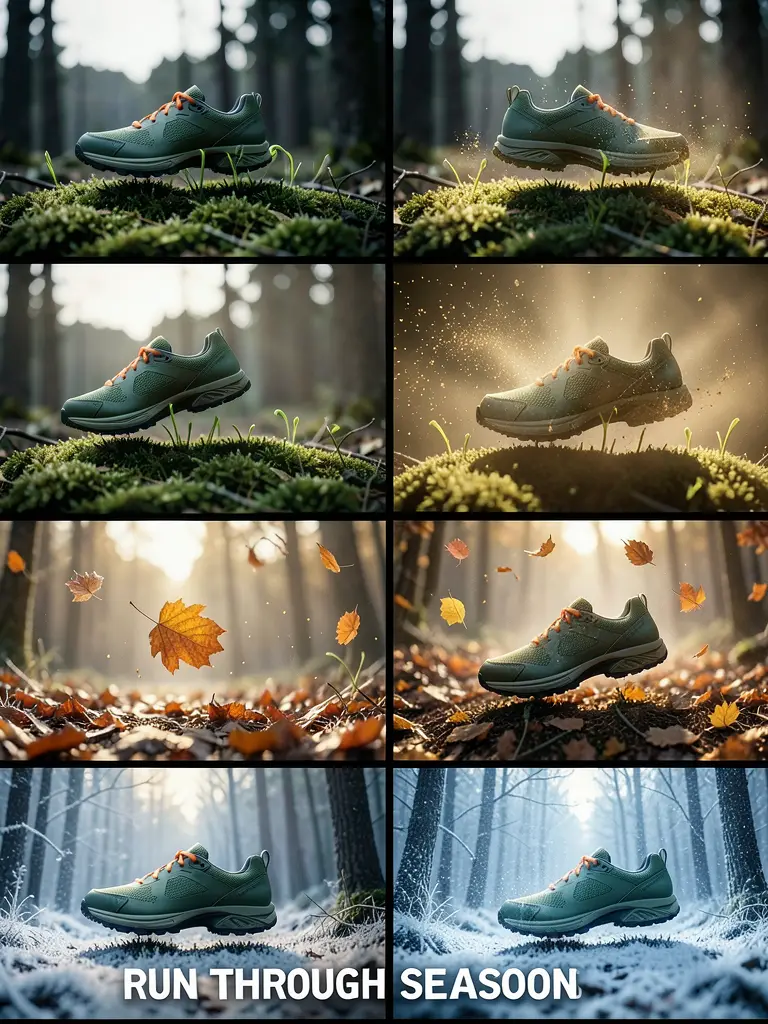
 frame_3.png
 frame_4.png
Drag an image here, or click to upload
reference.png - 2
Give a concept and name the style
In chat, type what you want drawn and in which style, e.g. "a girl in a bakery, Ghibli style" or "a xianxia swordsman in Chinese 3D fantasy style". If you only want to convert a photo, attach it via the paperclip icon — typing a filename into chat won't work, the app needs the actual file.
Film Movie StudioRenderCubist Portrait Deconstruct…New projectFilesframe_1.pngframe_2.pngframe_3.png frame_4.png
 frame_5.png
Drag an image here, or click to upload
reference.pngTip: If you attach a photo without naming a style, the skill identifies it for you and suggests the closest style family plus one alternative. - 3
Wait for the style provenance analysis
The skill traces the style's provenance — family and origin, era and production method — and breaks it down across 10 dimensions (linework, coloring, proportions, face, palette, shading, background and more). It folds those into three axes: Form, Aesthetic and Mood.
Film Movie StudioRenderCubist Portrait Deconstruct…New projectFilesframe_1.pngframe_2.pngframe_3.png frame_4.png
 frame_5.png
 frame_6.pngframe_01.pngRemixVariationsAdd to timelineFullscreenDelete
 - 4
Read the Style Spec card
A document card titled "Style Spec — <style name>" appears on the canvas. It holds the provenance, the style's "soul" (its 1–2 most important axes), Form / Aesthetic / Mood sections with palette hex values, and a list of anchor keywords plus words to avoid.
Film Movie StudioRenderCubist Portrait Deconstruct…New projectFilesframe_1.pngframe_2.pngframe_3.pngDrag an image here, or click to upload
reference.pngTip: This card is reusable — it captures the style's DNA, so you can generate more characters from it in one consistent look. - 5
Approve the spec at the creative gate
The skill pauses and asks: "Generate with this spec?" You get three options: "Approve — generate", "Adjust the spec" (tell it what to change — palette, era, proportions, content) or "Different style". Nothing is generated before this approval.
Film Movie StudioRenderCubist Portrait Deconstruct…New projectFilesframe_1.pngframe_2.pngframe_3.png frame_4.png60%promptframe_01.pngRemixframe_02.pngRemixframe_03.pngRemixframe_04.pngGenerating… 80%Remixoutput
 - 6
Watch the image forge on the canvas
Once approved, the skill assembles an English prompt — anchors + content description + axis details — and over-weights the style's "soul". The image card shimmers first, then fills with the result. For conversions, your attached photo is used as a reference so the character's identity is preserved.
Film Movie StudioRenderCubist Portrait Deconstruct…New projectFilesframe_1.pngframe_2.pngframe_3.pngframe_4.png frame_5.png60%promptframe_01.pngRemixframe_02.pngRemixframe_03.pngRemixframe_04.pngGenerating… 80%Remixoutput
 - 7
Check the consistency review and fine-tune
The skill automatically rates the result against the spec (did it hit the soul axis? are proportions, face, linework, palette and mood right?). If the rating is low, it retries once with stronger vocabulary. You can fine-tune with feedback like "thicker lines", "colors too vibrant" or "looks AI-generated".
Film Movie StudioRenderCubist Portrait Deconstruct…New projectFilesframe_1.pngframe_2.pngframe_3.pngframe_4.pngframe_5.png frame_6.png60%promptframe_01.pngGenerating… 42%Remixframe_02.pngGenerating… 68%Remixframe_03.pngGenerating… 55%Remixframe_04.pngGenerating… 80%RemixoutputTip: Fine-tunes just adjust the prompt and regenerate from the same spec — the provenance analysis is not rerun.
 - 8
Save or remix the finished card
The finished card is saved locally in the project. Via its context menu (right-click) you can remix, copy, add to the timeline or view it fullscreen. For another character in the same style, launch the skill again and point it at the same Style Spec.
Film Movie StudioRenderCubist Portrait Deconstruct…New projectFilesframe_1.pngframe_2.pngframe_3.pngTimelineRenderVideoVoiceoverMusicSubtitles
What you get
You've forged an anime image that isn't generic but faithful to a specific style — plus a reusable Style Spec on the canvas. From it you can generate more characters or scenes in one consistent look, convert photos into the chosen style, or send cards to the timeline and into other skills. You've captured the style as DNA, not as a one-off adjective.
Pro tips
- Don't blend two style families in one prompt unless you explicitly want a hybrid — "style soup" yields a generic result.
- Avoid "quality" words like 8K, masterpiece or award-winning; they add AI-tell, not quality. The cure for an AI look is style-accurate vocabulary.
- For conversions, always keep the attached photo as a reference — reconstructing from the analysis alone loses the character's identity.
Try it yourself
FilmMovie Studio is a desktop app that walks you from idea to finished export. Download it and start creating.
Get FilmMovie Studio